Shopping Lists
Introduction
Shopping Lists let your B2B customers save products into named lists they can preview, edit, and reorder in seconds. Instead of rebuilding the same order each time, customers keep lists like "Every month order" or "Regular Buys", adjust them whenever they need to, and add them straight to the cart when they're ready to buy.
This is ideal for B2B buyers who place repeat orders, manage seasonal ranges, or prepare an order over several days before checking out. Sales agents can use lists in the same way when ordering on behalf of customers.
Shopping Lists are available to your B2B customers without any setup. Customers can create and manage their own lists from the cart, from any product page, and from the My Account area.
Want to test out Shopping Lists? Head over to our B2B Demo store and give it a go!
Key features
- Faster reordering - customers save the products they buy regularly and add them to the cart in one step, rather than searching for the same items every time.
- Multiple lists per customer - customers keep separate lists for different needs, such as monthly restocks, seasonal lines, or one-off planned orders.
- Add from anywhere - products can be added to a list straight from the product page, the cart or from an existing purchase, so building a list fits into how customers already browse.
- Preview and edit before ordering - customers see exactly what's in a list, change quantities, add or remove products, and reorder items before anything reaches the cart.
- Adds to the cart without overwriting it - sending a list to the cart tops up any matching products already there rather than replacing them, so nothing gets lost.
- Export to CSV - customers and sales agents download a list as a CSV to share internally or work with offline.
How it works
Creating a shopping list
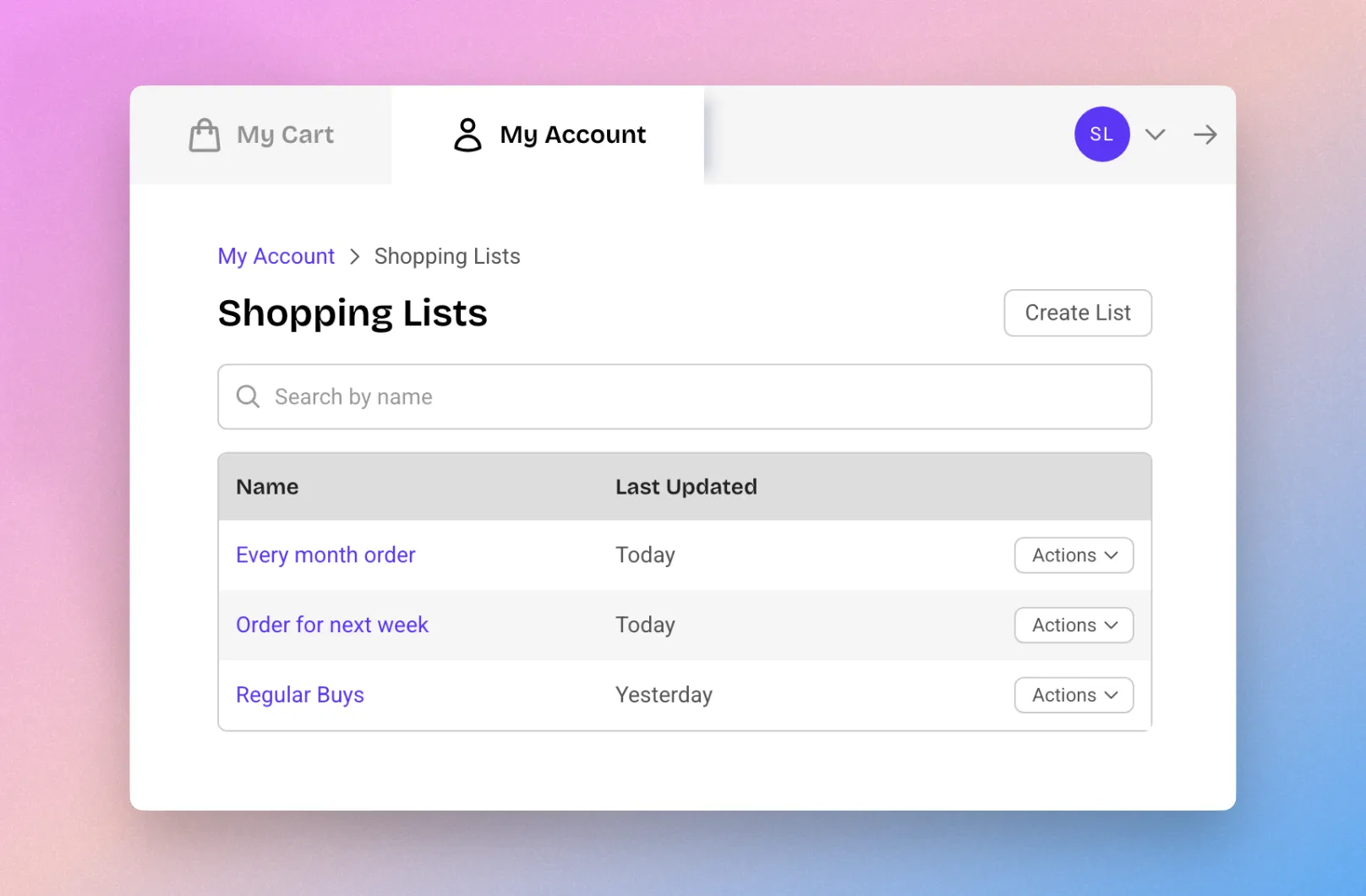
Customers can create a list in three ways:
- From the My Account area, go to Shopping Lists and click Create List.
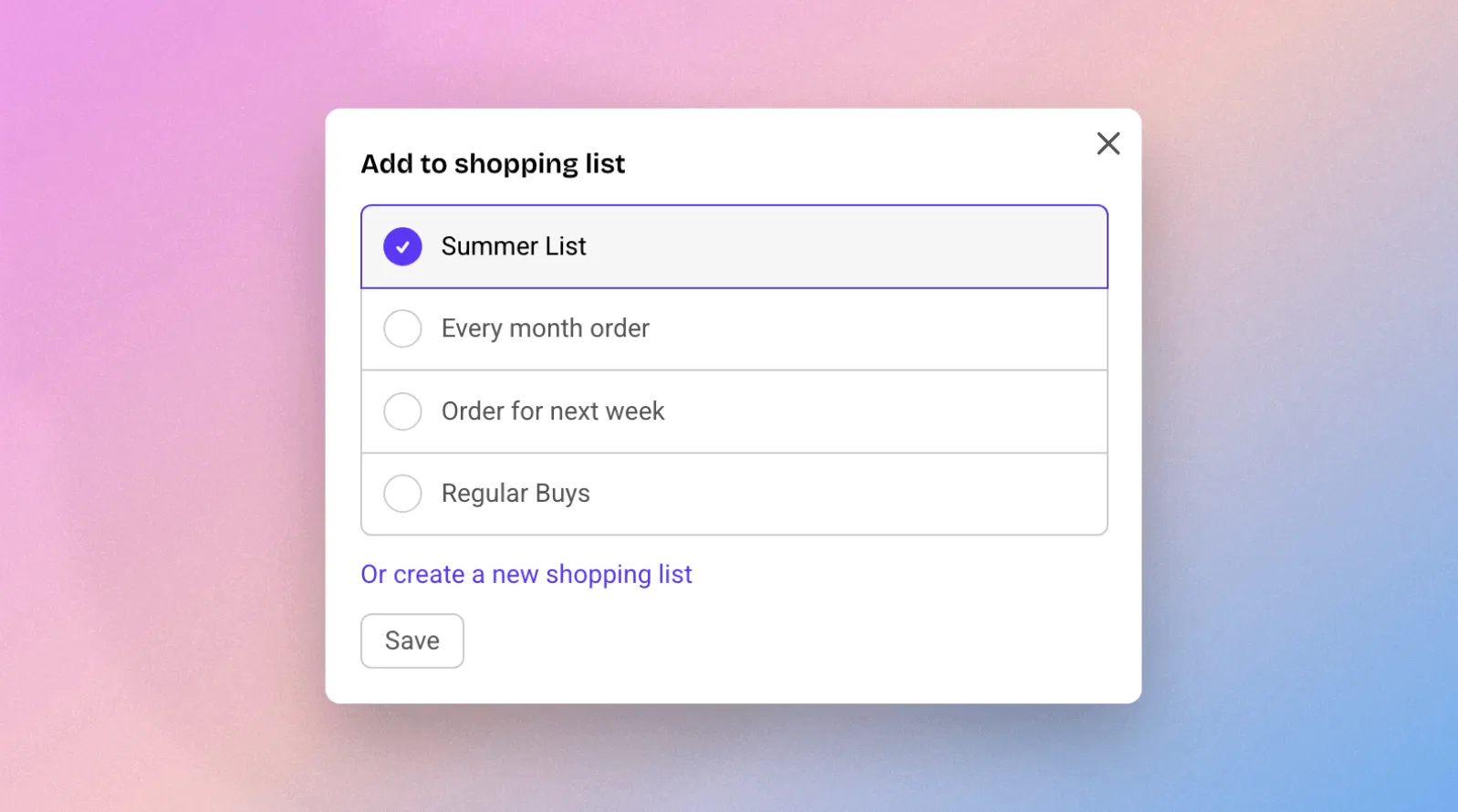
- When adding a product to a list, click Or create a new shopping list in the "Add to shopping list" window.
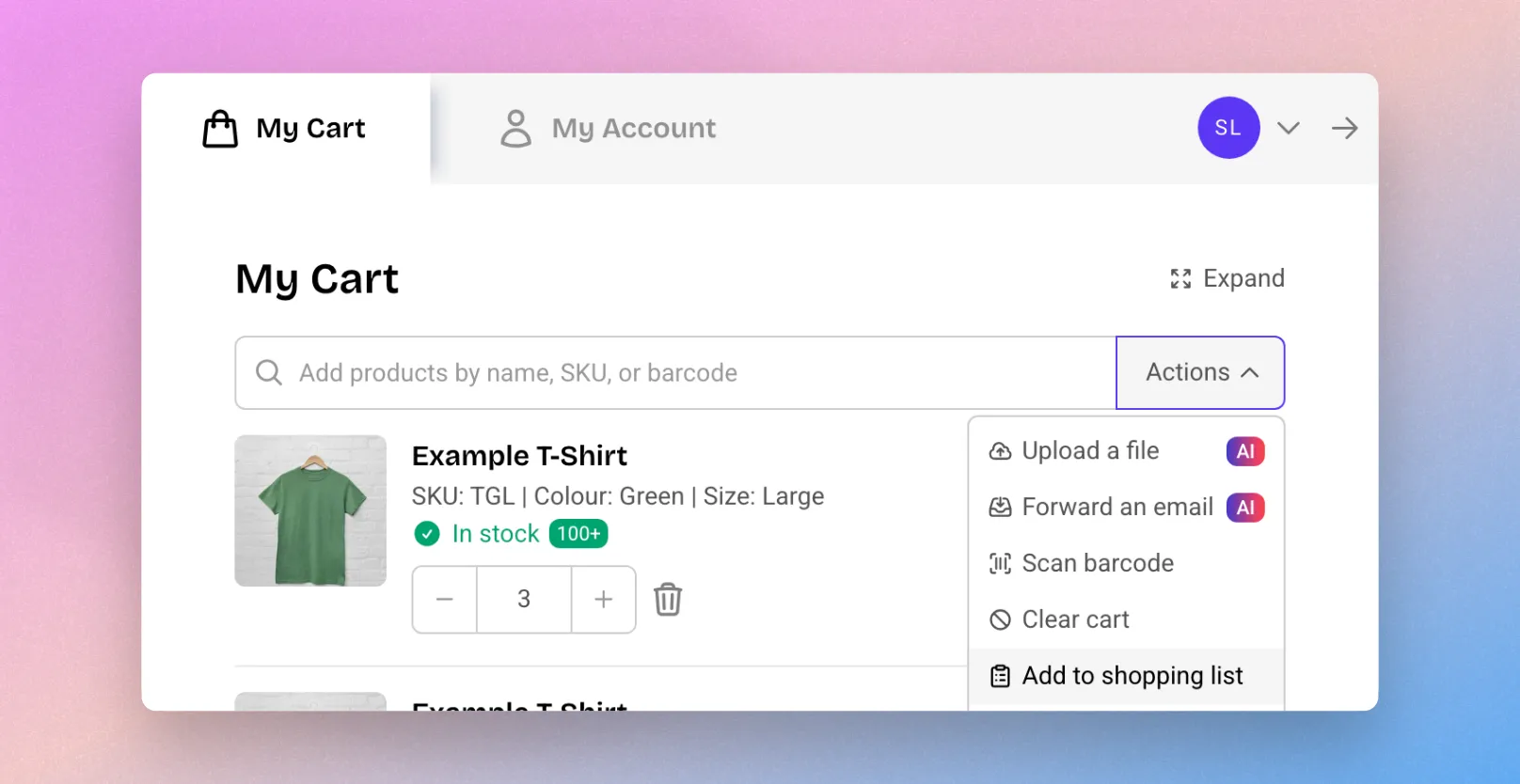
- From the cart, open the Actions menu and choose Add to shopping list, then create a new list.
Each list shows its name and the date it was last updated, so customers can quickly find the one they need.
Please note Creating a list from My Account starts an empty list and leaves the current cart untouched, so customers don't have to clear their cart to begin a new list.
Adding products to a list
There are two places a customer can add products to a list.
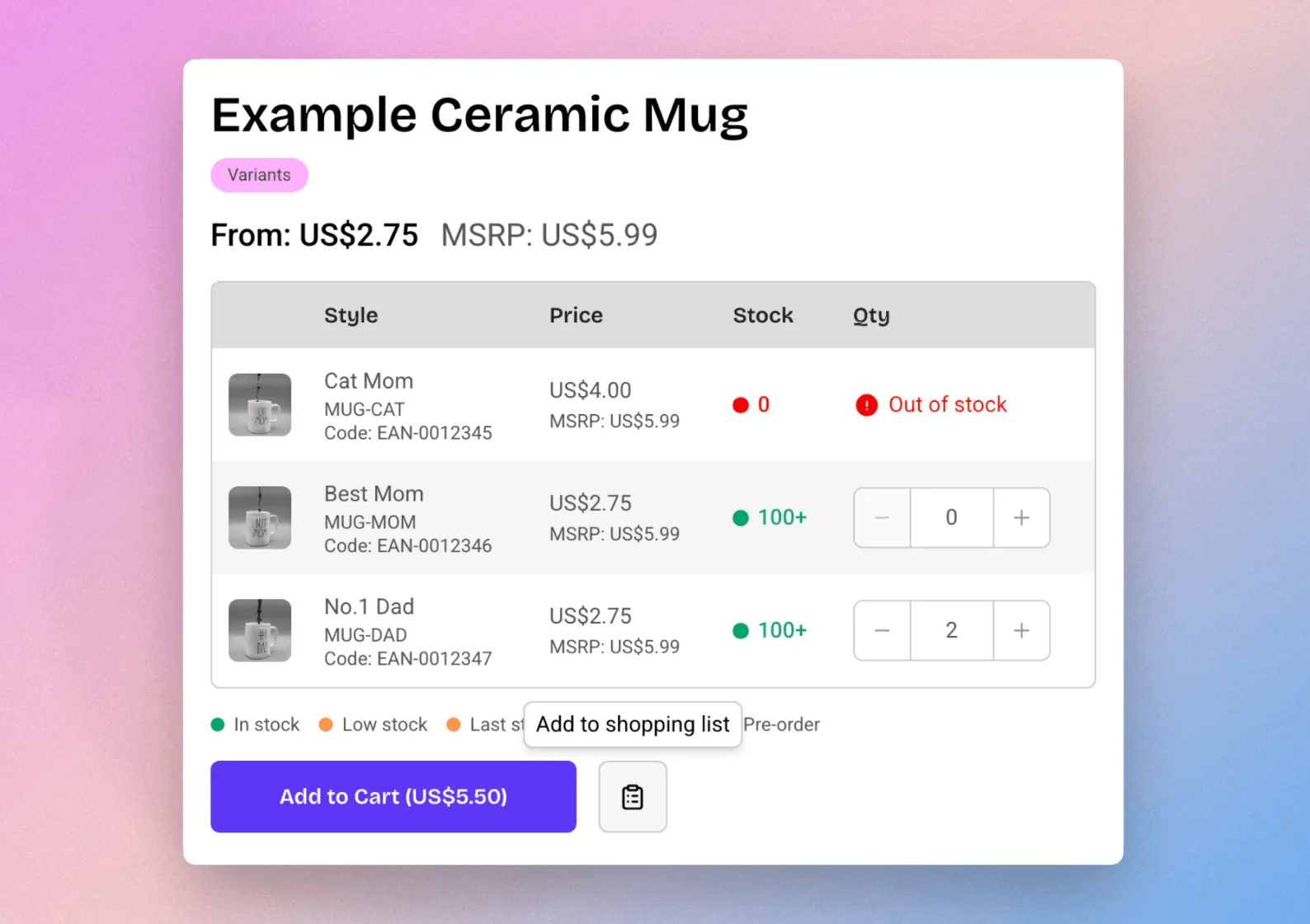
From a product page
On any product page, customers click the Add to shopping list icon next to the Add to Cart button. A window opens where they choose an existing list or create a new one. Whatever quantity the customer has selected is added to the list, and a confirmation message shows the item has been saved.
From the cart
In the cart, customers click Actions, then either Add to shopping list or a specific list shown under the Shopping Lists section of the menu.
In both cases, a window appears where the customer picks the list to add to and clicks Save.
Previewing and editing a list
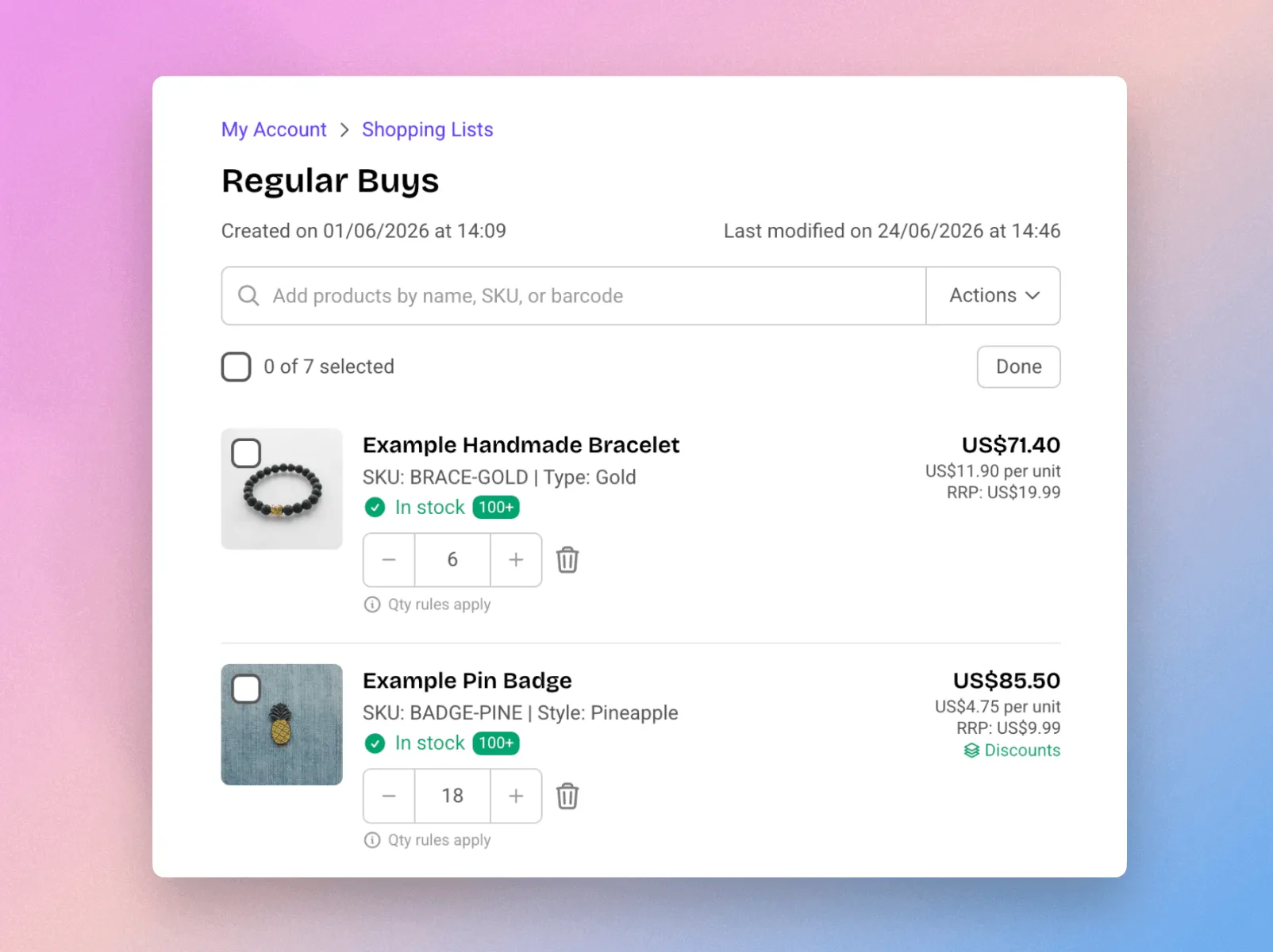
Customers open a list from the Shopping Lists page to see and manage everything in it. From here they can:
- Preview the contents - see every product and its quantity before adding anything to the cart.
- Add products - search by name, SKU, or barcode and add new items with the quantity they need.
- Adjust quantities - increase or decrease the quantity of any item.
- Remove items - delete items one at a time, or select several and remove them together.
Each list also shows when it was created and last modified, giving customers a clear record of their saved orders.
Adding a list to the cart
When a customer is ready to reorder, they can add a list to their cart in two ways:
- Add the whole list - every item in the list, with its saved quantities, is added to the cart.
- Add selected items only - the customer selects the products they want and adds just those.
If a product is already in the cart, adding it from a list increases the existing quantity rather than replacing it. Nothing already in the cart is removed. The customer then continues to checkout as normal.
Exporting a list
Customers and sales agents can download a list as a CSV to share with colleagues or work with offline. Any unsaved changes are saved automatically before the export runs, so the file always matches what's on screen.
The CSV includes the SKU, name, unit pricing, and quantity for every item in the list.
Turning Shopping List off
Shopping lists are on by default. If you'd prefer not to offer them to your customers, you can turn them off from the SparkLayer dashboard:
- Go to Storefront → Options.
- Open the My Account Settings section.
- Turn off the Show shoppinglists toggle.
- Click Save & publish to apply the change to your live site.
Once turned off, the shopping lists icon no longer appears on product pages, and the Shopping lists section is removed from the My Account.