Data Sync
Introduction
The Data Sync section is the heartbeat of your SparkLayer integration and gives you visibility of the product and customer data being synchronised from your online store. It's largely used as a way to diagnose any issues and is also useful to review the data being sent from your online store to SparkLayer.
There are a number of reasons why data is synchronised:
Product Sync By synchronising product data, SparkLayer knows what product pricing to display when a B2B customer is signed in and visits a product page on your store. Learn more
Customer Sync By synchronising customer records, SparkLayer can recognise when a B2B customer signs into your store (and subsequently display the correct B2B information to them).
Products Sync
Once you've connected your platform via the Integrations section of the SparkLayer Dashboard, you'll see your product feed appear in the 'Products Sync' tab.
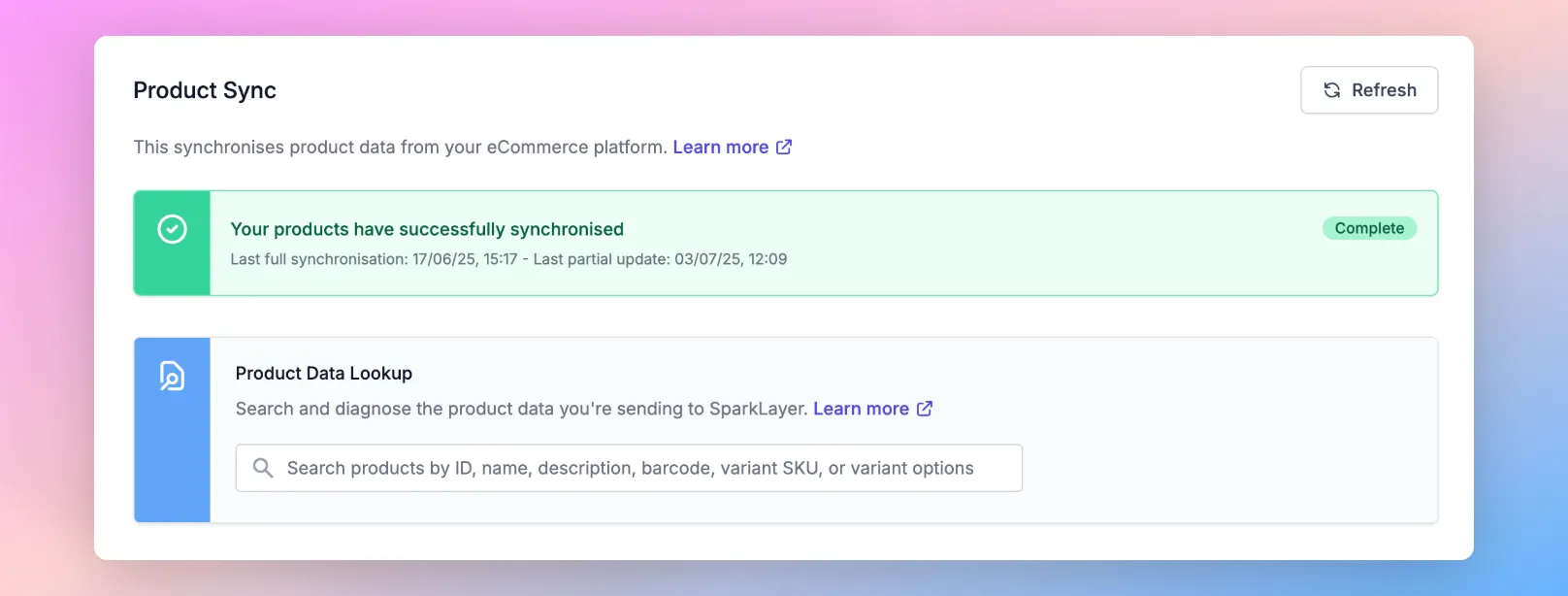
At the top, the status box will notify you of the following states:
Status | Description |
|---|---|
🟢 Green | Products are successfully syncing and data being received |
🟠 Amber | Products are successfully syncing, but errors have been found |
🔴 Red | No product data being received and configuration is required. |
From within the interface, clicking the product feed status box will show further details, such as:
- Products synchronised
- Last import time
- Errors with the feed
Please note By default, SparkLayer will synchronise all products from your online store. Please note, products won't be purchasable until you've set up Pricing for your products.
SparkLayer will by default perform feed refreshes every 10 minutes, however, if you want to manually trigger a refresh, you can do so by clicking the Refresh button. This is useful if you've updated data on your eCommerce platform and want to ensure SparkLayer is synchronised more rapidly.
⚠️ Having technical issues? If you're having issues with setting this up or are experiencing error messages, please refer to our Troubleshooting guide or contact our Support
Product Data Lookup
The product data lookup is a handy tool that lets you inspect and diagnose the product data you're sending to SparkLayer. The search results will display all relevant data, allowing you to drill into more detail.
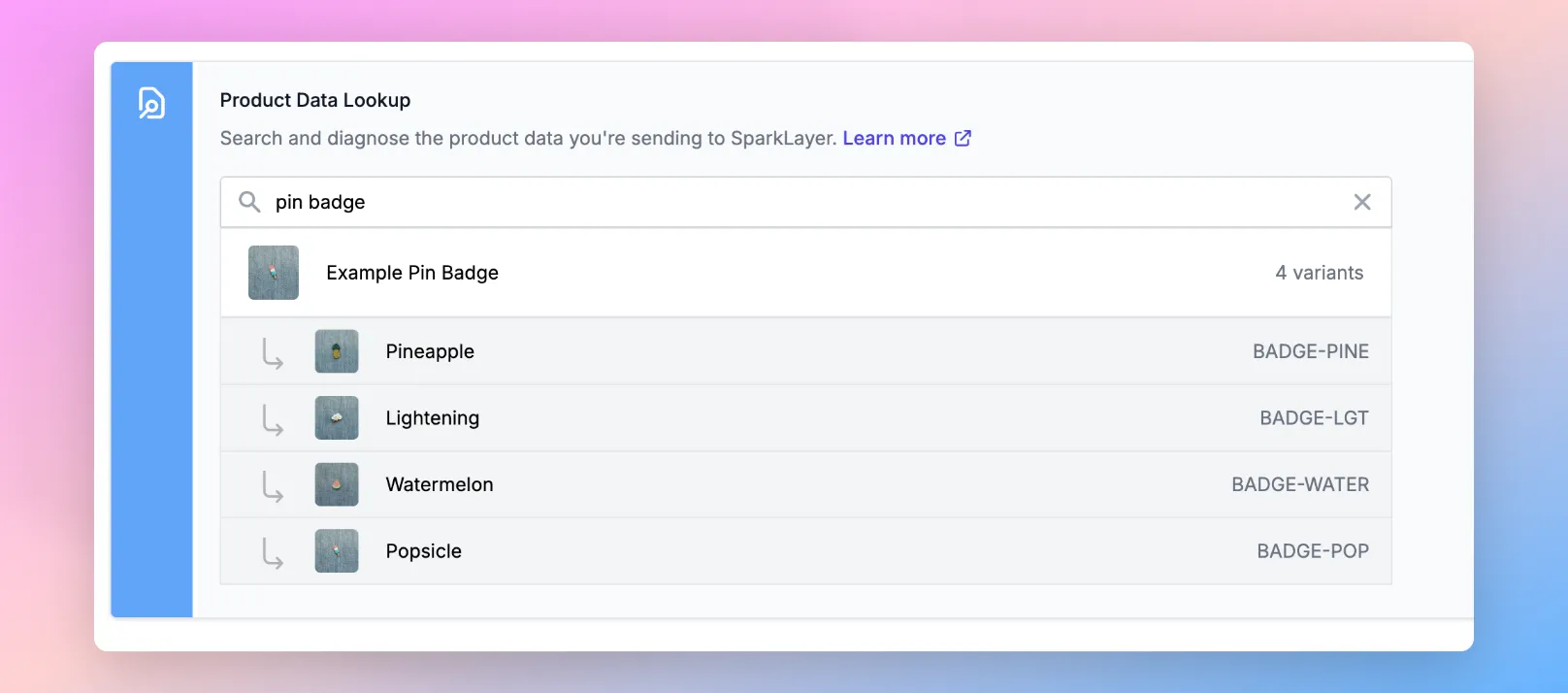
To use the Product data lookup tool, you can search by either of the following:
Type | Details |
|---|---|
Variant SKU | Within your product catalogue you will likely have SKUs (Stock Keeping Units) assigned to your products and variants. For example, a product may come in 3 variants with SKUs:
|
Product ID | You can search by an external product ID. For details on how to find this, click your platform type above |
Product name | You can search by the product name (or part of the full product name) |
Description | You can search by the product description as set within your eCommerce platfom |
Barcode | You can search by barcode (if specified) |
Variant options | You can search by variant option, e.g. "Red", "Green" etc |
Stock
Under the product data lookup, you can view the stock data for the selected variant. This can be in 3 states:
State | Description |
|---|---|
Stock data found | You have stock information configured for this product. A table of stock information for each location will be shown here |
Stock data not found | There is no data about stock in our system. Variants without stock data cannot be purchased |
Stock not being tracked | Stock/inventory tracking has been disabled on this variant within your e-commerce platform. We therefore have no stock information. This variant can still be purchased |
Customers Sync
SparkLayer automatically syncs your B2B customer data from your connected platform. This ensures that when a tagged B2B customer signs into your store, SparkLayer recognises them and displays the correct B2B information. At the top of the Customers page, the customer feed status box will notify you of the current sync state:

The feed status box will notify you of the following states:
Status | Description |
|---|---|
🟢 Green | Customers are successfully syncing and data being received |
🟠 Amber | Customers are successfully syncing, but errors have been found |
🔴 Red | No customer data is being received and configuration is required. |
From within the interface, clicking the customer feed status box will show further details, such as:
- Customers synchronised
- Last import time
- Errors with the feed
Customer data It's important to note that SparkLayer will only import customer data that has been specially tagged as a b2b customer or sent through with metafields with the namespace of 'sparklayer'. This is to ensure that you have control over the types of customers that get imported.
Customer data from Shopify For third-party platforms, such as Shopify, this is set up within the platform itself and you can Data Mapping and Metafieldsread our guide here on how this works.
⚠️ Having technical issues? If you're having issues with setting this up or are experiencing error messages, please refer to our Troubleshooting guide or contact our Support
Viewing customer data
To check the data SparkLayer is syncing for a specific customer, go to Customers in the SparkLayer dashboard and click View on the customer you want to inspect. Their detail page shows all synced information, including basic details, customer group, financial settings, role, and addresses.
This is the easiest way to confirm a customer is syncing correctly and to review the data being received from your platform.
You can also if your customer record is syncing by using the Customer Sync area of SparkLayer. Within Wix, navigate to a Contact record that has a label of b2b. Within the URL, you'll see a unique ID at the end of the URL. In the example below, the unique ID is 66b4c99a-3431-47d6-995d-309e4e8c5908

With this unique ID, you can then paste this into the Customer Sync area of SparkLayer. If the search results show the customer details, this confirms the customer is synchronosing correctly.
