Languages & International
Supported languages
SparkLayer supports a range of languages and when a customer signs in, they'll see the appropriate language native to your store. SparkLayer currently supports the following languages:
Variable | Language |
|---|---|
en | English (default) |
ar | Arabic (with full RTL support) |
zh | Chinese |
hr | Croatian |
cs | Czech |
da | Danish |
nl | Dutch |
fi | Finnish |
fr | French |
de | German |
el | Greek |
he | Hebrew (with full RTL support) |
hu | Hungarian |
is | Icelandic |
it | Italian |
ja | Japanese |
lt | Lithuanian |
lv | Latvian |
no | Norwegian |
pl | Polish |
pt | Portugese |
ro | Romanian |
ru | Russian |
sk | Slovak |
sl | Slovenian |
es | Spanish |
sv | Swedish |
th | Thai |
By default, SparkLayer automatically detects the default language of your store but it is possible to manually overwrite this with the modification of the language variable in the SparkLayer Core Script.
/* Modify the below code with the language variable above, e.g. fr*/
language: {{ request.locale.iso_code | json }},
/* End of code */
Need a language not listed above? If you require a language that isn't on our list, please contact us and we can send details on how to supply translations.
Product data translations
SparkLayer also supports showing product data in the customer's language.
Please note This is not enabled by default and you'll need to follow the steps below
There are a few things to consider if you'd like this enabled on your store:
- You'll need to define your translations in Shopify
- You'll need to assign languages to Shopify markets
- Languages must be published in Shopify
- Your SparkLayer Core Script must be at least version 3.13
- Within your Shopify theme, inside theme.liquid , set the language SparkLayer Core Script option (see below)
- You'll need to contact us to enable syncing translations into SparkLayer
Setting language in SparkLayer Core Script
language: "{{ localization.language.iso_code }}-{{ localization.country.iso_code }}",Once set up, product data displayed by SparkLayer should align with the rest of your site, according to the languages you have set up in Shopify and assigned to markets.
Locale configuration
SparkLayer provides an intuitive formatting system for dates and currency symbols by utilising the locale of the user's browser. This ensures dates and currency symbols are displayed according to the user's regional setting, enhancing the user experience.
However, if you prefer to implement a standard formatting across your user base, SparkLayer offers the option to set a specific locale. By adjusting the locale option, you can establish a fixed format for all of your users, irrespective of their individual browser settings.
/* Modify the below code with the locale required e.g. en-AU*/
 locale: 'en-AU',
/* End of code */
The locale option requires a string input, comprised of a combination of a language code and a two-letter country code, delineated by a hyphen (-).
- For instance, to set the locale for British English, you would use 'en-GB'
- For American English, 'en-US'
- For Australian English, 'en-AU'
- For German 'de-DE'
- etc
This format ensures that the chosen locale accurately reflects both the language and the regional conventions for date formatting and currency symbols.
For your B2B pricing, any currency prefixes will be removed and instead default to the locale you've set. For example, if you set the locale to locale: 'en-US', this would remove the US prefix before your pricing.
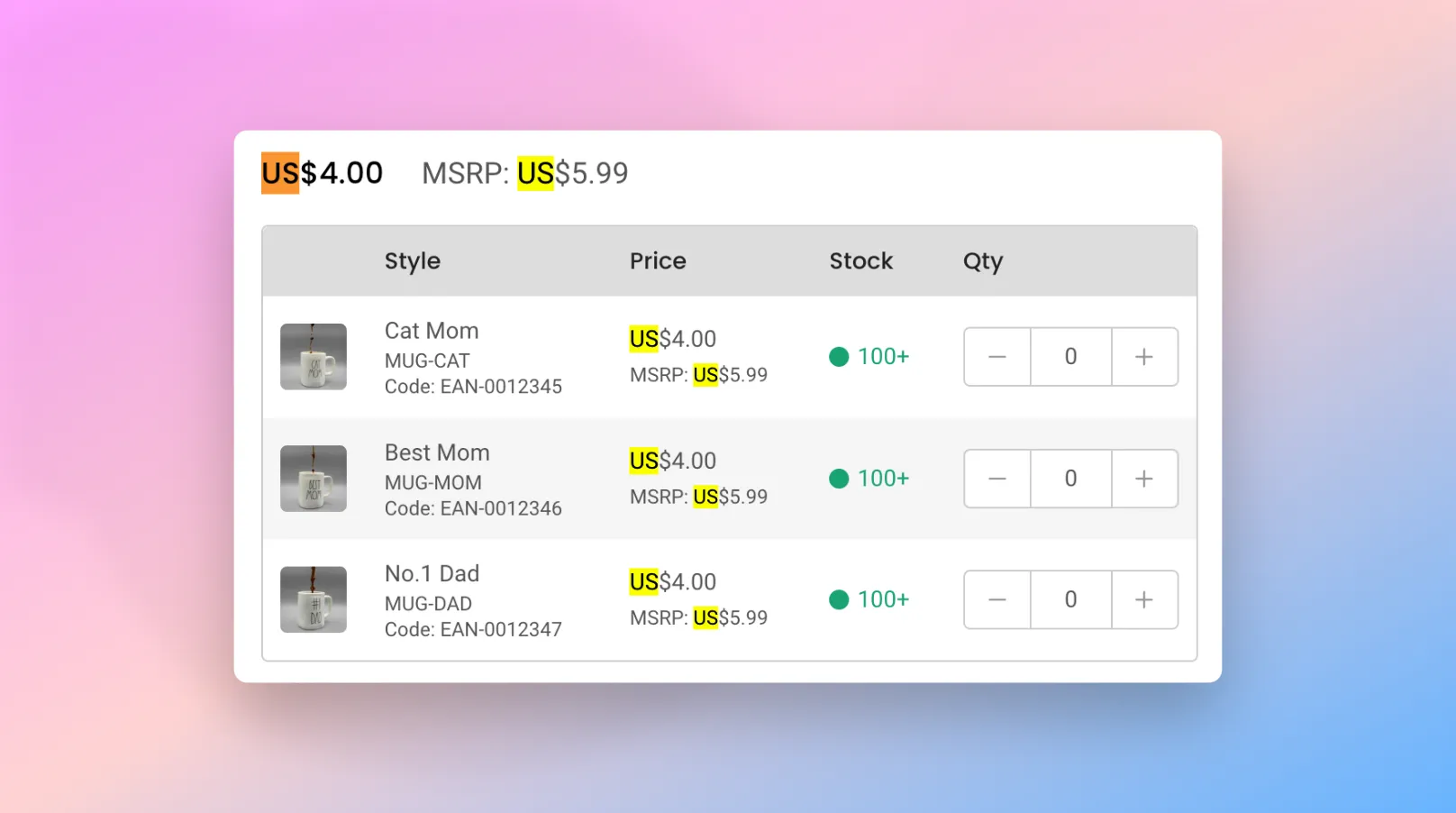
The locale option only affects the formatting of prices, not the values.
Text and language overwrites
SparkLayer uses "language strings" to render the text used in the Frontend Interfaces and any string can be modified with custom text (i.e. overwritten).
If you're wanting to update specific text elements, it's possible to turn on a special setting within the SparkLayer Core Script that exposes specific code snippets that you can then reference with your overwrites.
/* Add the below to your SparkLayer Core Script */
showTranslations: true,
/* End of code */
When this setting is enabled, the SparkLayer interface will then render the special language code snippets. In our example below, you can see the language code for the Product Page Interface
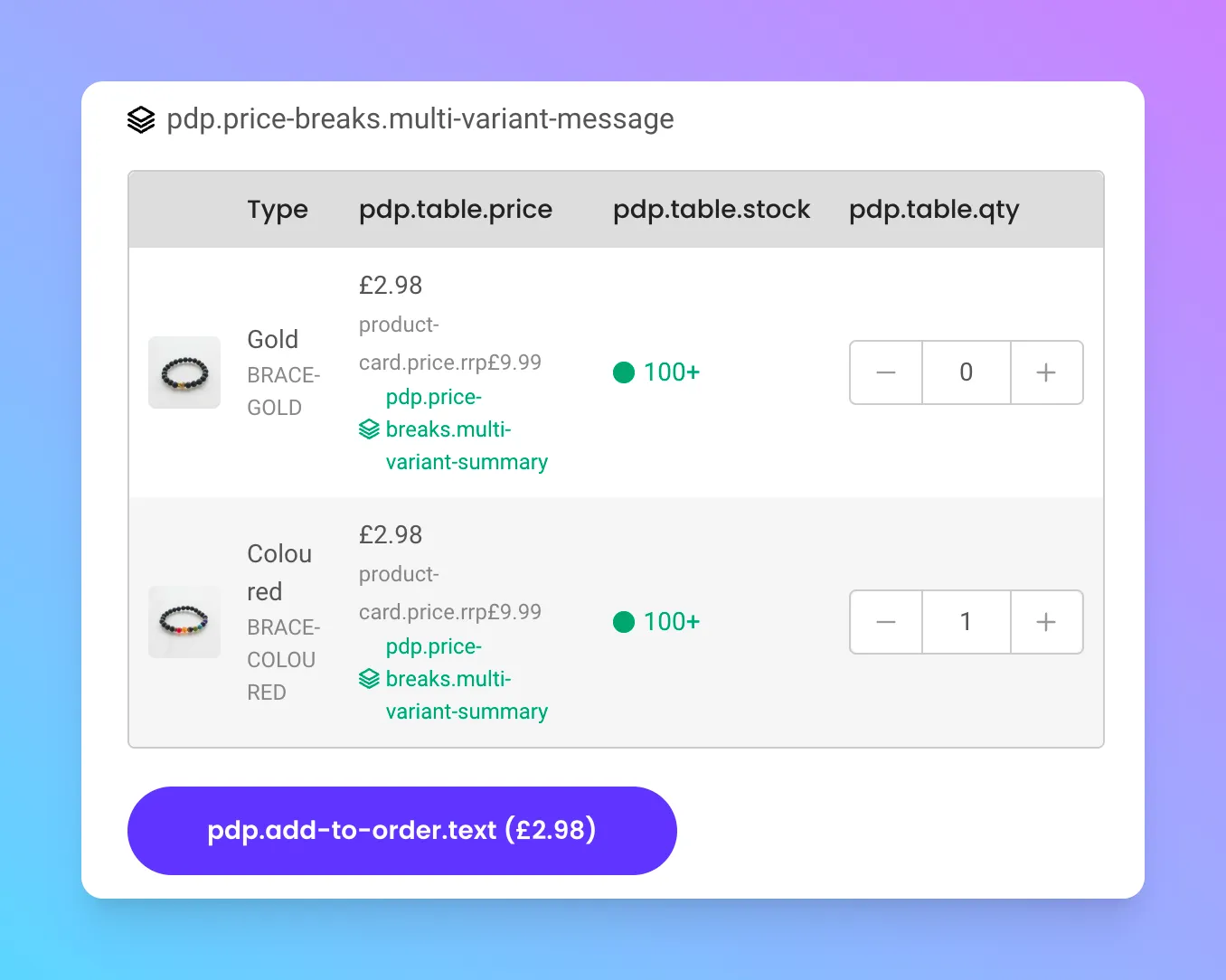
Please note We recommend enabling this setting temporarily or onto a non-published theme to ensure it isn't seen by your logged in B2B customers.
Modifying languages
Add the following to your theme's theme.liquid file, just before the closing </head> tag:
For example, to set the language and account redirect URL:
<script>
  window.sparkOptions = {
    translations: {
       en: {
         "pdp.table.price": "Price",
       }
    },
  };
</script>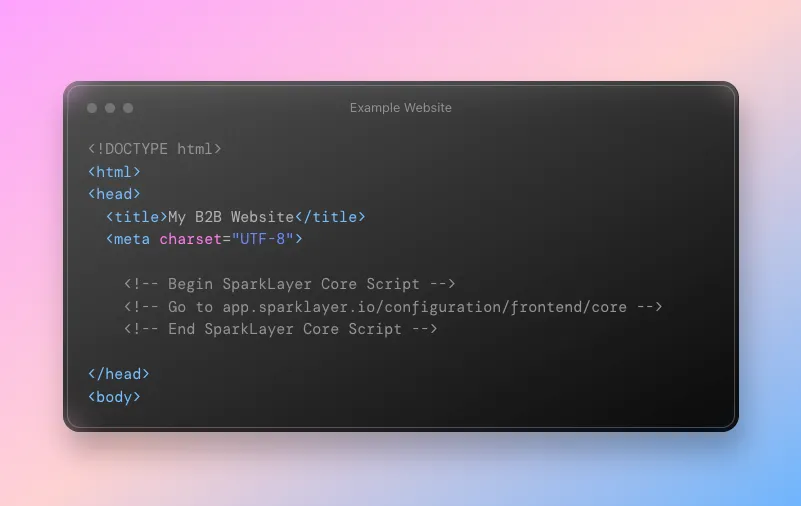
Some important items to note:
- The variable en must be replaced with the specific language of your store (see our supported languages with their special codes)
- The text overwrites must always end the line with a comma
Updating text that contains dynamic variables
For some text content, SparkLayer includes dynamic variables, such as pack sizing or special settings.
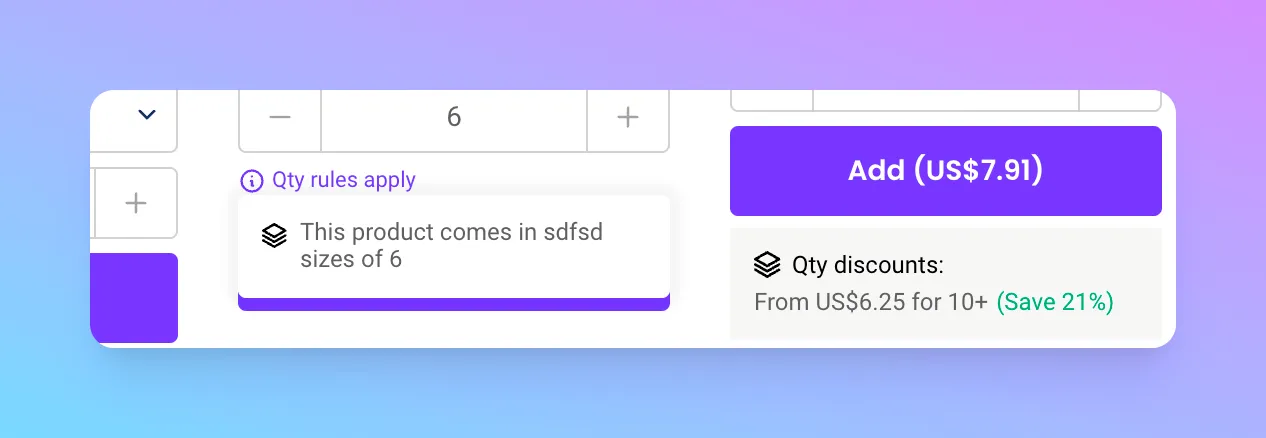
Dynamic variables are always wrapped in 'camel case' , for example {packSize} and you can find a list of all dynamic text below:
<script>
  window.sparkOptions = {
/* Add the below code into the SparkLayer Core Script */
translations: {
  en: {

    // Global
    "global.per-unit": "{price} per unit",
    "global.product-settings.pack-size": "This product comes in pack sizes of {packSize}",
    "min-order-quantity": "Each variant has a minimum order quantity of {minOrderQuantity}",
    "max-order-quantity": "Each variant has a maximum order quantity of {maxOrderQuantity}",
    "min-order-parent-quantity": "This product has a minimum quantity of {minOrderParentQuantity} across all variants",
    "max-order-parent-quantity": "This product has a maximum quantity of {maxOrderParentQuantity} across all variants",

    // Products
    "pdp.setting-info.pack-size": "This product comes in pack sizes of {packSize}",
    "pdp.price.pack-size": "Pack ({packSize}): {price}",
    "pdp.messaging.back-order-due": "Due: {restockDate}",
    "pdp.messaging.stock-qty.low-stock": "Only {qty} available",
    "pdp.messaging.stock-qty.last-stock": "Last {qty} available",
    "pdp.messaging.stock-qty.in-stock": "{qty} available",
    "product-card.price-breaks.cheapest": "From {price} for {qty}+",
    "product-card.price-breaks.saving": "(Save {per}%)",
    "product-card.messaging.back-order-due": "Due: {restockDate}",

    // My Order
    "cart.no-of-order-lines": "{numberOf} {numberOf, plural, =1 {line} other {lines}}",
    "cart.no-of-order-items": "{numberOf} {numberOf, plural, =1 {item} other {items}}",
    "cart.validation-messages.minimum-order-totals": "Your order must be more than {amount} to meet the order requirements.",
    "cart.validation-messages.maximum-order-totals": "Your order must be less than {amount} to meet the order requirements.",
    "cart.validation-messages.minimum-parent-quantity": "Please note, {productName} has a minimum order quantity of {minimum}.",
    "cart.validation-messages.maximum-parent-quantity": "Please note, {productName} has a maximum order quantity of {maximum}.",
    "cart.validation-messages.out-of-stock": "Sorry, {sku} is now unavailable. Please remove this product from your order before checkout",
    "cart.validation-messages.limited-stock-available": "Sorry, we only have {qty} of {sku} available right now, please adjust the quantity in your order before checkout",
    "cart.checkout.confirm-btn.complete": "Complete Order: {total}",
    "cart.checkout.confirm-btn.checkout": "Complete Payment: {total}",
    "cart.checkout.confirm-btn.quote": "Submit Quote: {total}",
    "cart.thanks.payment.blurb": "Your order has now been placed and you will shortly receive email confirmation to {email}. You can check the status of your order at any time by going to 'My Account'.",

    // My Account
    "account.main.my-details.payment-on-account.detail": "Your account balance is {balance} with a credit limit of {creditLimit}.",
    "account.main.my-details.payment-on-account.detail-without-limit": "Your account balance is {balance}.",
  }
},
/* End of code */
   },
  };
</script>