My Cart Interface
Introduction
The SparkLayer My Cart Interface provides your B2B customers with a rapid way to build and place orders on your website. Like the other Frontend Interfaces, the My Cart Interface replaces certain elements of your existing website, providing customers a seamless way to order from you.
You can try our interactive demo by clicking the video below!
How it works
The My Cart Interface replaces your existing website's shopping cart with a specially-optimised layout. It works as an "overlay" and can be accessed on any page by any of the following ways:
- By clicking the shopping bag link, typically in the website's header providing this points to the URL /cart
- By adding products to an order and clicking the link within the notification (see below)
- By adding #spark-cart to the end of a URL, e.g. https://www.yourstore.com/#spark-cart
Notifications
When a customer adds an item to their order, this will trigger a notification to show on the top right of the screen. We refer to this as a "toast notification" and gives the customer instant feedback on their action.
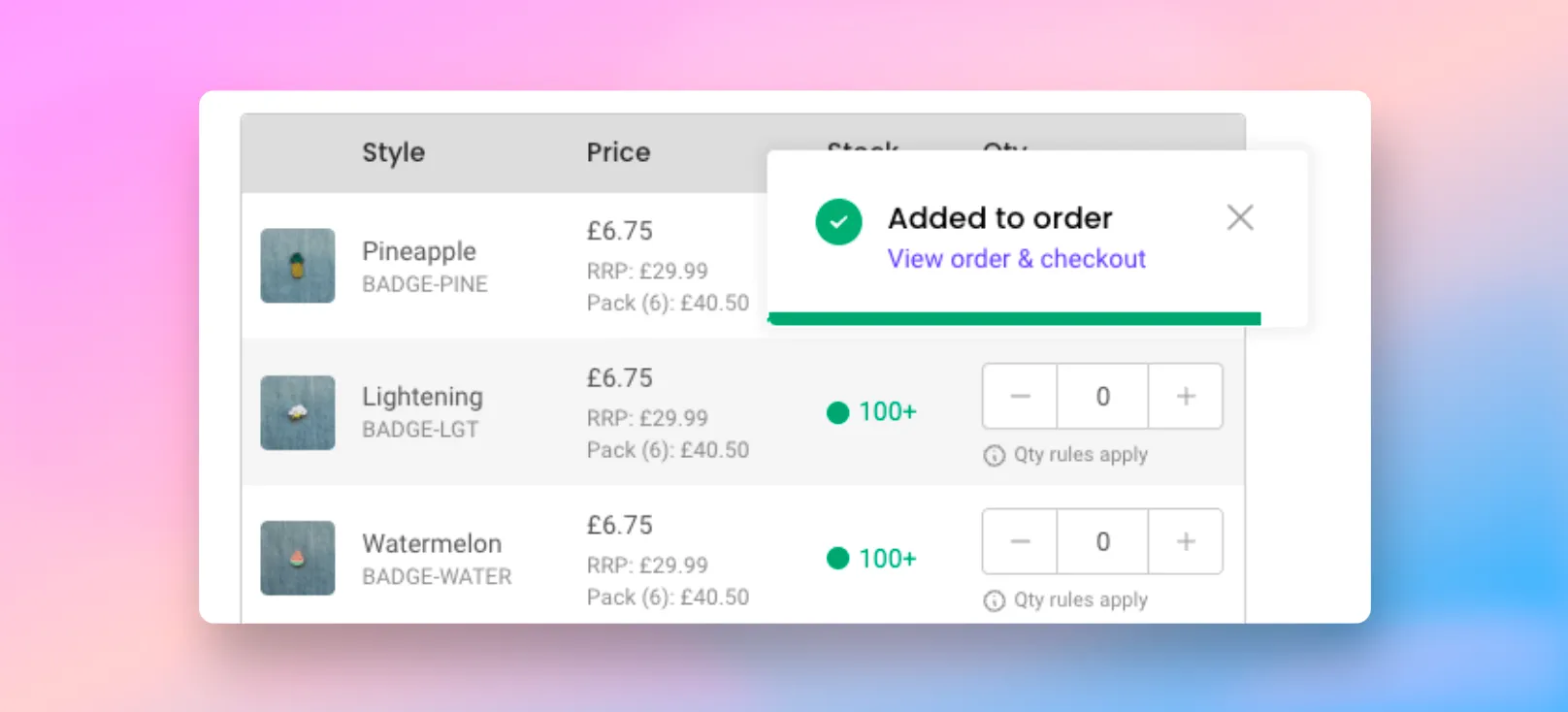
Customising the notifications To see how to customise the styling and animations, please see our guide here
Search & Lookup
Please note To benefit from the search tool below, you'll need to ensure your SparkLayer version is set to 3.8 or above. Learn more about upgrading
The My Cart Interface has a built-in tool that lets customers rapidly add products to their order. There are a variety of types that you can select from:
Type | Details |
|---|---|
Search | This allows you to search by product name, variants, and other related criteria and quickly add products to your order. It will also handle mis-spellings of keywords. It also enables you to add products to your cart in the same way as the SKU/Barcode Lookup option. This type gives your customers the more feature-rich user experience. |
SKU / Barcode Lookup | This allows you to search by SKU / Barcode and will add items to an order only if an exact match is found. This type is useful if your customers use the tool purely for adding exact SKUs or Barcodes. |
How to enable
Depending on your preference, you can enable these via the configuration area of the SparkLayer Dashboard.
Hiding the search / lookup It's also possible to fully hide the search / lookup feature, you can manage this in the SparkLayer Dashboard by selecting Hide search from the Cart search type.
Understanding the types
The Search tool offers an easy way for your customers to quickly add items, allowing them to search by a range of criteria including product name, product description, product SKU, product variant name, product variant option name and barcode.
The tool also handles mis-spellings and "partial matching", ensuring results are delivered where possible and allowing for a more user-friendly search. For example, when searching coffee, results will be returned for entries such as coffe, cofee, cofe
In the example below, searching example coffee returns results of any products that match this term, prioritising those most relevant.
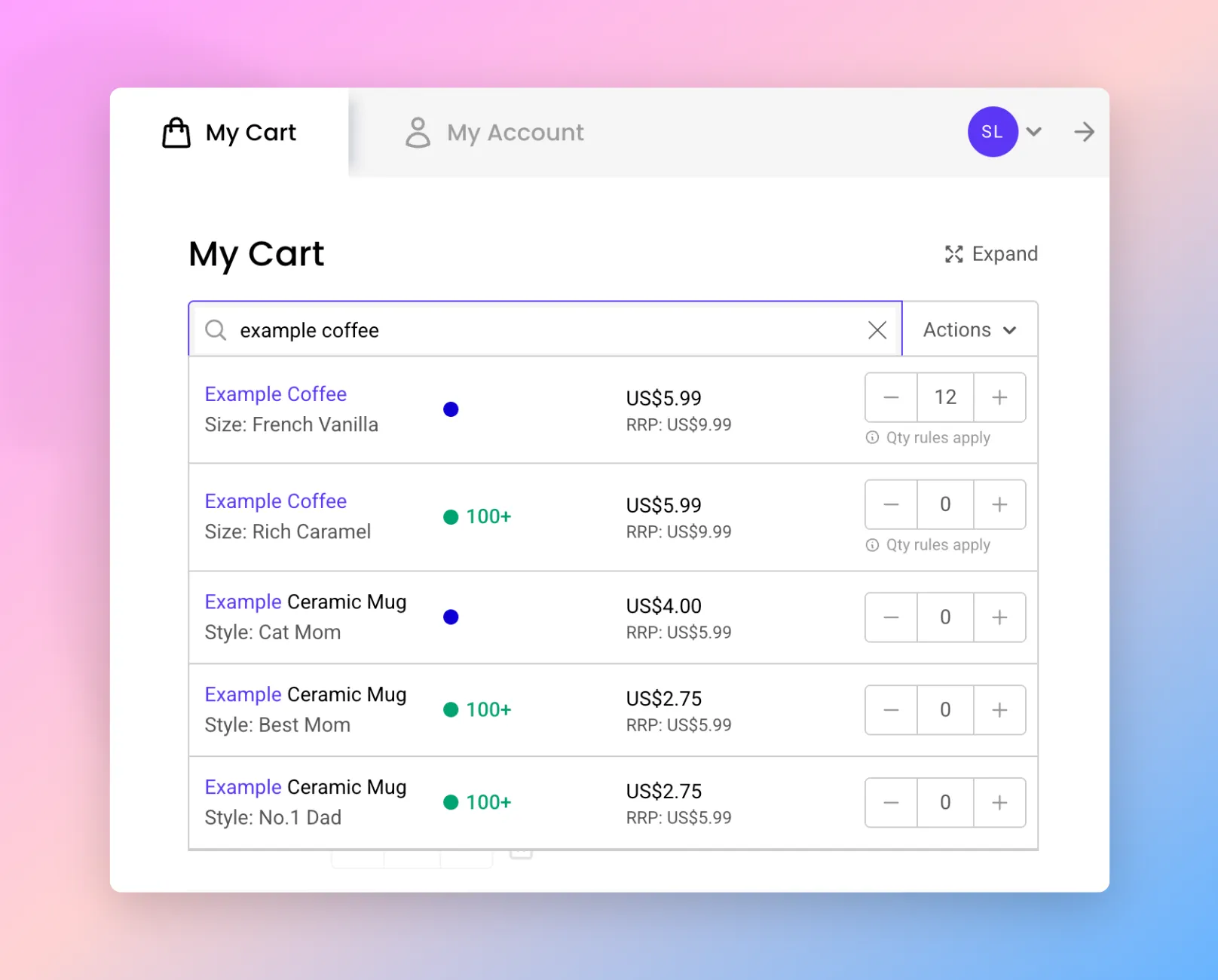
Similar to the main cart, the customer will see the ability to add items to an order using the quantity entry box as well as full visibilty of any quantity discounts, pack size rules, and inventory status.

Please note Each type noted above automatically add products to the order using the rules you've set. For example, if the product has been configured to use pack sizing or minimum or maximum quantities, this will automatically be applied at the point of adding to the order.
Customising the text
It's also possible to adjust the text that shows by default in the search box by adding a special text overwrite as shown below. For example, if you're using barcodes, you may want to inform customers that they can use both a SKU and a barcode to search.
Updating language and text You can update the default text by adding code to your Core Script. Learn more about how to update text on SparkLayer.
/* Add the below code into the SparkLayer Core Script */
/* Please refer to our help guide on how to do this */
translations: {
  en: {
    "cart.quick-order.search-placeholder": "Add products by SKU or barcode",
  }
},
/* End of code */
Intelligent Cart (AI)
SparkLayer Intelligent Cart introduces a revolutionary new way for your B2B customers and sales teams to build orders quickly and effortlessly using the power of AI.
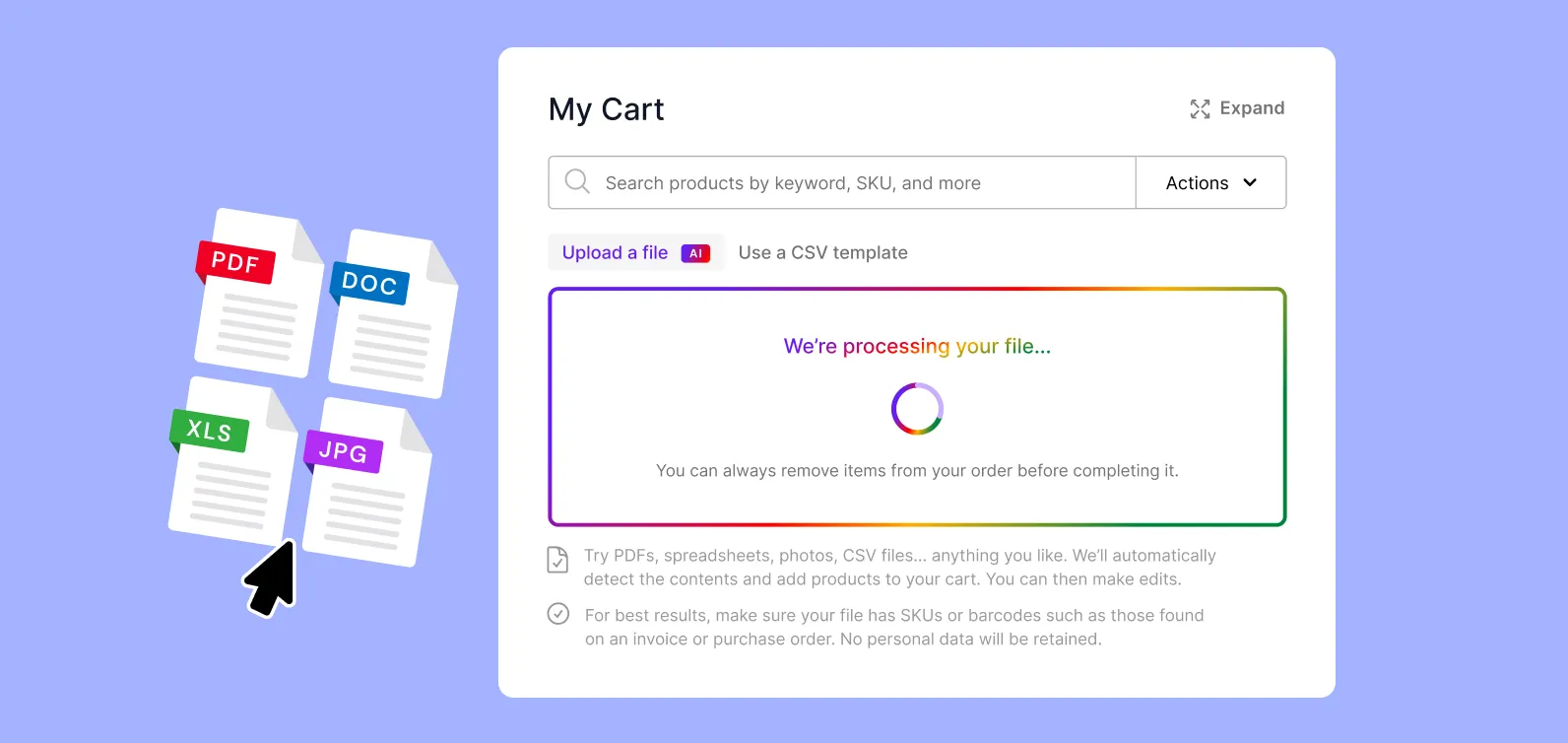
The magic lies in its simplicity: files and emails containing order details (such as SKUs, barcodes, and quantities) can be uploaded or emailed directly to SparkLayer, instantly populating a cart. Learn more about how this works in our full guide here.
CSV file importing
It's possible to quickly bulk upload products by using the "Import CSV file" feature within the 'Options' menu.
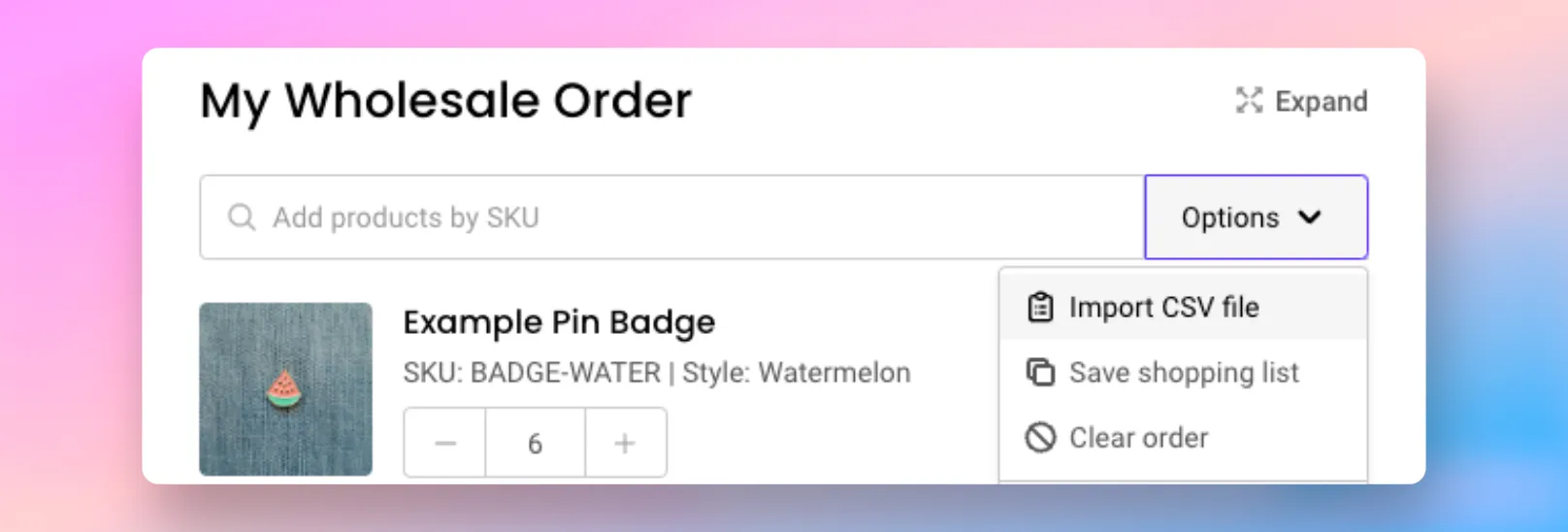
SparkLayer supports two ways to upload the contents of a CSV file:
Type | Details |
|---|---|
File upload | Customers can manually upload a CSV file by specifying two columns:
|
Pasting | Customers can paste the contents of a CSV file into the text entry box |
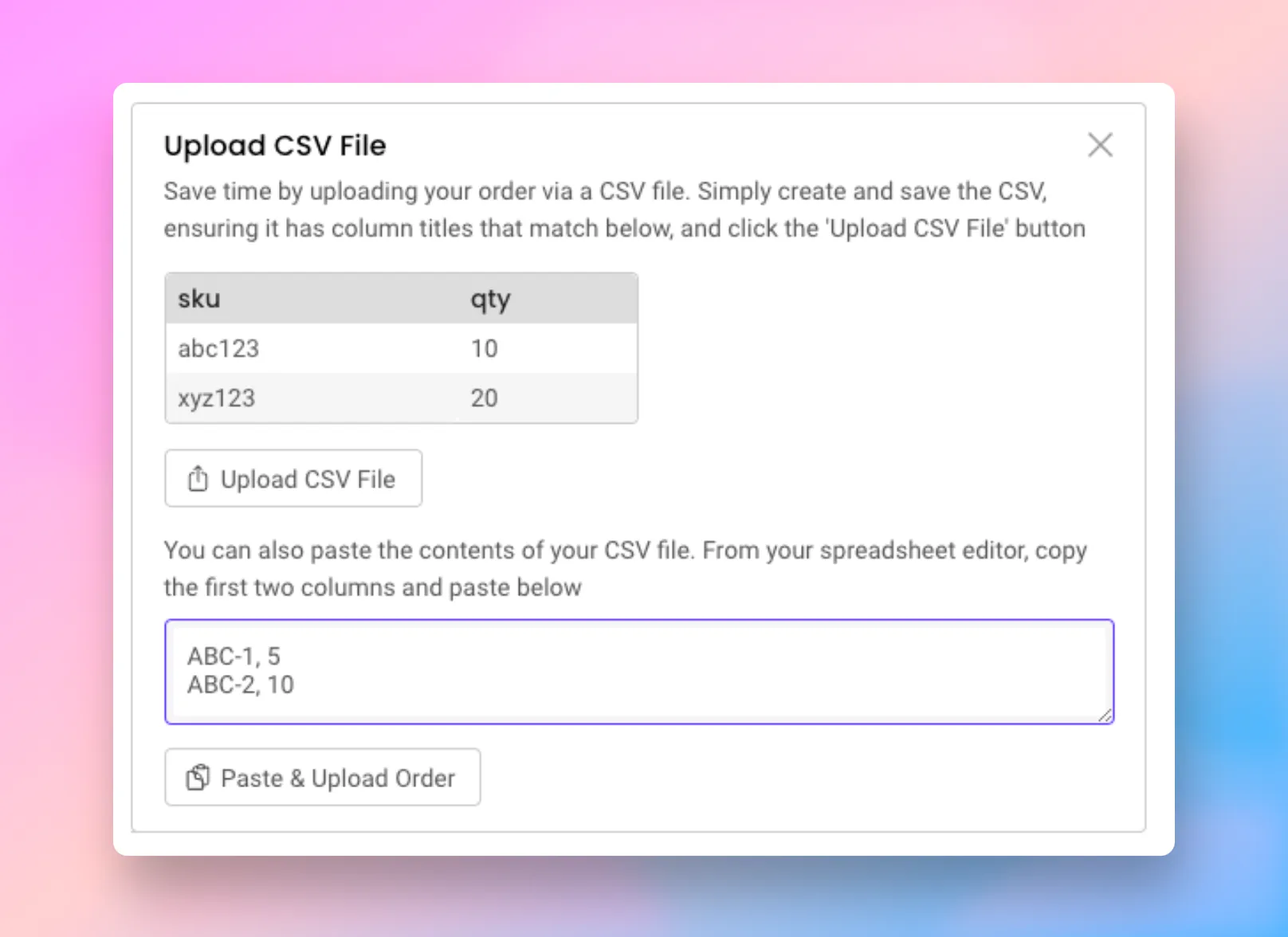
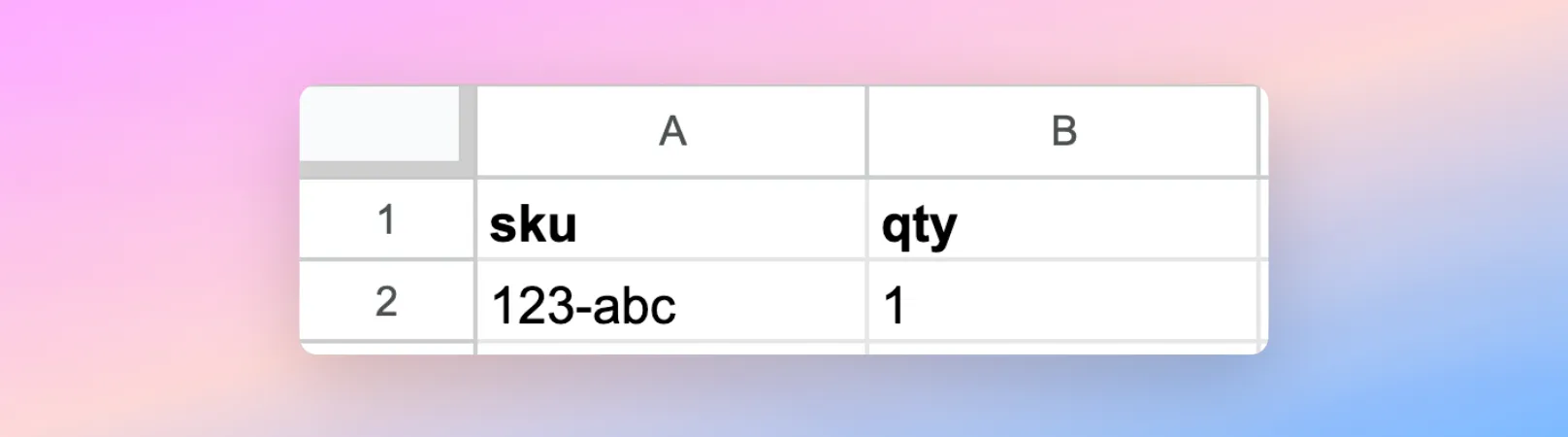
By default, SparkLayer will accept a CSV file that has two columns, sku (or barcode) and qty
It's possible to configure customised titles for these columns, if you have a requirement for them to be more personalised for your customers. In the example below, the columns have been changed to Item No. and Quantity.
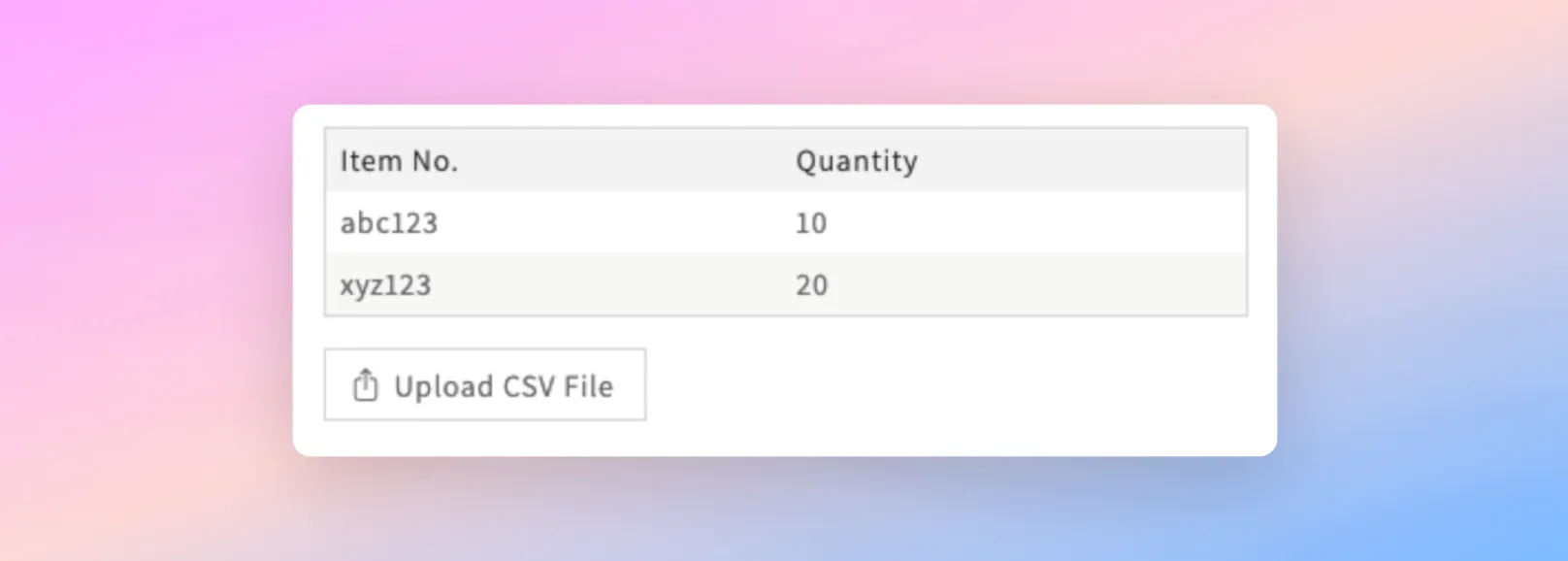
To get started, within your language string overwrites, simply add the below code and update accordingly.
/* Add the below code into the SparkLayer Core Script */
/* Please refer to our help guide on how to do this */
translations: {
  en: {
    "cart.import.csv-headers.sku": "Item No.",
    "cart.import.csv-headers.barcode": "Barcode No.",
    "cart.import.csv-headers.qty": "Quantity",
  }
},
/* End of code */
Please note Providing the contents of the CSV file includes valid SKUs (or barcodes), all products will be added to the customer's order and replace the existing contents. If a product requires specific pack sizes to be specified, the CSV Import will round up to the nearest valid pack size.
Shopping lists
Shopping Lists let your customers save the contents of an order for future use, making it quick and easy to reorder the products they buy regularly.
Products can be saved to a list straight from any product page, and lists can be fully managed from within the My Account area - including previewing, adding, and editing their contents. Your B2B customers and sales agents can also export any list as a CSV, making it easier to share and reorder across teams. Learn more
Checkout process
When a customer is ready to place their order, they can then begin the checkout process. This is split into 4 steps:
My Cart This contains the summary of the products they want to order
Shipping This allows the customer to set their shipping address and complete additional fields (such as PO number)
Review & Pay The customer can confirm their preferred shipping cost, select payment method and confirm their order
Complete This is the final step of the checkout and completes the customer's order
My Cart
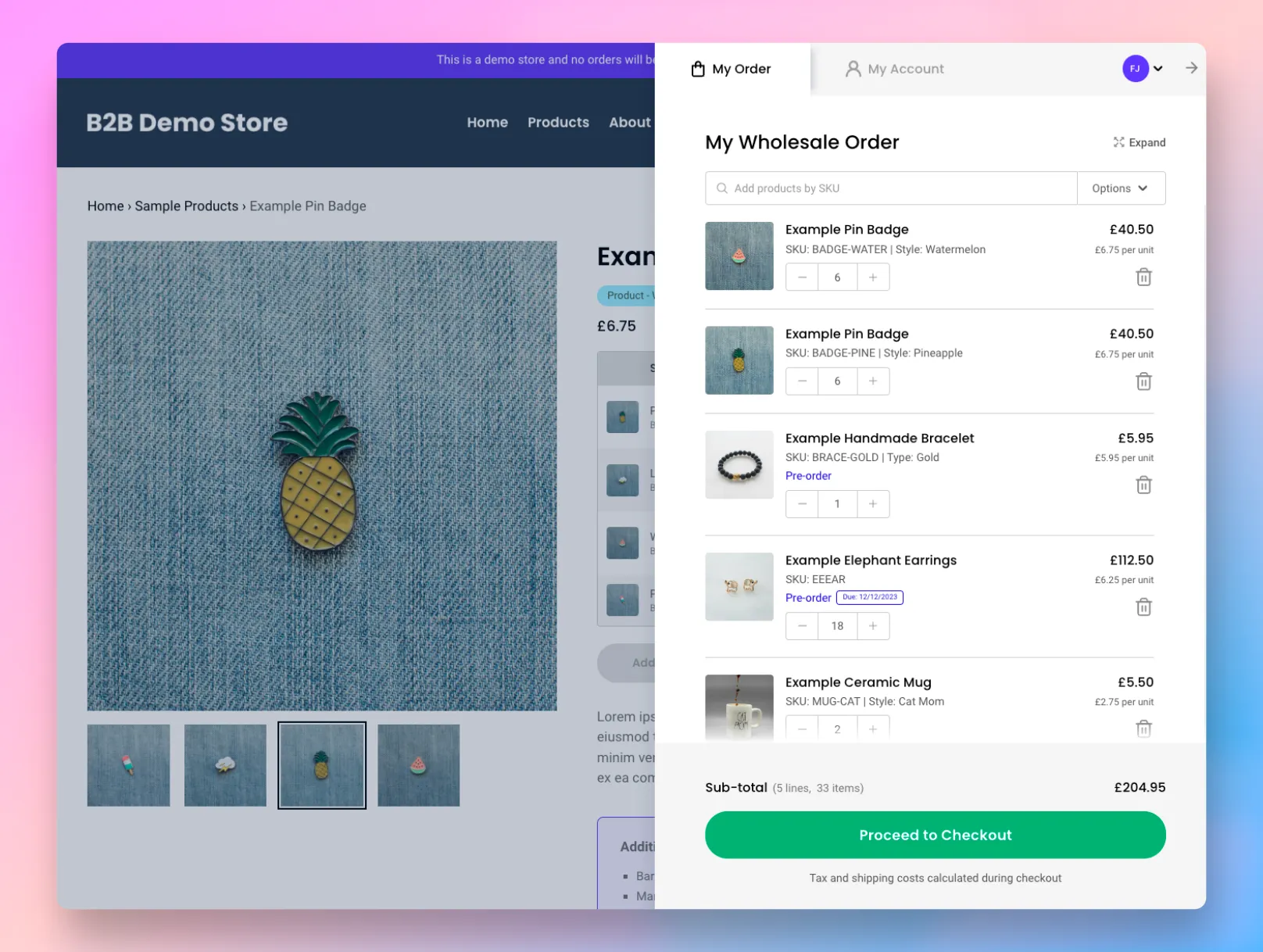
The My Cart step is essentially a summary of the customer's order and lets them:
- View item level costs for products
- Change quantities and remove products
- Clear and empty the contents of an order
- Perform actions such as saving shopping lists or importing CSV files (see above)
- See their order sub-total (typically excluding tax and shipping costs)
Order limit rules It's possible to set minimum and maximum order rules (by order total and order quantity) that a customer has to meet before being able to place an order. Please refer to our full guide here.
Shipping
The Shipping step allows the customer to select their shipping address and complete any data entry fields you may have enabled.
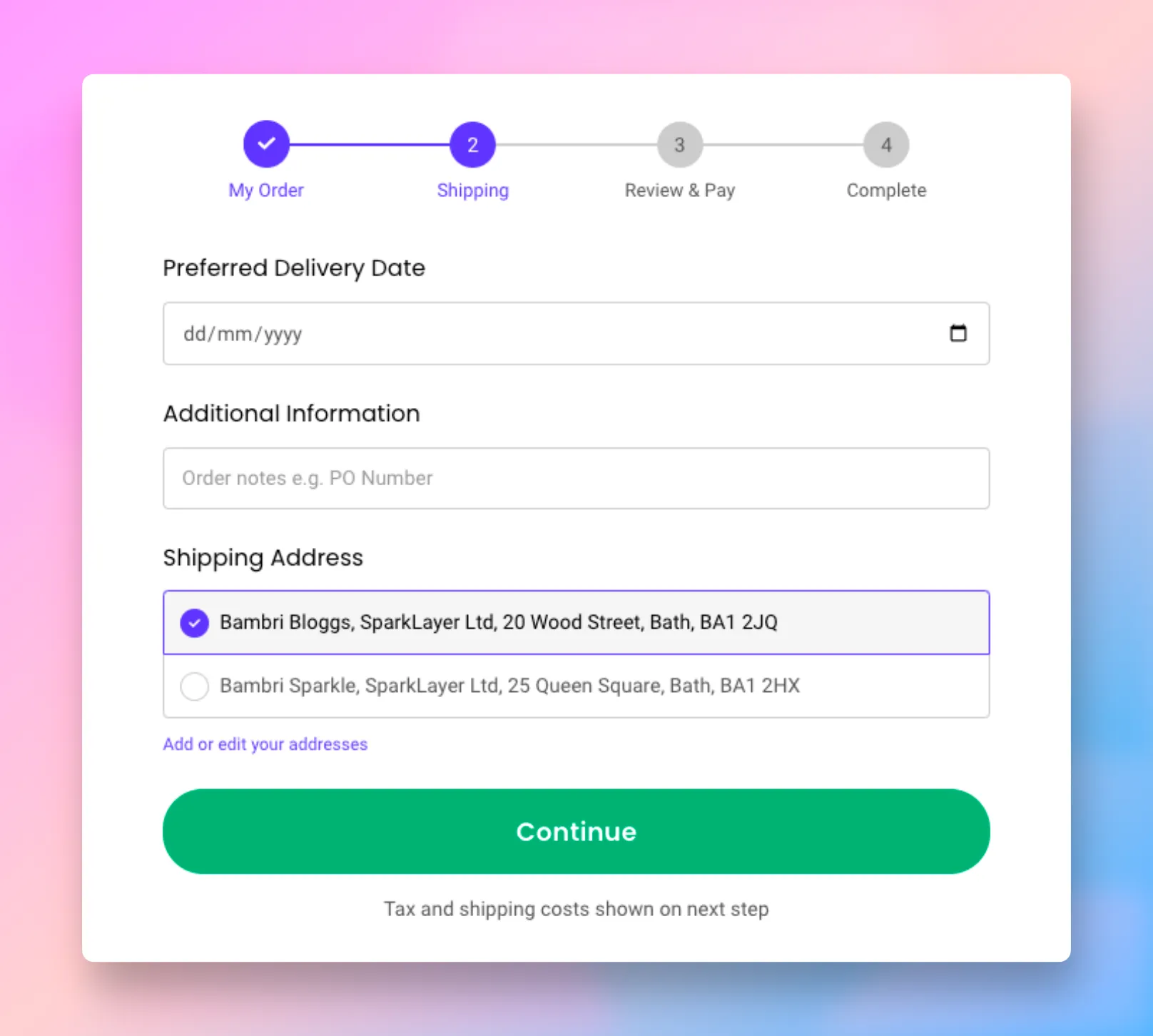
Data entry fields
The data entry fields include the following configurations:
- Additional Information: this is useful if you want to capture additional details from a customer whilst they are placing an order. Typical use-cases include capturing a Purchase Order number (sometimes referred to as PO number), delivery instructions, or instructions. Learn more
- Custom checkout fields: Custom checkout fields allow you to capture additional information from customers during the checkout process. It's a great way to allow customers to add data such as preferred shipping date, shipping instructions, and more! Learn more
- File uploads: SparkLayer supports the ability for B2B customers to upload files during the checkout process. This is a great way to capture additional details from the customer such as a "Purchase Order", details specific to their order (e.g. customisations they require), or any other file that is relevant to their account. Learn more
Addresses
By default, any addresses for the customer are automatically taken from their address book information within your website admin.
Customers can also manually add addresses by clicking the '"Add new address" button or via the My Account Interface.
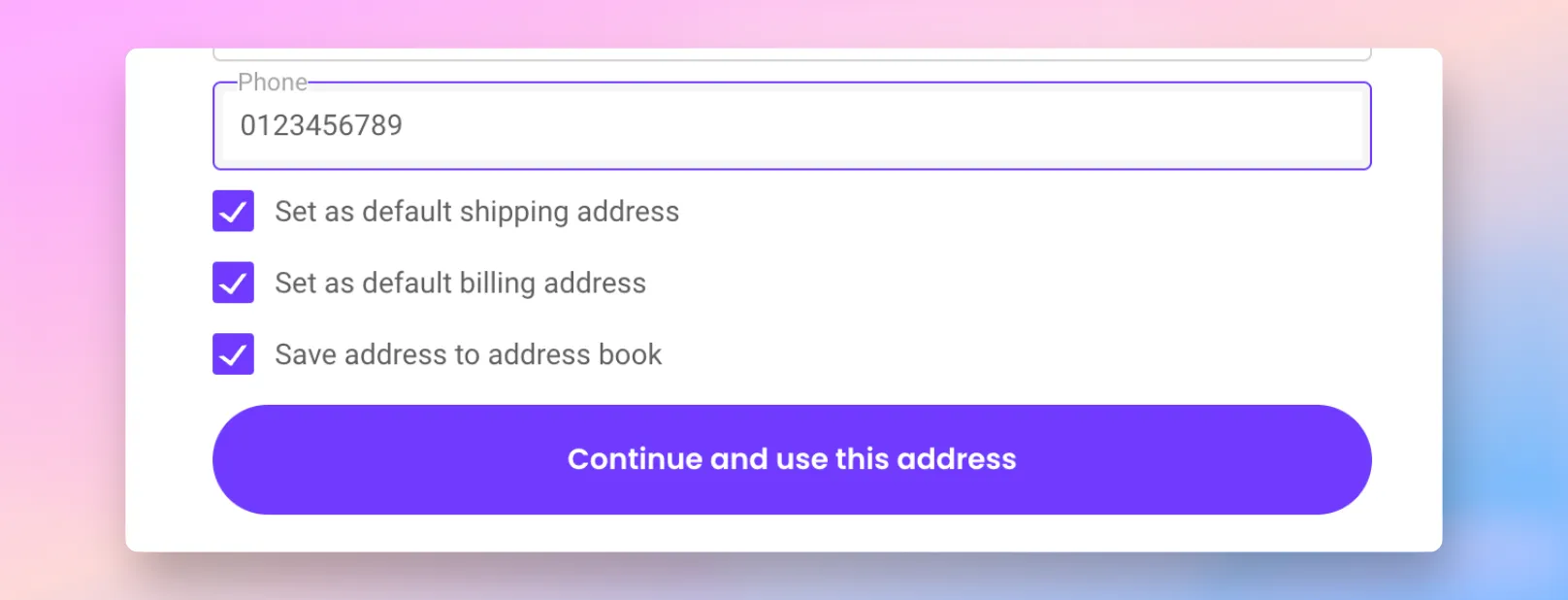
If they're adding an address via the My Cart interface, they can also select from the following:
Item | Details |
|---|---|
Set as default shipping address | This will become the default shipping address for future orders |
Set as default billing address | This will become the default billing address for future orders |
Save address to address book | This will save the address to their address book and this can be edited from the My Account Interface |
If a customer has more than 4 addresses saved, the interface will also adapt to show all saved addresses within a drop down menu.
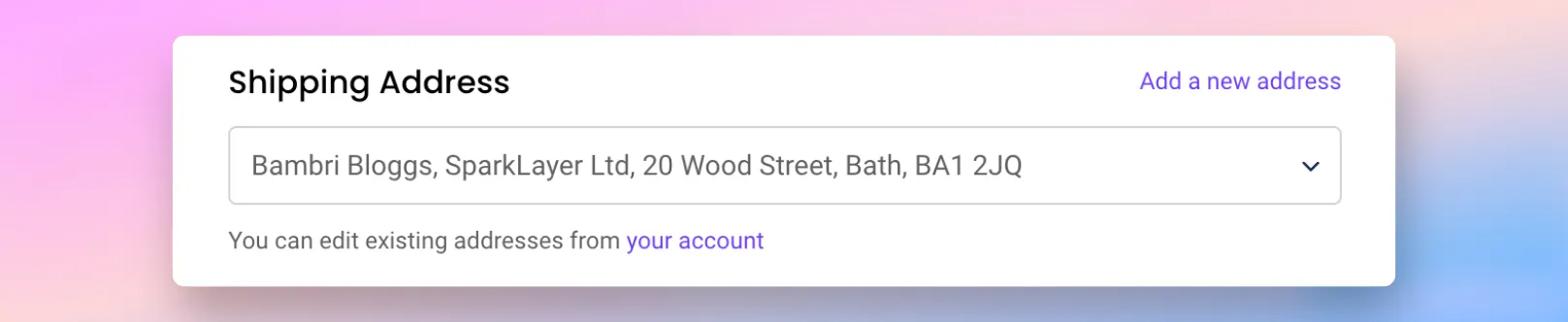
Please note It's possible to disable the ability to edit addresses, learn more in our guide here
Review & Pay
The Review & Pay step is the final step of the checkout process and lets customers:
- Select and confirm their preferred shipping method
- Select and confirm their preferred payment method
- See a full breakdown of the cost of their order, including tax and shipping
- Confirm to your terms and conditions
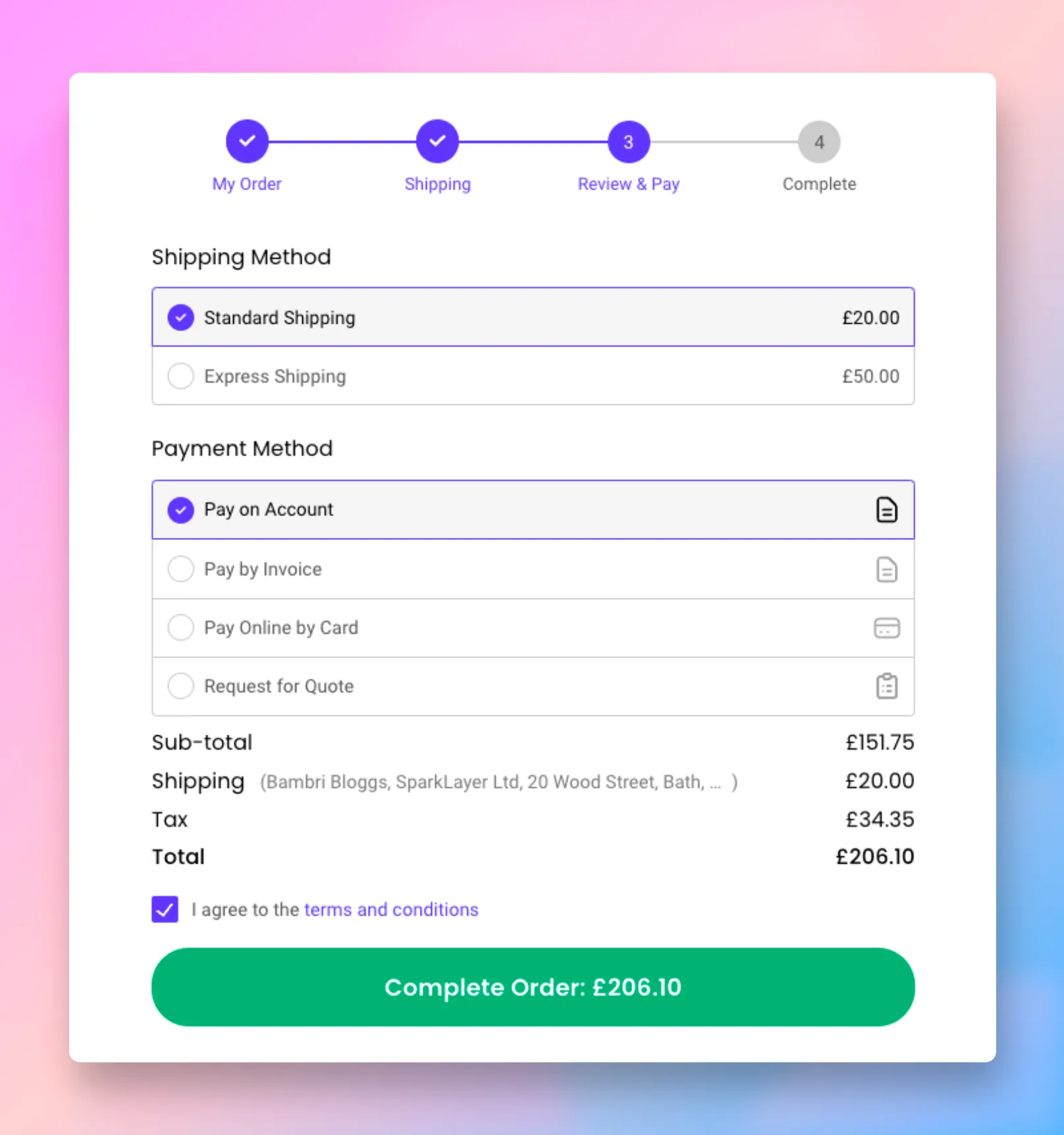
Shipping method
The shipping methods work in one of two ways:
- Shipping is automatically calculated from the rules set up within your website admin
- Shipping is calculated by the rules set up in the SparkLayer Dashboard
You can learn more about how shipping works in our guide here.
Payment methods
Please see payment methods below
Complete
Once the customer has completed their order, this is then sent through to your eCommerce platform just like any regular order. Depending on the payment method selected, this will either arrive into your website admin as a Draft order or a Completed order.
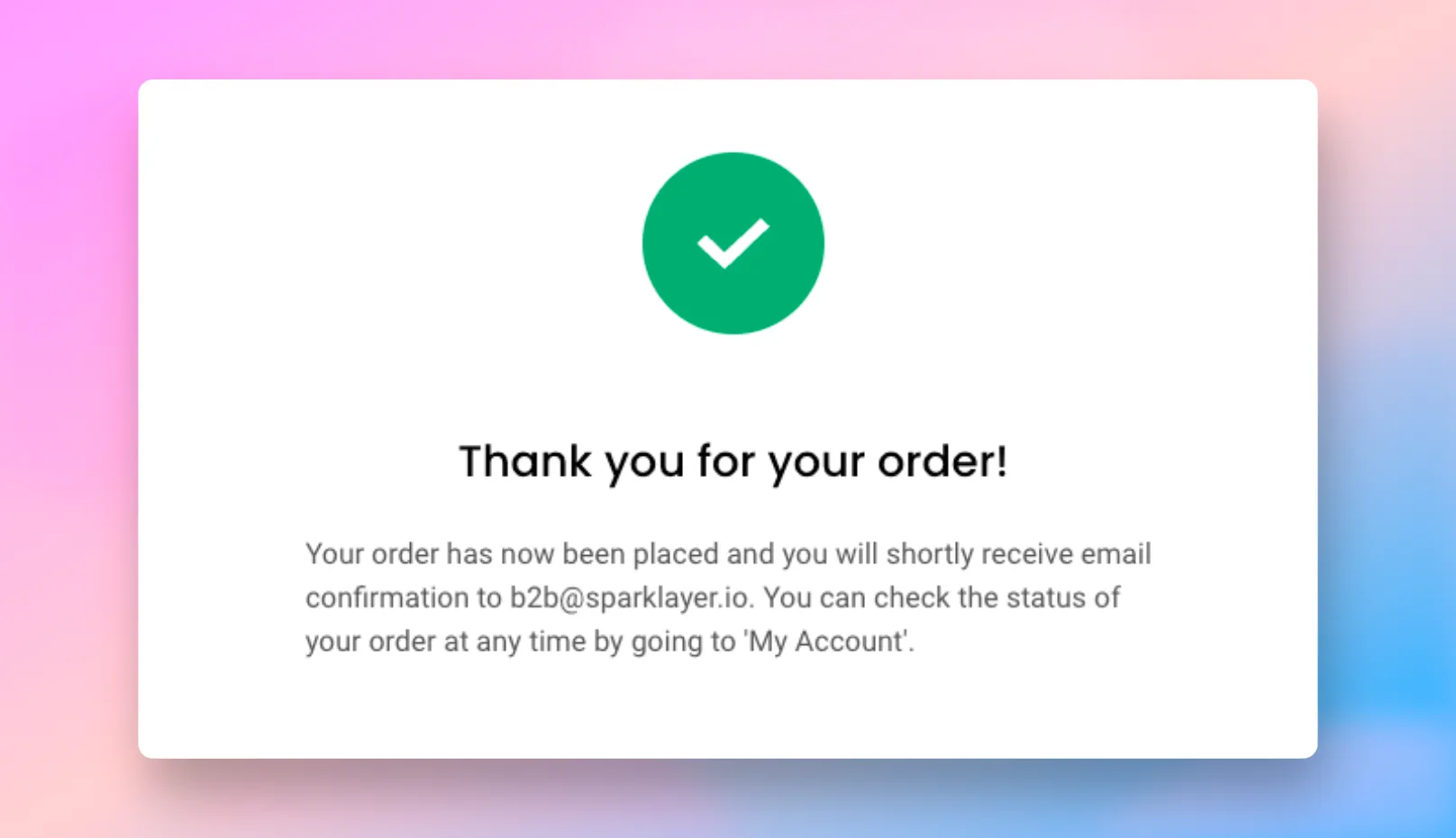
If you've additionally configured orders to connect to the SparkLayer API this will then be sent directly to your backend system or via a middleware solution.
Customising the order complete screen You can modify the text that shows to a customer, learn more in our guide here. In addition, you can also add custom content using "Slots". Learn more
Payment methods
SparkLayer supports a range of B2B-specific payment methods that can be tailored on a per-customer basis.
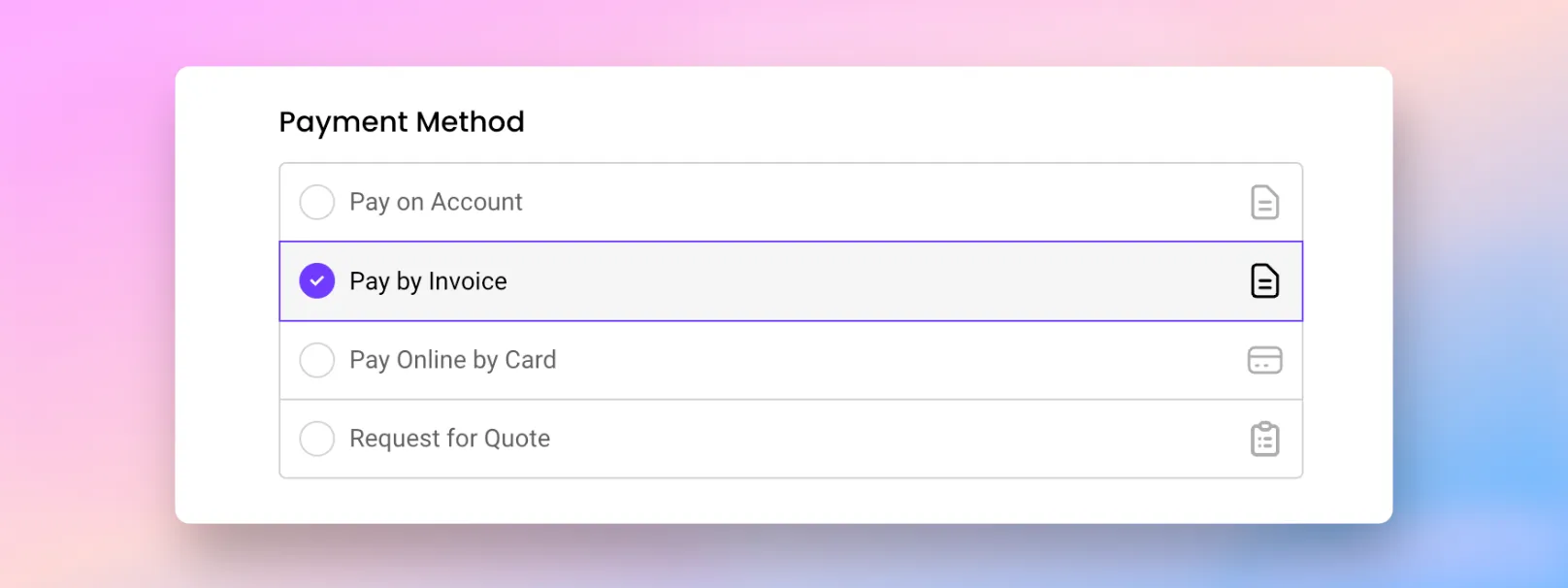
When customers reach the payment step, they'll see available methods and can select their preference.
Payment method | Description |
|---|---|
Payment on Account | 👪 For the B2B customer: This will allow the customer to checkout without needing to enter any payment details. 🏦 For merchants: It's essentially an 'offline' payment method and you can even set credit limit rules and net payment terms such as Net 30, Net 60, etcLearn more |
Payment by invoice | 👪 For the B2B customer: This will allow the customer to checkout without having to enter in payment details. 🏦 For merchants: Like "Payment on Account", this is essentially an 'offline' payment method. You can then process the order and take payment via offline channels (e.g. by bank transfer) |
Pay Online by Card | 👪 For the B2B customer: The customer will be directed to your standard checkout process and will be required to make payment right away (e.g. by card or via another payment processor). This is sometimes referred to as "Pro-forma payment". 🏦 For merchants: This will come through as a paid (or "completed") order and no further action should be required to collect payment. Note: this is termed "Upfront Payment" within the Customers area of the SparkLayer Dashboard |
Request for quote | 👪 For the B2B customer: The customer can submit their order without choosing a payment method. 🏦 For merchants: The order will be marked as a 'Draft' order and can subsequently be edited (e.g. changing the shipping cost, adding additional discounts, adding or removing products from an order). Please note: as of June 2025, this has been replaced with the SparkLayer Quoting Engine and can no longer be selected within a Customer Group. |
The diagram below helps to illustrate how payments working with SparkLayer and Shopify, based on the payment method the B2B customer selects.
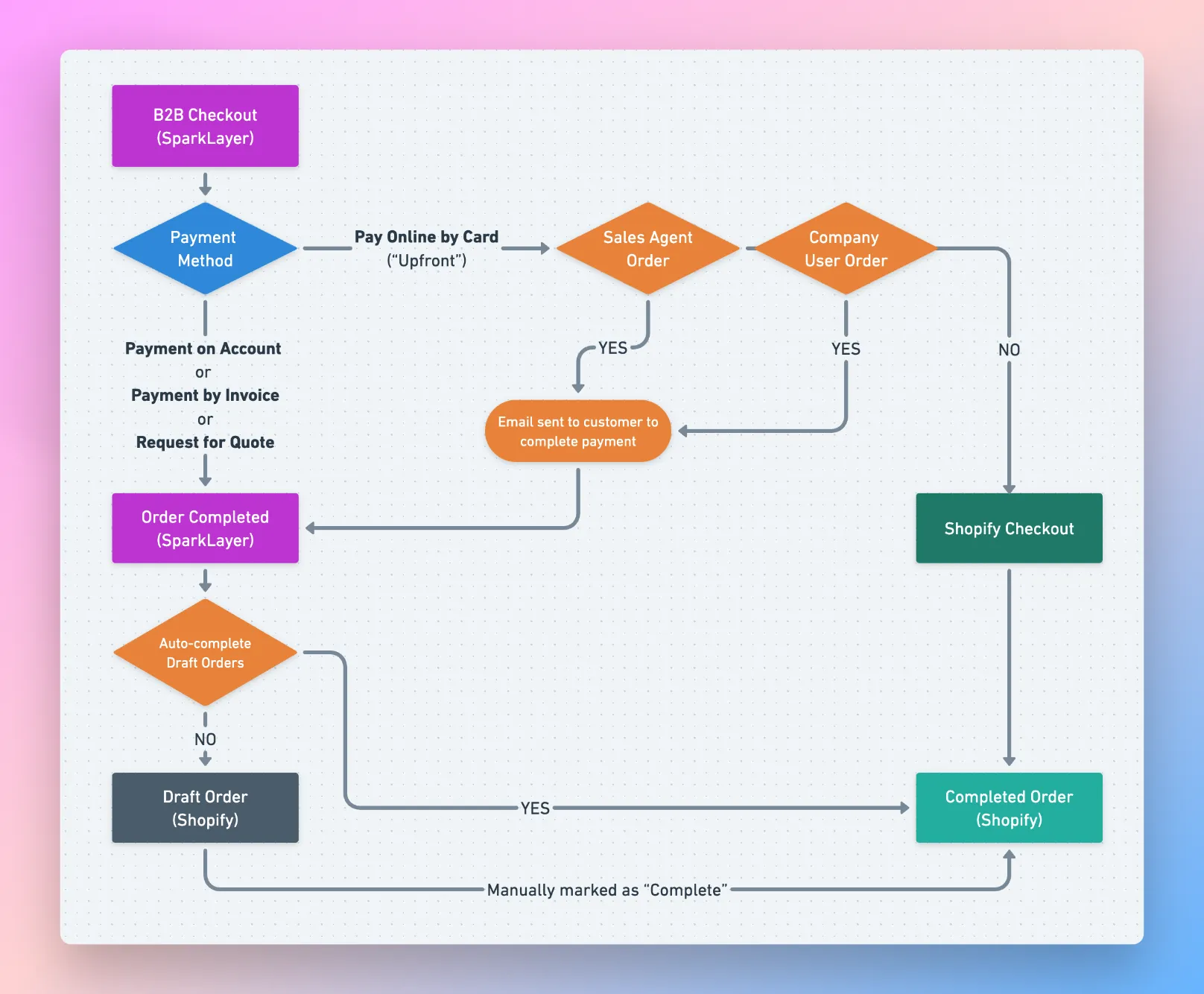
Draft orders
If you're using Shopify, by default all payment methods other than Upfront Payment will be generated as Draft orders. If you'd prefer to automatically convert Draft orders into Completed orders, you can enable this via the SparkLayer Dashboard.
Shopify checkout payment methods
If a customer selects "Pay Online by Card" (i.e. "Upfront payment"), they'll be directed to the Shopify checkout. By default, they will see all Shopify payment methods you have set up (e.g. card payment, Paypal, etc). It's possible to set rules on which payment methods show for your B2B customers and we recommend exploring available apps here.
Please note that if a customer uses "Pay Online by Card" and doesn't complete their order, this will still show in your Shopify Draft Orders admin for review.
Customising the B2B payment methods You can edit the names and priority of payment methods easily. Learn more in our guide here
Managing Quotes
The SparkLayer Quoting Engine introduces a unified solution that streamlines the entire "quote-to-order" process directly from your existing online store. It allows you to handle quotes more effectively, converting them into completed orders faster than ever!
The SparkLayer Quoting Engine works by allowing your B2B customers to easily submit quotes for review, and for your sales team to then communicate with the customer until they're ready to complete their order. Learn more in our full guide.
Discounts & promotions
SparkLayer supports the ability to have discounts and promotions applied during the checkout and these can either be redeemed via discount codes, or applied "automatically" to the customer's order.
The SparkLayer Discount Engine unlocks a range of discount rules including:
- Order-level discounts: eg, spend $1,000 and get 10% off, spend $2,000 and get 15% off
- Percentage and fixed discounts: eg, 20% off an order total, $100 off an order total
- Coupon codes: eg, enter code NEWCUSTOMER and get 5% off
- Scheduled discounts: eg, start discount today and end it on a specific date and time
- Customer-specific discounts: eg, only allow customer group ‘b2b-vip’ to qualify for the discount
- And more
Learn more about discounts You can see a full overview of what’s possible with discounts in our guide here.
File uploads (file attachments)
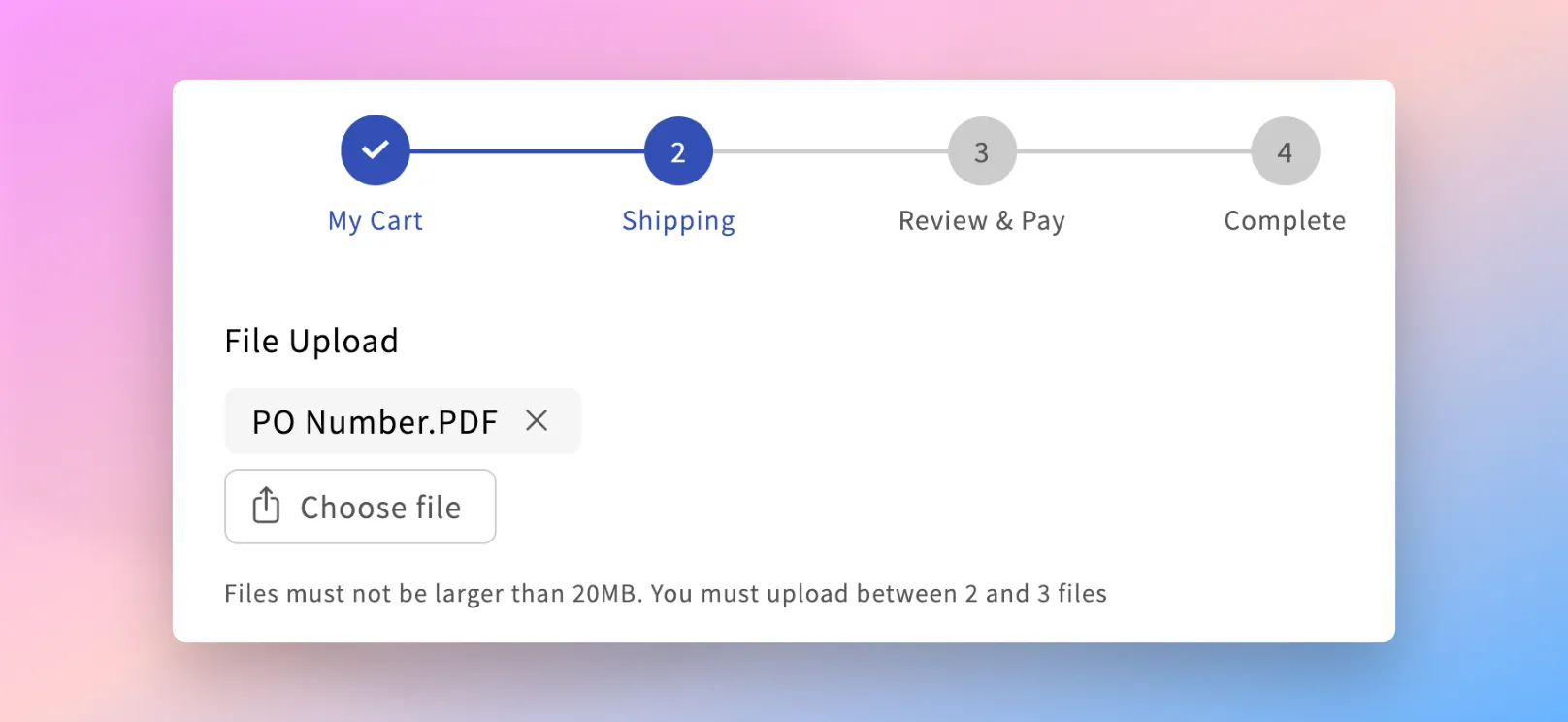
SparkLayer supports the ability for B2B customers to upload files during the checkout process. This is a great way to capture additional details from the customer such as a "Purchase Order", details specific to their order (e.g. customisations they require), or any other file that is relevant to their account. Learn more.
Showing custom content (using "slots")
Custom Slots (or "Targets") allow you to enhance the SparkLayer My Cart interface by adding your own custom code in predefined areas.
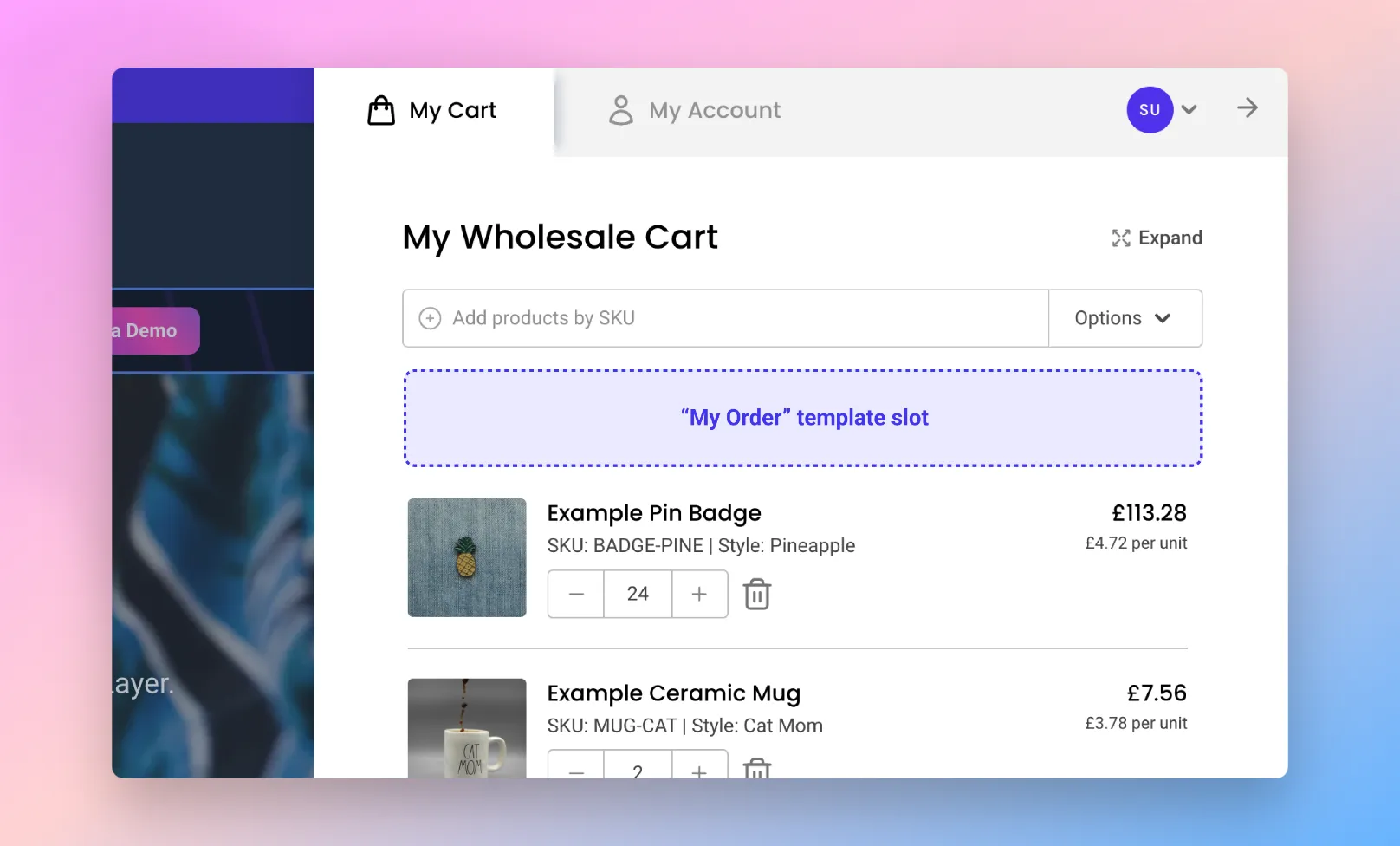
You can learn more in our custom slots guide here.
Persistent saved order
A great feature of the SparkLayer My Cart Interface is the "persistent saved order". When a customer adds items to their order, the contents are automatically saved to their browsing session for up to 90 days. If the customer then signs out and logs back in, all previous items in their order will be saved.
This feature also works across different devices, e.g. a customer could build an order on a desktop computer and then complete it the next day on a mobile device.
Cart "Locking"
SparkLayer has built-in handling for concurrent users making changes to an order, termed cart "locking". This is specifically relevant to our Sales Agent Ordering tool where sales agents may be building an order on behalf of a customer.
If there is an active cart and a customer subsequently accesses it, they'll see a message shown at the to of the page.
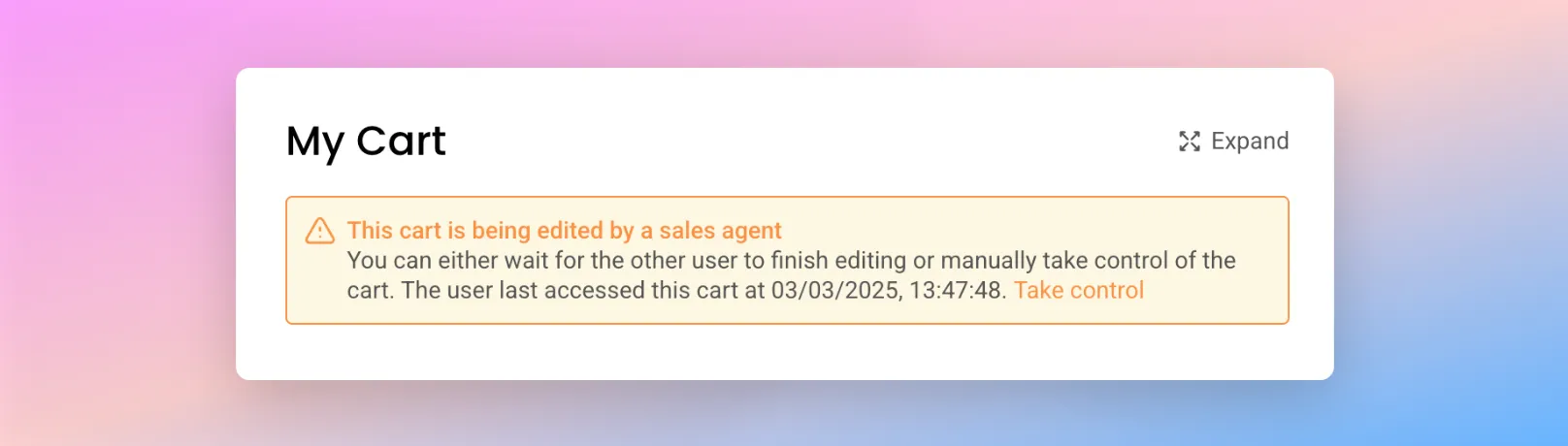
By clicking "Take control", this will then allow the customer (or sales agent) to make further edits before completing the order.
Tax
Understanding tax Please refer to our guide here for details on how tax works with SparkLayer.
Configurations
SparkLayer supports a wide range of configurations you can apply to the Frontend Interfaces. Please see our full guide here on what's possible!
Using Hardware (e.g. barcode scanners)
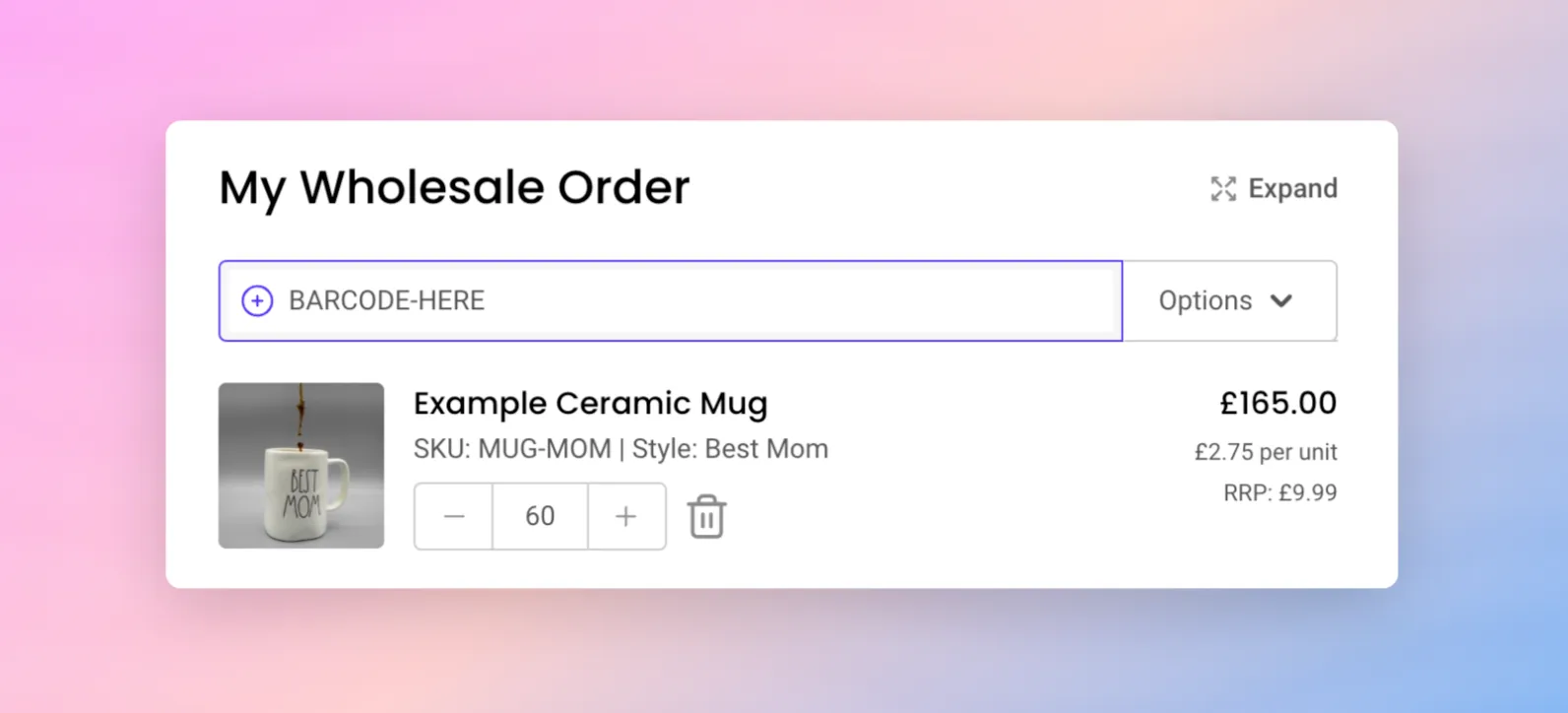
Did you know SparkLayer can also support hardware such as barcode scanners? SparkLayer automatically synchronises barcode data from your store, meaning you could technically use the My Cart Interface to accept barcode-scanned orders!
If you have products with barcodes assigned in your admin then the below option will automatically be displayed in the cart for you to simply scan a product and add it to the cart.
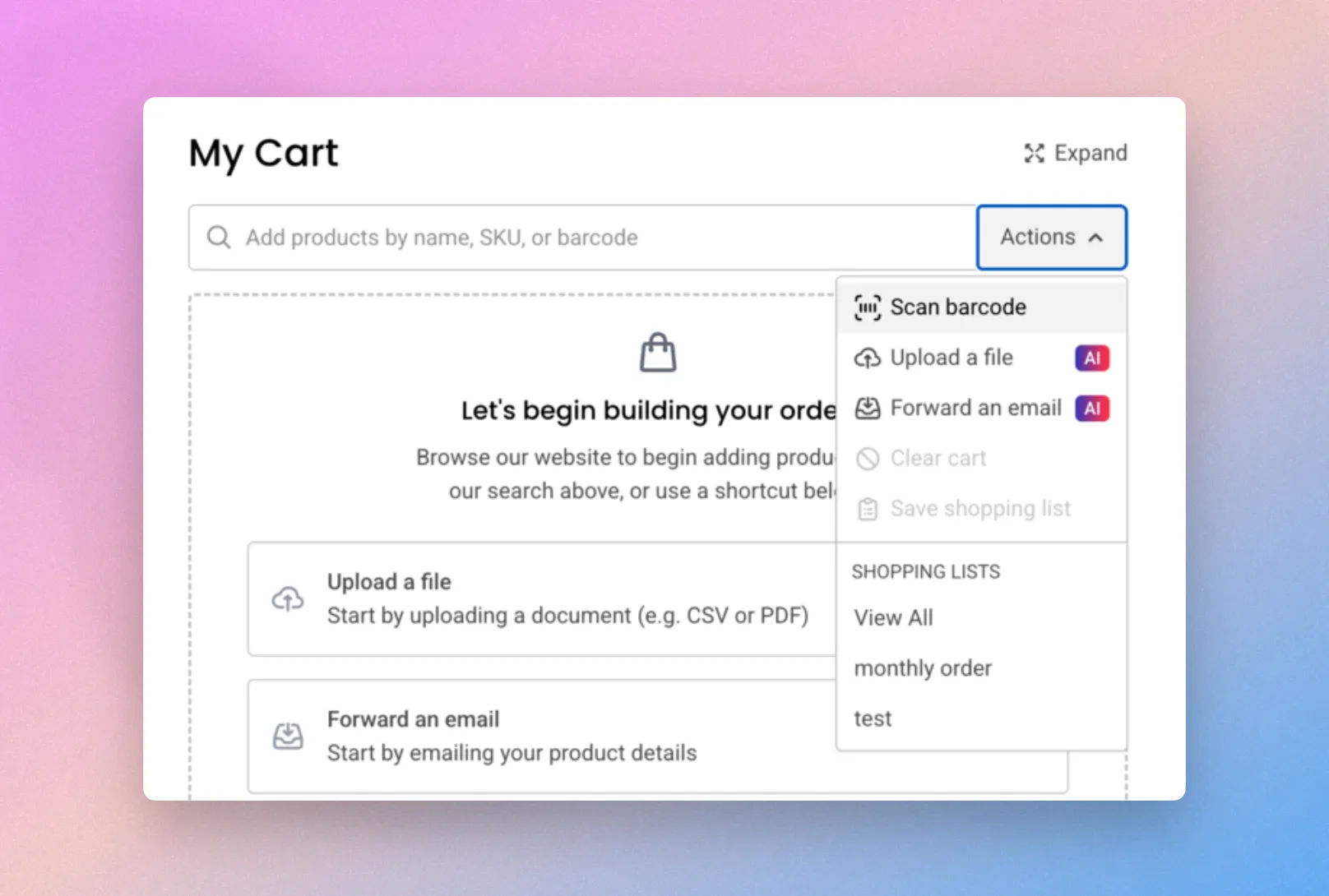
The Quick Search tool (see below) allows you to insert both SKUs and Barcodes, meaning you can quickly add items to an order simply by entering codes into this input field. You'll need to configure your hardware to "target" this input field, but it's a great way to bring powerful B2B ordering to your warehouse or in-store experience.