Quantity Rules
Product pack sizing
SparkLayer has full support for pack sizing (sometimes called quantity increments), that lets you configure the quantities your customers have to order products in (e.g. units of 3, 6, 9, etc). Once set up, when your customers add an item to their order, the quantities will automatically update based on the pack size settings you've configured.

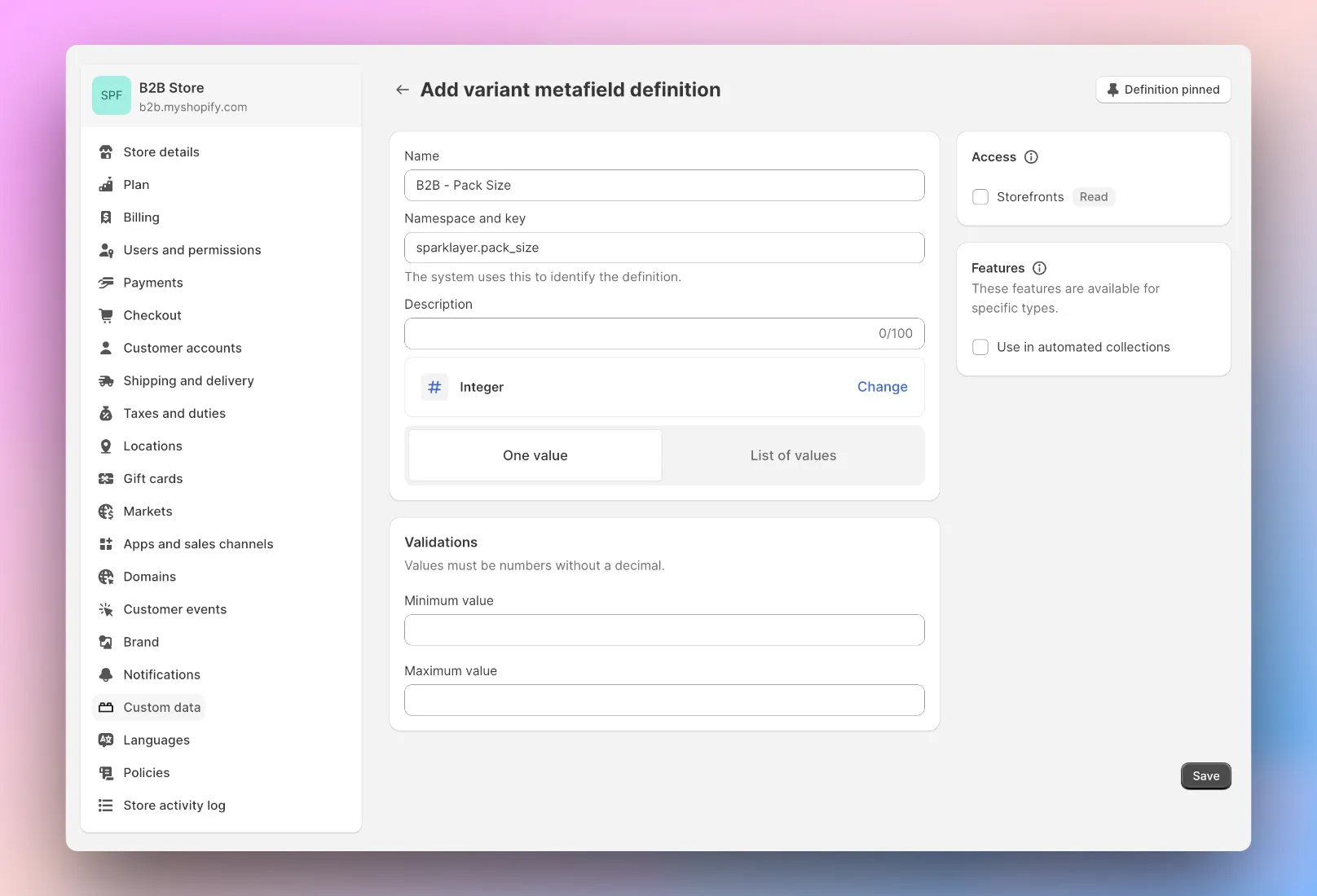
To enable this, SparkLayer uses special settings (sometimes referred to as metafields or attributes) that allow additional data to be stored against products.
Setting up metafields on Shopify 🤖 Automatically add this to your Shopify store by going to configure metafields. 📖 Learn more about how metafields work in our guide here
Item | Details |
|---|---|
Custom data type | Variants |
Metafield type | This must be set as an integer |
Namespace | This must be set as sparklayer |
Key | This must be set as pack_size |
Value | This must be set as an integer, e.g. 6 |
Pack size pricing
Unit of measure pricing Looking to set up more advanced rules for your pack sizes, e.g. cases or pallets? Read our guide here on how you can set up "unit of measure pricing"
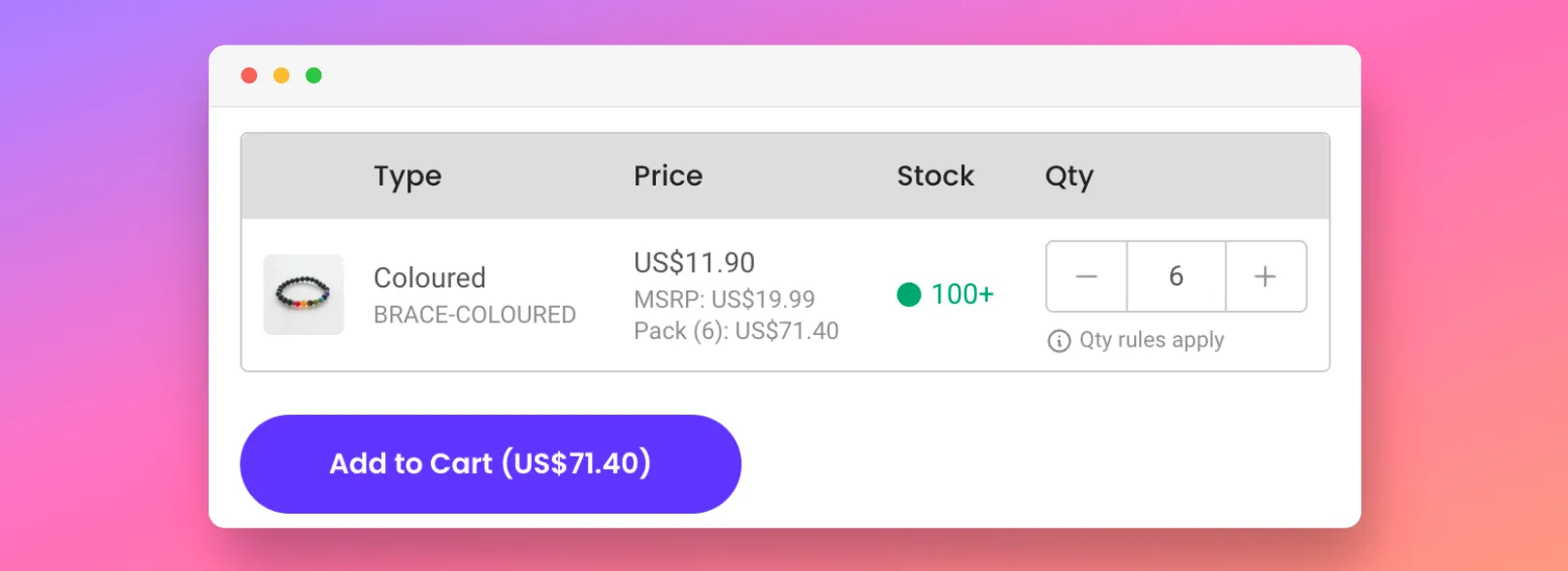
By default, if you have pack sizing enabled, the product page widget will display a "pack price" that takes the unit price multiplied by the items within a pack. If you'd like this hidden, simply add the below CSS to your CSS overwrites.
--spark-pdp-pack-size: none;Updating language and text You can update the default text by adding code to your Core Script. Learn more about how to update text on SparkLayer.
/* Add the below code into the SparkLayer Core Script */
/* Please refer to our help guide on how to do this */
translations: {
  en: {
   "pdp.price.pack-size": "Pack ({packSize}): {price}",
  }
},
/* End of code */
Customer-specific pack sizing rules
By default, pack sizing will apply to all customers, however it's possible to set up customer-specific pack sizing rules. For example:
- For your default B2B customers, they're able to buy a product in units of 1
- For other B2B customers, they have to purchase in units of 6.
To enable this, SparkLayer uses special settings (sometimes referred to as metafields or attributes) that allow additional data to be stored against products.
Setting up metafields on Shopify 🤖 Automatically add this to your Shopify store by going to configure metafields. 📖 Learn more about how metafields work in our guide here
Item | Details |
|---|---|
Custom data type | Variants |
Metafield type | This must be set as an JSON |
Namespace | This must be set as sparklayer |
Key | This must be set as settings |
Value | This is then set per customer group you want to apply the pack size rules to. E.g. for the default B2B customer group:[{"customer_group":"base","pack_size":6}] For an additional customer group that had an internal ID of tier-2, you would use:[{"customer_group":"base","pack_size":6}, {"customer_group":"tier-2","pack_size":12}] You can find the internal ID from the Customers area of the SparkLayer Dashboard. |
Minimum & maximum quantities
SparkLayer has support for a variety of different quantity product settings including:
Type | Details |
|---|---|
Minimum - Variant | Minimum product quantities at a variant level (e.g. products that have colours) |
Minimum - Product | Minimum product quantities at a parent level (specifies the minimum quantity across all variants required before ordering) |
Maximum - Variant | Maximum product quantities at a variant level |
Maximum - Product | Maximum product quantities at a parent level (specifies the maximum quantity across all variants required before ordering) |
Setting order-level quantities You can also set order-level minimum and maximum rules. Customers
Minimum product quantities
It's possible to set 'minimum product quantities' for any SKU within your Shopify catalogue, meaning that customers must meet this minimum quantity before being able to purchase a product.

To enable this, SparkLayer uses special settings (sometimes referred to as metafields or attributes) that allow additional data to be stored against products.
Minimum product quantities: variant-level
Item | Details |
|---|---|
Custom data type | Variant |
Metafield type | This must be set as an integer |
Namespace | This must be set as sparklayer |
Key | This must be set as min_order_quantity |
Value | This must be set as an integer, e.g. 6, 12, 20 etc |
BigCommerce merchants can also use the BigCommerce Minimum and Maximum Order Quantity product setting. Please note that the setting will apply per variant, meaning that each variant will get it's own minimum quantity requirement even though the setting in BigCommerce is set at a product level.
Minimum product quantities: product-level
Item | Details |
|---|---|
Custom data type | Variant |
Metafield type | This must be set as an integer |
Namespace | This must be set as sparklayer |
Key | This must be set as min_order_parent_quantity |
Value | This must be set as an integer, e.g. 6, 12, 20 etc |
For more information, please refer to the SparkLayer Technical Docs
Maximum product quantities
As with minimum product quantities above, you can also set maximum product quantities to apply.
Maximum product quantities: variant-level
Item | Details |
|---|---|
Custom data type | Variant |
Metafield type | This must be set as an integer |
Namespace | This must be set as sparklayer |
Key | This must be set as max_order_quantity |
Value | This must be set as an integer, e.g. 6, 12, 20 etc |
BigCommerce merchants can also use the BigCommerce Minimum and Maximum Order Quantity product setting. Please note that the setting will apply per variant, meaning that each variant will get it's own maximum quantity requirement even though the setting in BigCommerce is set at a product level.
Maximum product quantities: product-level
Item | Details |
|---|---|
Custom data type | Variant |
Metafield type | This must be set as an integer |
Namespace | This must be set as sparklayer |
Key | This must be set as max_order_parent_quantity |
Value | This must be set as an integer, e.g. 6, 12, 20 etc |
For more information, please refer to the SparkLayer Technical Docs
Setting order quantity rules It's also possible to set minimum and maximum "order-level" quantity rules on a customer-group basis. Learn more
Quantity pricing (tiered pricing)
SparkLayer can support quantity pricing rules (e.g. buy 1 for $10, buy 10 for $8). To learn more, please see our full guide here.
Unit of measure pricing
Are you looking to set up pricing based on "units of measure" such as boxes, cartons, or pallets? Please refer to our Quantity Pricing & Settings guide to learn more.
Quantity rules display
By default, if a product has quantity rules set, it will display a message 'Qty rules apply' that a customer can interact with.

If you'd prefer to not show this, you can hide this by adding the below CSS to your CSS overwrites.
--spark-product-qty-rules-display: none;
Order Limit Rules
You can also set order limits that allow you to set rules on the criteria a customer needs to meet before they can checkout. Learn more.
1-click ordering (product bundles)
It's possible to create special buttons on your store that allow customers to add collections of products to an order, rather than having to add them all individually. Learn more