Integrations
Introduction
Need help setting things up? Our team is here to help! Head over to our Support page to get in touch.
The Integrations section lets you specify which systems you'll be connecting SparkLayer to.
Platform Integrations
For listed third-party platforms, this has the added benefit of automatically connecting your website to SparkLayer.
Platform | Details |
|---|---|
Shopify | If choosing Shopify, you'll be prompted to enter your Shopify store name (or ID). When you click "Save", you'll be taken off to Shopify to install the SparkLayer app. This will connect your Shopify store to SparkLayer and products and customer data will automatically be synchronised. |
BigCommerce | If choosing BigCommerce , you'll be prompted to enter your BigCommerce Store ID. When you click "Save", you'll be taken off to BigCommerce to install the SparkLayer app. This will connect your Shopify store to BigCommerce and products and customer data will automatically be synchronised. |
Wix | If choosing Wix , you'll be prompted to enter your Wix Site ID. When you click "Save", you'll be taken off to Wix to install the SparkLayer app. This will connect your Shopify store to Wix and products and customer data will automatically be synchronised. |
Custom | If choosing Custom, you'll need to manually send SparkLayer all necessary data. Please contact us to learn more. |
Setting up a test environment With SparkLayer Test Mode, you can configure a live and test environment.
Order Actions
You can additionally configure specific order actions for your store.
Setting | Details |
|---|---|
Automatically complete Shopify draft orders | If you're using manual payments (such as Payment by Invoice) these will be default enter the Shopify admin as Draft orders. This setting allows you to automatically mark these as completed and the orders will instead show in the Shopify Orders admin as soon as they are placed |
Automatically mark Shopify draft orders as paid | For new draft orders, the payment method will be set as payment pending. It's possible to automatically mark these orders as paid allowing you to process the orders faster. To enable this, first tick the 'Automatically complete Shopify draft orders' toggle, then choose from the following settings;Payment on Account orders - automatically mark as paidPayment by Invoice orders - automatically mark as paid |
Configure metafields
Within the SparkLayer Dashboard, you can speed up the creation of metafields using our built-in tool to automatically configure them.
To get started, go to Integrations, Platform Connection and click Configure within the Configure metafields section. You'll then see all available metafields that can be configured for Product and Customer data.
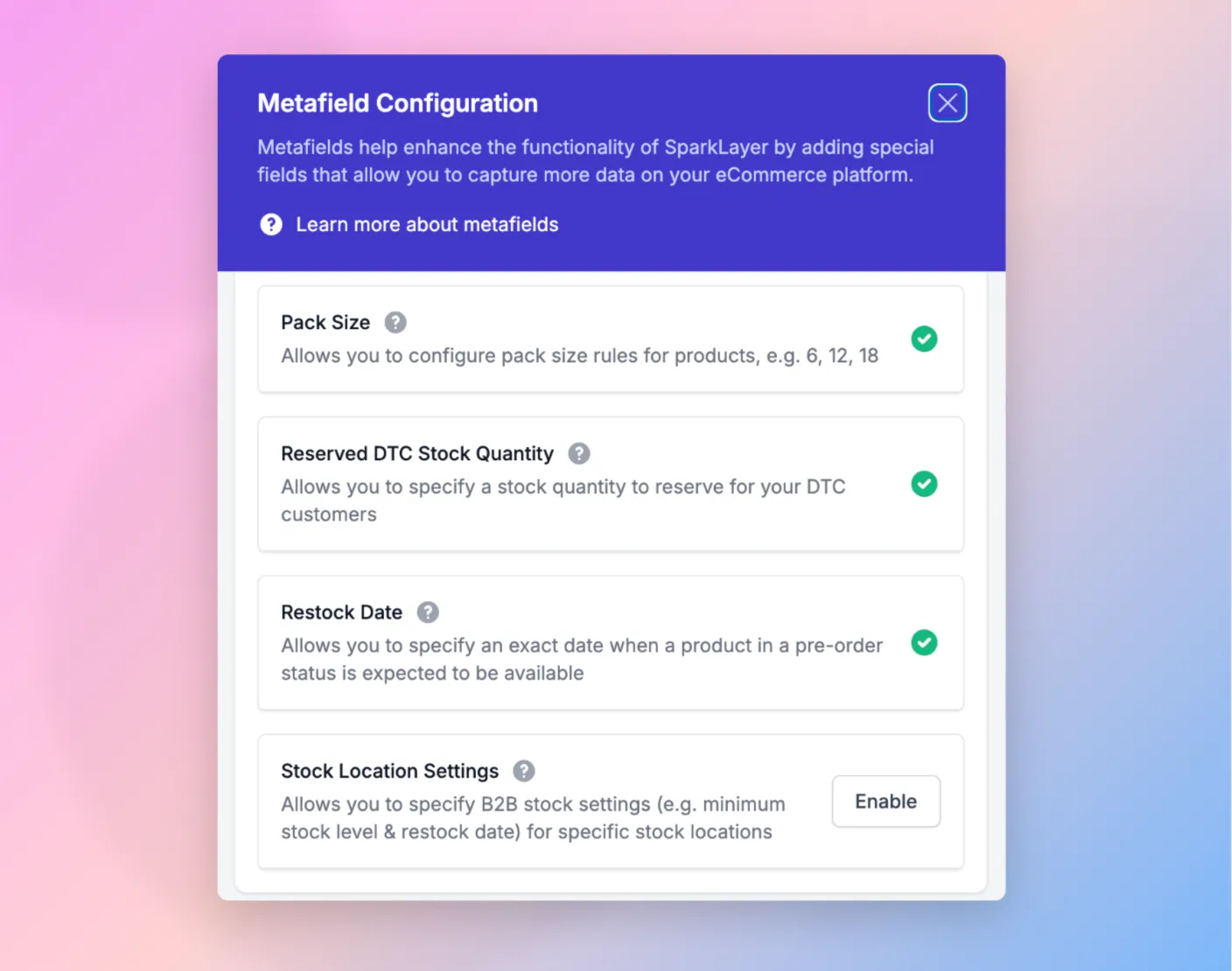
When a metafield is enabled, this will automatically be added to the Custom Data section of your Shopify admin and will be 'pinned' for easy access when configuring metafields for products or customers.
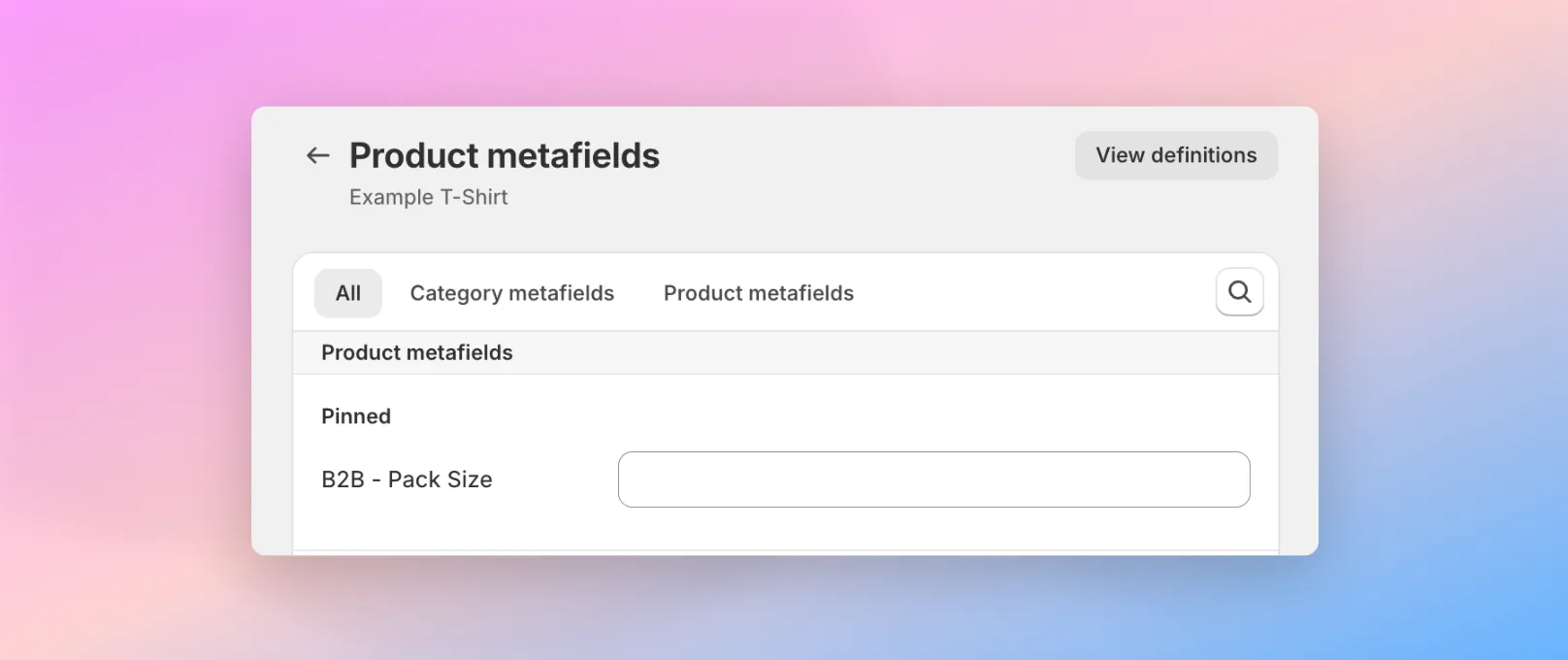
Any metafields automatically created by SparkLayer in this way will be prefixed with B2B - [name] for example B2B - Pack Size
Should you need to modify or remove metafields, you can manage this via the Custom Data section within your Shopify store.
Partner Ingrations
SparkLayer supports a number of partner integrations that you can manage within the SparkLayer Dashboard. To see all available integrations, please see Integrations.
Data Sync
To learn more about how the Customers Sync and Products Sync work, see Data Sync
Widgets
The Widgets section guides you through installing the Frontend Interfaces on your website. There are the following key steps:
- Installing the Core script
- Installing the product page scripts
- Customising the Design by using CSS
You can read our full guide on how this works in our Frontend Integration Guide.