Shopify Markets & Currencies
Introduction
SparkLayer lets you offer B2B pricing in multiple currencies - so each customer sees prices in the currency you assign to them, all from within a single Shopify store. This is ideal for merchants selling to wholesale buyers across different regions.
Please note: To enable multiple currencies for your B2B customers, you must have Shopify Markets set up. Each currency you want to offer requires a corresponding market within Shopify. Multi-currency also requires Shopify Payments to be active in a supported region.
By default, SparkLayer shows B2B pricing in your store's default currency. For example, if your store currency is GBP, all B2B pricing will display in GBP when customers log in. With Shopify Markets enabled, you can configure additional currencies (e.g. USD, EUR) so that each customer group sees pricing in their assigned currency automatically.
Want to try it out? Head over to our demo store and see multi-currency B2B pricing in action!
How it works
When a B2B customer logs in, SparkLayer checks which price list is assigned to their customer group. If that price list is set to a different currency (e.g. EUR instead of your default GBP), the customer automatically sees all B2B pricing, cart totals, and checkout amounts in that currency - no manual switching required.
This means you can serve customers in multiple regions from one store, each seeing accurate B2B pricing in the currency you control.
Setting up Shopify Markets
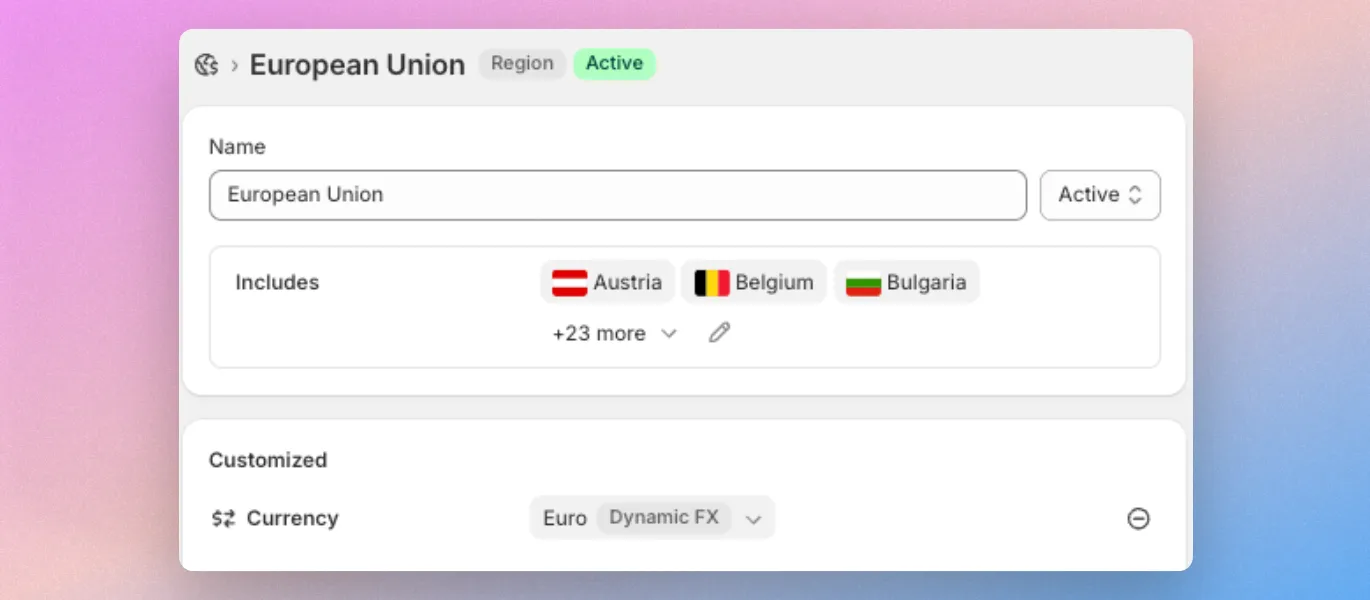
Before creating multi-currency price lists in SparkLayer, you need to have the correct markets configured in Shopify. Each currency you plan to use must have a corresponding market.
- In your Shopify admin, go to Settings → Markets (or Markets in the main navigation if you are using the new Markets experience).
- Create a market for each region or country where you want to offer a specific currency. For example, create a "Europe" market with EUR as the currency.
- Make sure the market is set to Active so that the currency is available for use.
- Ensure Shopify Payments is enabled - multi-currency is only supported in regions where Shopify Payments is available.
Please note: You do not need to configure catalogs or product availability within Shopify Markets for SparkLayer to work. SparkLayer manages B2B product visibility and pricing independently. The market simply needs to exist so that Shopify recognises the currency.
Creating your price lists
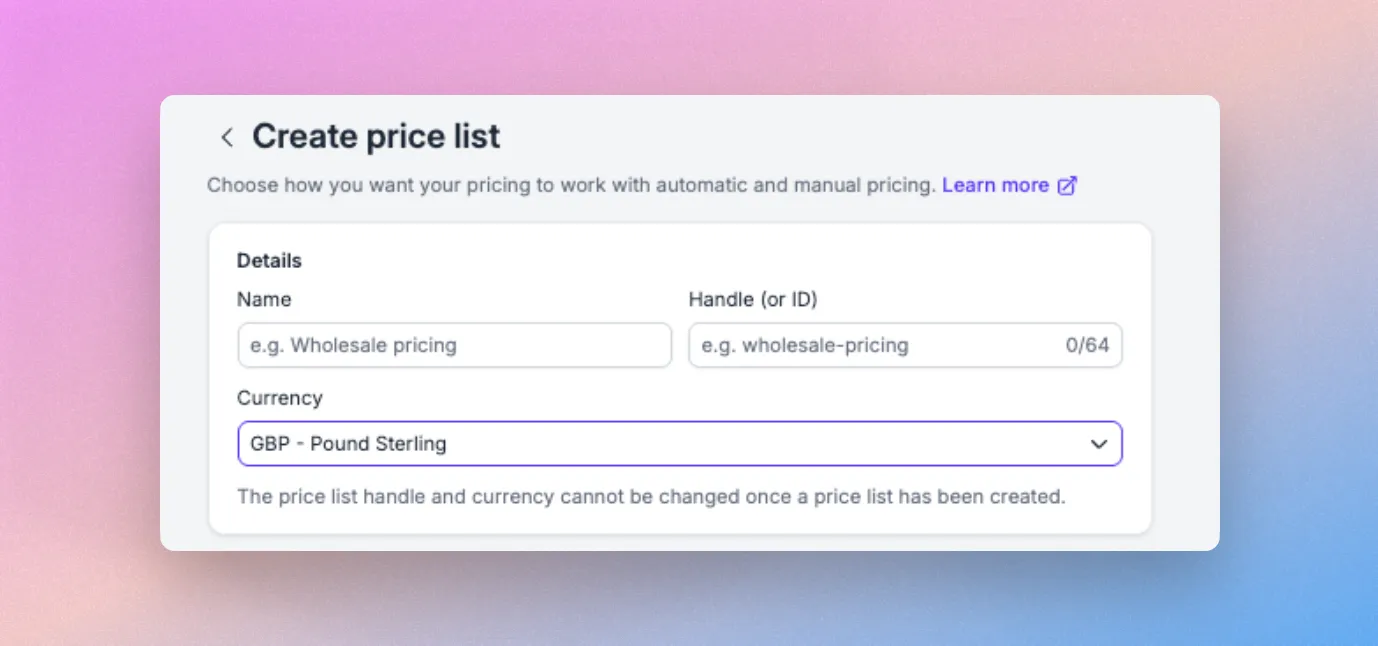
Creating a price list in an additional currency follows the same process as creating any SparkLayer price list.
- Go to the Price Lists section of the SparkLayer dashboard.
- Create a new price list (or edit an existing one).
- Under Price List Currency, select the currency you want this price list to use (e.g. EUR, USD, AUD).
- Add your product pricing as normal - all values should be entered in the selected currency.
Assigning price lists to customers
Once your multi-currency price list is ready, assign it to the relevant customer group.
- Go to Customers in the SparkLayer dashboard.
- Select the customer group you want to assign the price list to.
- Under the pricing section, choose the price list with the correct currency.
- Configure any additional ordering rules (e.g. minimum order value) - these will apply in the price list's currency.
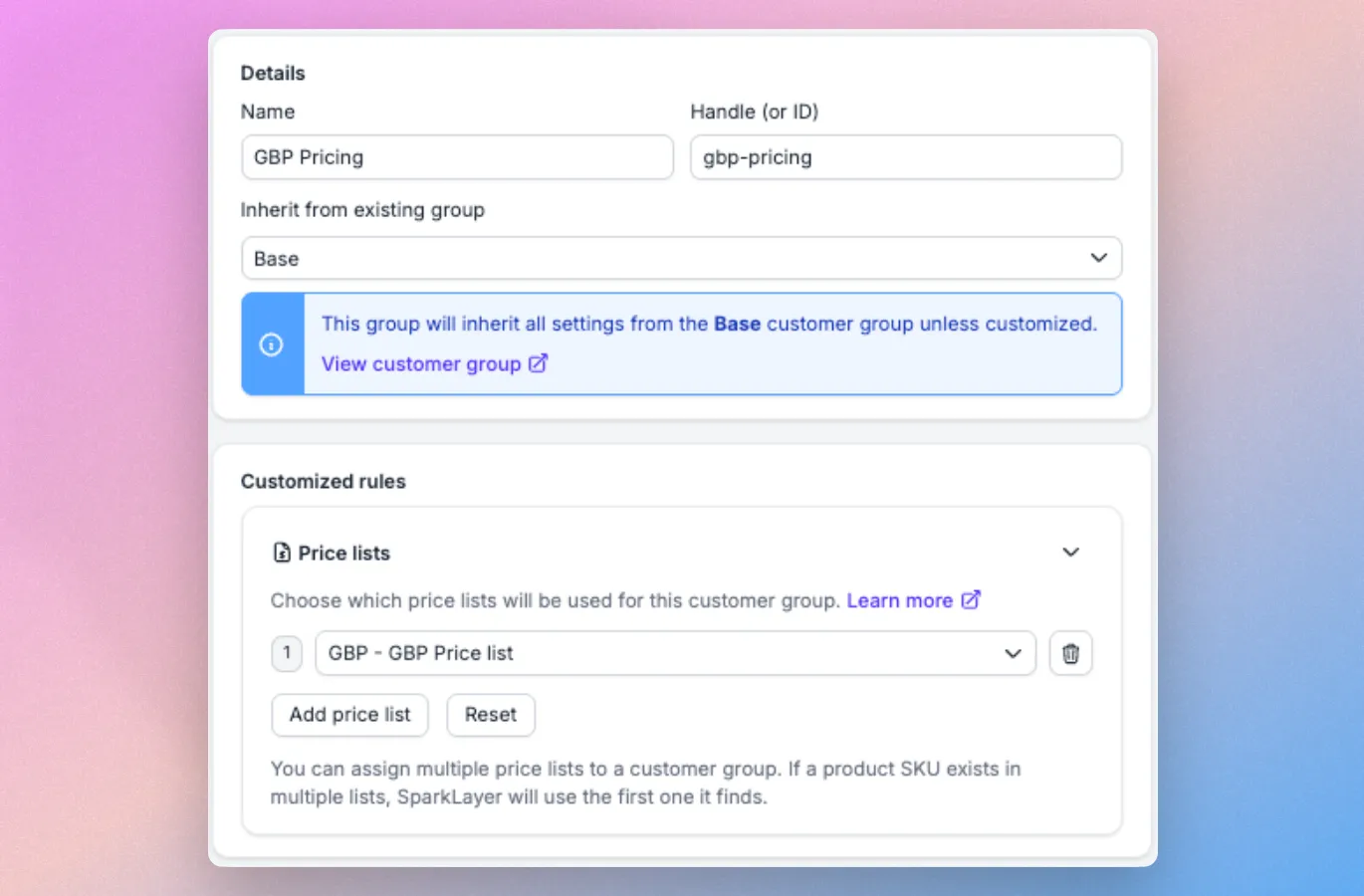
When those customers log in, they will automatically see B2B pricing in the assigned currency across product pages, the cart, and checkout.
The customer experience
Product pages
When a customer with a non-default currency logs in, product pages display B2B pricing in their assigned currency. For example, a customer assigned a EUR price list will see all prices in euros, while a customer on the default GBP price list sees pounds.
Cart and checkout
The cart and review step display all line items, subtotals, and order totals in the customer's assigned currency. The payment methods available are those you have configured against their customer group.
Shipping
If you have multiple shipping methods set up for a customer group (e.g. standard and express), the shipping costs are converted from your store's default currency to the customer's assigned currency.
How orders appear in Shopify
When a B2B customer places an order in a non-default currency, the order enters your Shopify admin with the correct currency assigned. How it arrives depends on the payment method:
Payment method | How the order arrives in Shopify |
|---|---|
Payment by invoice | Submitted as a draft order |
Payment on account | Submitted as a draft order |
Upfront payment | Customer completes Shopify checkout - arrives as a completed order |
For draft orders, you can automatically convert these into completed orders if required.

Please note: Due to how Shopify handles currency conversion and applies discounts internally, you may notice minor rounding differences between the B2B price you set and the price that appears on the order in Shopify. For example, a price set at €7.99 may display as €8.00 in the Shopify admin. This is a known Shopify limitation and not something controlled by SparkLayer.
Using Shopify Companies with Shopify Markets
If you are using Shopify's native B2B Companies feature alongside SparkLayer, multi-currency works in a similar way. For full details on how SparkLayer integrates with Shopify Companies, see our Shopify Companies guide.
Limitations
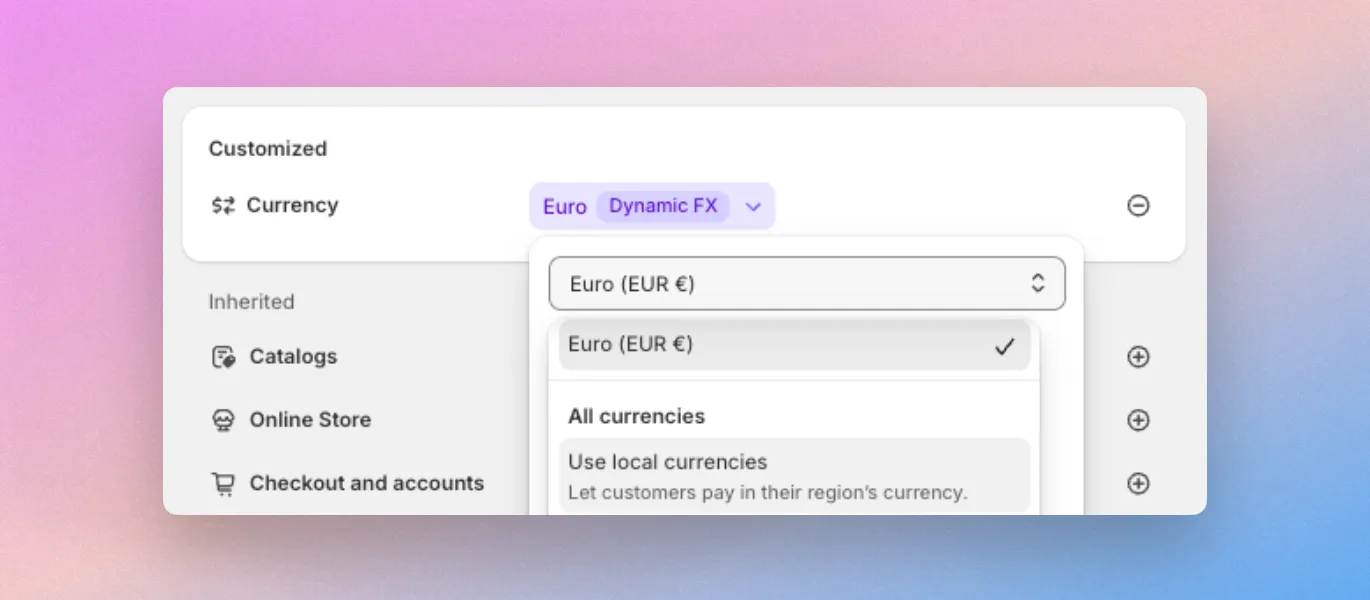
- "Show prices in local currency" setting - In a multi-country market, Shopify offers a setting to show prices in each customer's local currency. SparkLayer does not support this setting. You will need to disable it for B2B customers in the relevant market to ensure orders are placed correctly.
- Price rounding - Minor discrepancies may occur between the B2B price you set in SparkLayer and the price that arrives in Shopify, due to Shopify's internal currency conversion and rounding logic.
- One market per currency - Each currency you offer to B2B customers requires a separate market set up in Shopify Markets.
- Shopify Payments required - Multi-currency is only supported in regions where Shopify Payments is available.
- Managed Markets and zero-value orders - If you use Shopify Managed Markets, you cannot create a zero-value (e.g. £0.00 / €0.00) B2B order in any currency other than your store's default currency. Customers will see an error at checkout if they attempt this. Learn more.
- Duties and import tax - If you have duties enabled in your Shopify Markets settings, SparkLayer will not charge these in the SparkLayer cart. Duties are not currently supported.
- Market catalogs - If you assign a specific product collection to a market in Shopify, SparkLayer will not detect or enforce this. SparkLayer manages B2B product visibility independently through its own rules and customer group settings.