Discounts
Introduction
Are you looking to setup discounts and promotions for your B2B customers? The SparkLayer Discount Engine gives you a powerful way to customise promotions that also work alongside any B2B price list rules you have set up. It's a great way to offer incentives and rewards that can play an important part in helping increase sales and customer retention for your B2B business!
Want to try out discounts? Head over to our B2B Demo store and give it a go! Once signed in, add some products to your cart and use coupon code SAVE10 Looking to try SparkLayer for the first time? Speak to our team
Types of discounts available
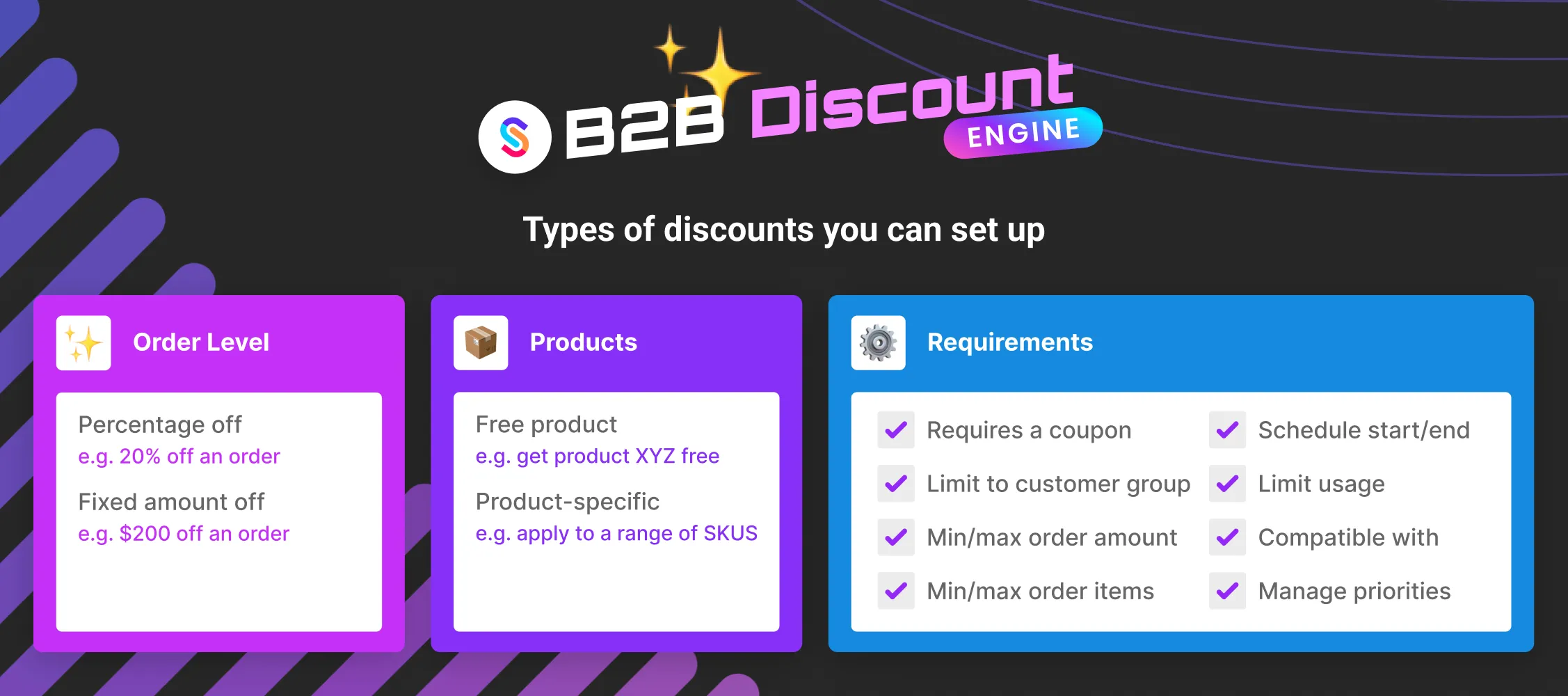
SparkLayer currently supports the following range of discount configurations.
Item | Details |
|---|---|
Discount Example |
|
How they are applied |
|
Specific requirements |
|
Eligibility |
|
Scheduling & timing |
|
Advanced Settings |
|
Combinations |
|
Getting started
To get started with using discounts, please go to Pricing and click the Discounts section of the SparkLayer Dashboard. If you're viewing this for the first time, you can simply click "Create Discount" to start setting up a discount.
Once you begin adding discounts, you'll see an overview of all your discounts in one central location.
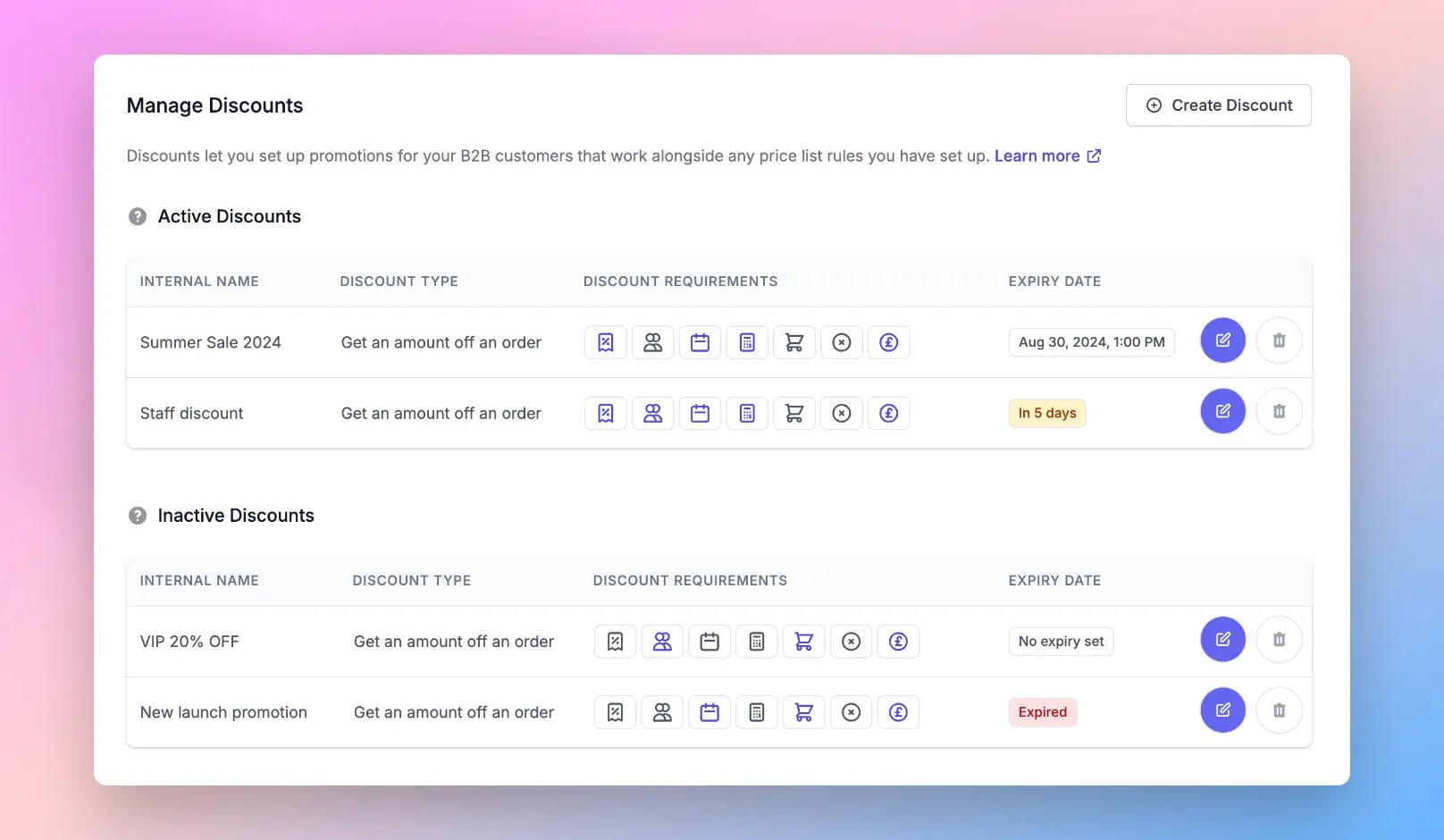
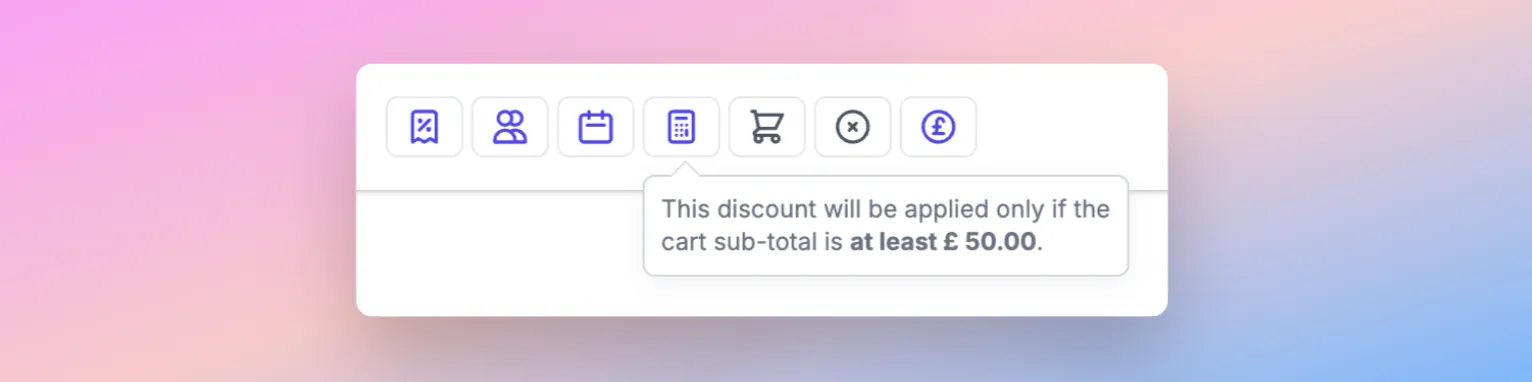
You can also quickly see any discount requirements you've set by mousing over the icons within the "Discount Requirements" column.
Active versus Inactive
The Discount section will categorise your discounts by "Active" and "Inactive" allowing you to easily see which discounts can be used by your customers.
Type | Details |
|---|---|
Active | These are discounts that:
|
Inactive | These are discounts that:
|
How discounts are applied
Discounts can be applied in one of two ways:
Method | Details |
|---|---|
Automatic | The discount is automatically applied to the customer's order based on the configurations you've set (e.g. spend over $200 and get $50 off) |
Manual | The discount is applied when the customer enters a coupon code during the checkout process. If the discount is applicable, the rewards will be applied to the order (e.g. $10 off) |
Learn more about coupon codes You can learn more about how coupon codes work and what can be customised in our guide, Cart & Checkout
Discount applications
At this time, it is only possible to apply one discount at a time to a customer's order. If you have multiple discounts setup that are applicable to a customer, the first one shown within the discounts section will be applied.
Sub-totals and tax
It's important to note that when a discount is set up that applies an "amount off an order", this will apply against the sub-total of the customer's B2B order.
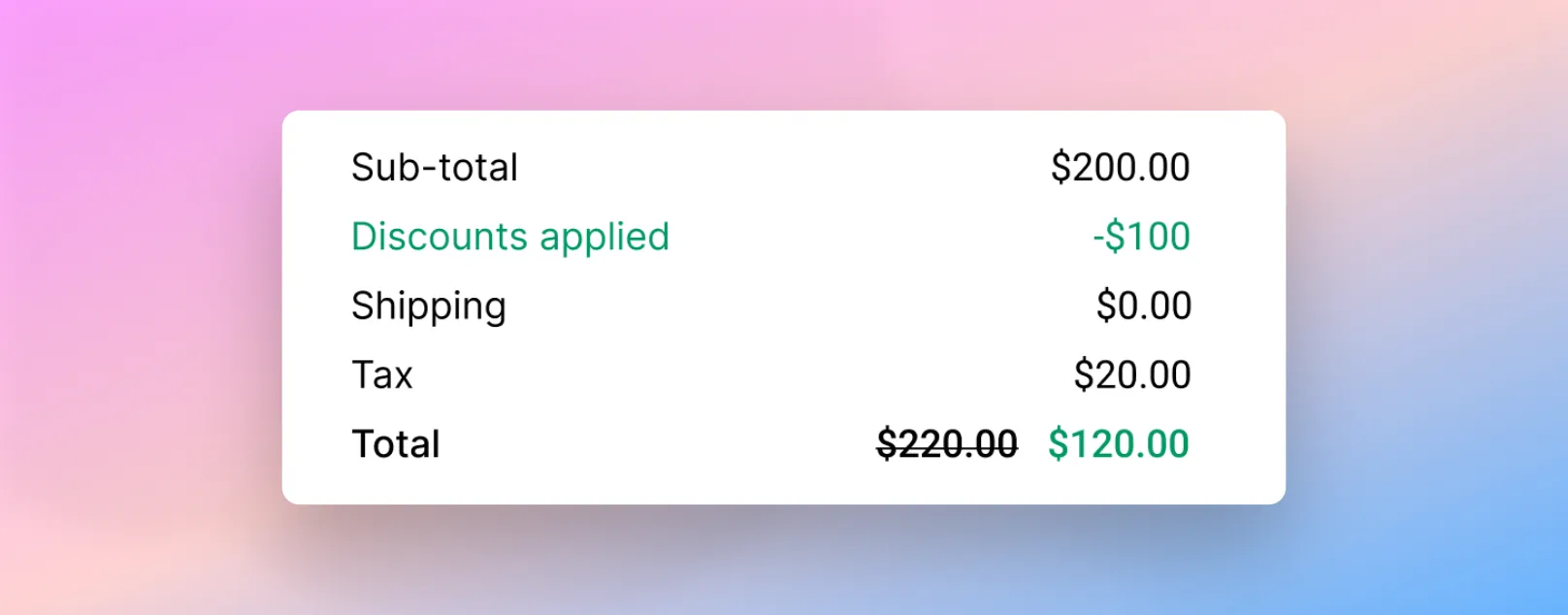
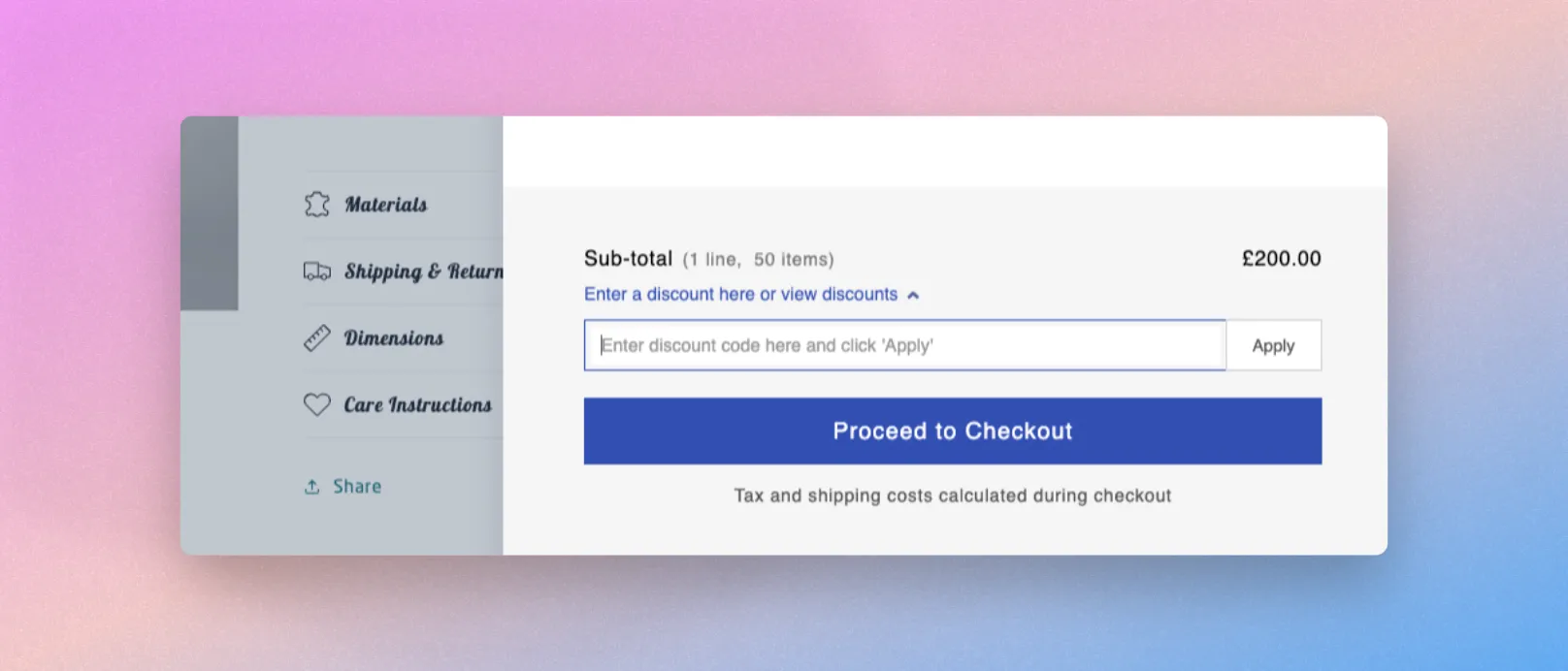
In our example above, the sub-total is $200.00 and the discount is applied against this total (e.g. $100 off, 20% off). This total is "net" of tax and any applicable tax calculations will be applied during the final step of the checkout.
Please note Discounts will be applied to a customer's order regardless of which payment method is selected
Configuring discounts
If you're creating a new discount or editing an existing, you'll be presented with a range of options to customise how your discount works.
Summary
The Summary section allows you to set up the basic information for your discount.
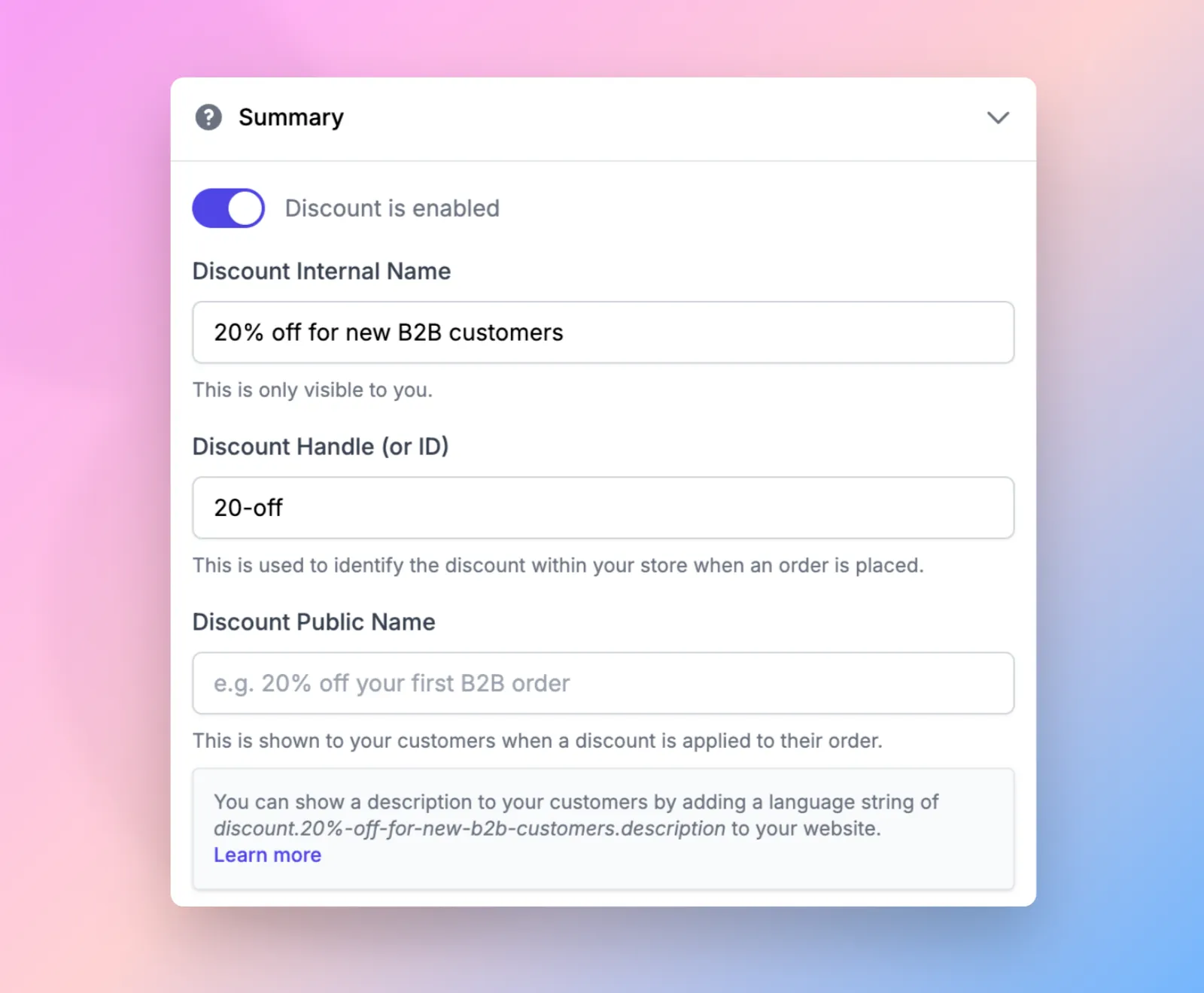
Item | Details |
|---|---|
Status | You can set a discount as enabled or disabled. If disabled, the discount cannot be applied to the customer's order |
Discount internal name | This is the name used for your internal purposes and only ever shown in the SparkLayer Dashboard |
Discount public name | This is the name shown to customers when the discount is applied to their order and shows in the My Cart Interface. |
You can optionally add a discount description that shows to your customers when a discount is successfully applied to their order.
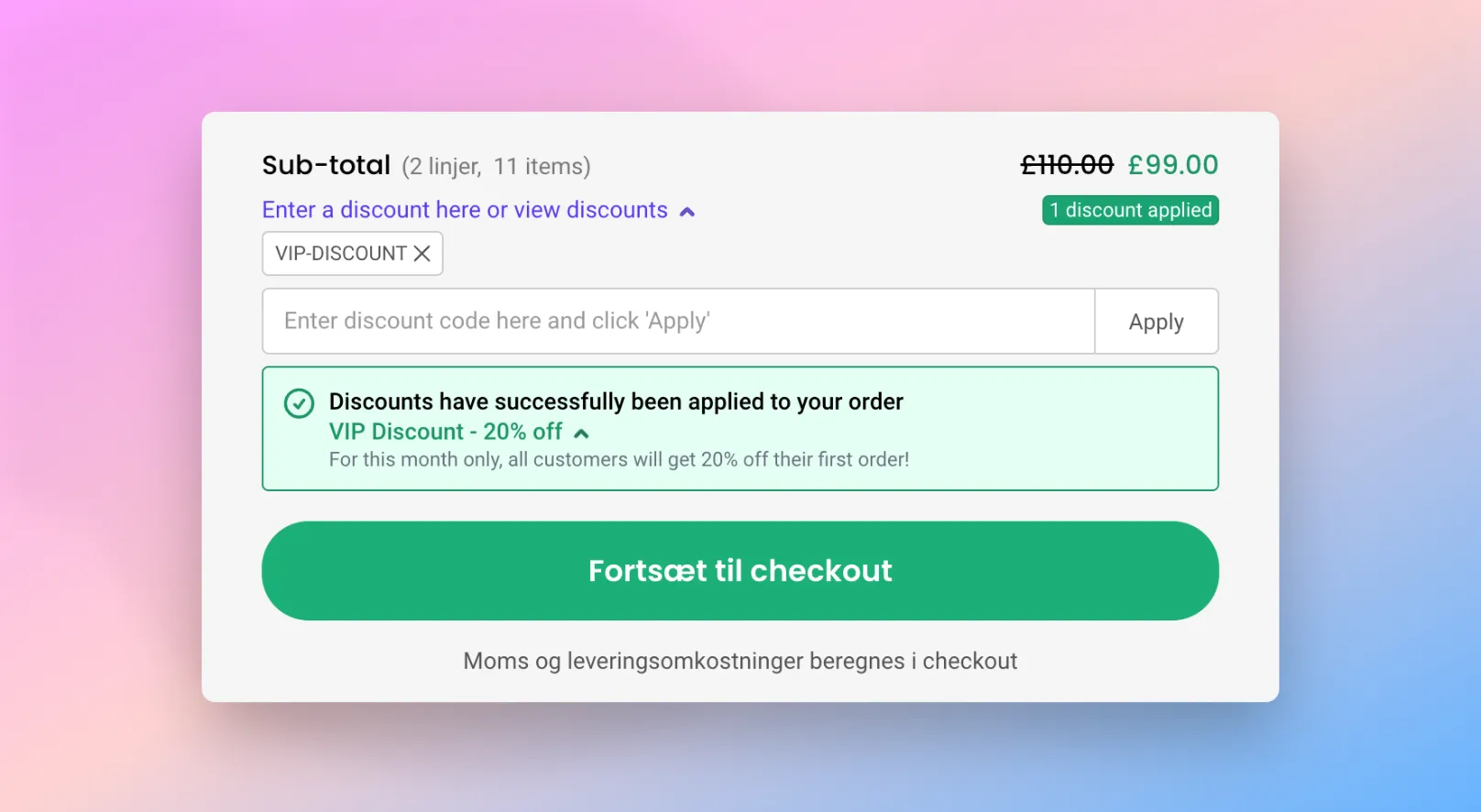
It works by adding a special language string to your website that you can customise as required.
Updating language and text You can update the default text by adding code to your Core Script. Learn more about how to update text on SparkLayer.
/* Add the below code into the SparkLayer Core Script */
/* [discount-id] should be replaced with the string
shown in the discount summary. */
translations: {
  en: {
    "discount.[discount-id].message": "Include a description here",
  }
},
/* End of code *
Discount Type
The Discount Type section allows you to specify how you want your discount to work. Based on the options you select, this will then allow you to set rewards and configurations as required. You can select from the following discount types:
Type | Details |
|---|---|
Give an amount off an order | This will apply a discount that reduces the "sub-total" of the customer's B2B order, either by a percentage discount or a fixed amount discount |
Give a free product | This will apply a discount that adds a specific product to an order at 0.00 cost (free). |
Give a percentage off products | This will apply a discount that reduces the cost of chosen products, either by a percentage, or fixed amount |
Give a shipping reward | This will apply a discount that reduces the shipping cost by a percentage, fixed amount off, or by setting it to a fixed charge |
Advanced requirements and rewards | This will apply a discount based on the customer meeting more advanced requirements such as SKUs within the cart and more granular and multiple rewards can be selected |
Advanced free products | This will apply discounts based on specific product(s) being within the order (e.g. based on SKU or tag), and discounts can be set in a recursive fashion. |
Discount Reward
Based on the discount type selected (see above), you can then specify the "Reward Type" you would like to apply to the customer's order.
Give an amount off an order
If you've selected "Give an amount off an order", you can then choose what type of reward to give the customer, with a choice between a percentage or fixed amount discount.
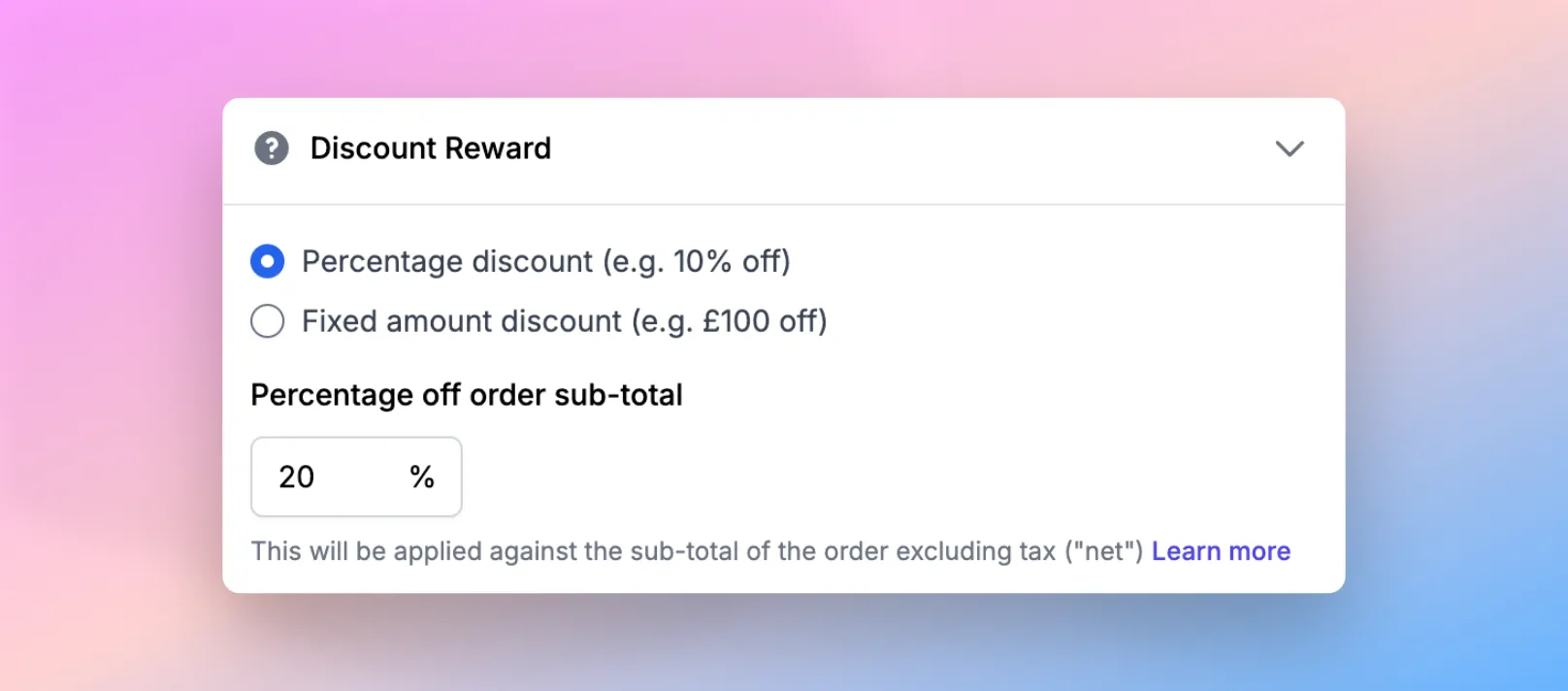
Please note the following on "Give an amount off an order"
- The discount reward will be applied against the sub-total of the order, exclusive of tax and shipping.
Give a free product
If you've selected "Give a free product", you can specify which product SKU you want to be added to the customer's order. Once added, this will then show at 0.00 cost (i.e. free) within their order.
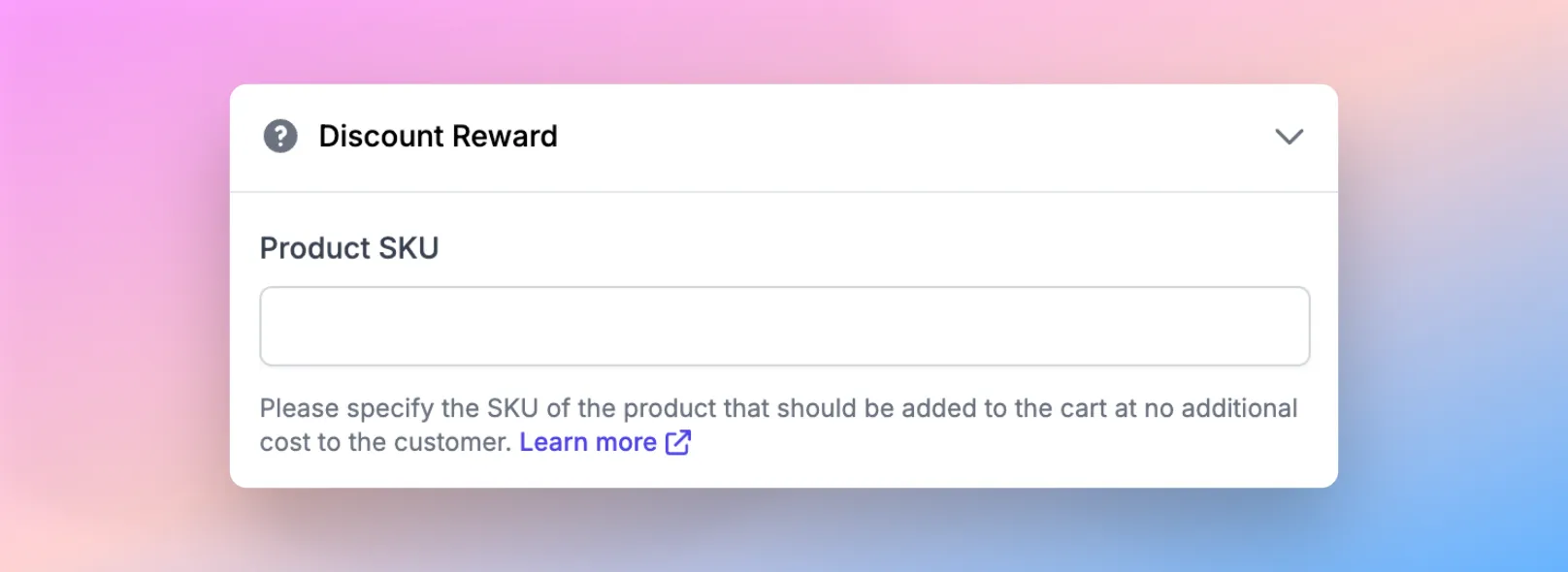
Please note the following on "Give a free product"
- A valid SKU must be specified for it to apply to the customer's order
- When the customer is redeeming the free product, it must be a different product to what is already within the customer's order
Give a percentage off products
The "Give a percentage off products" reward type lets you specific specific SKUs you want to discount when the discount is applied. Simply enter the SKU and the percentage off and this will then reflect in the customer's order when they checkout.
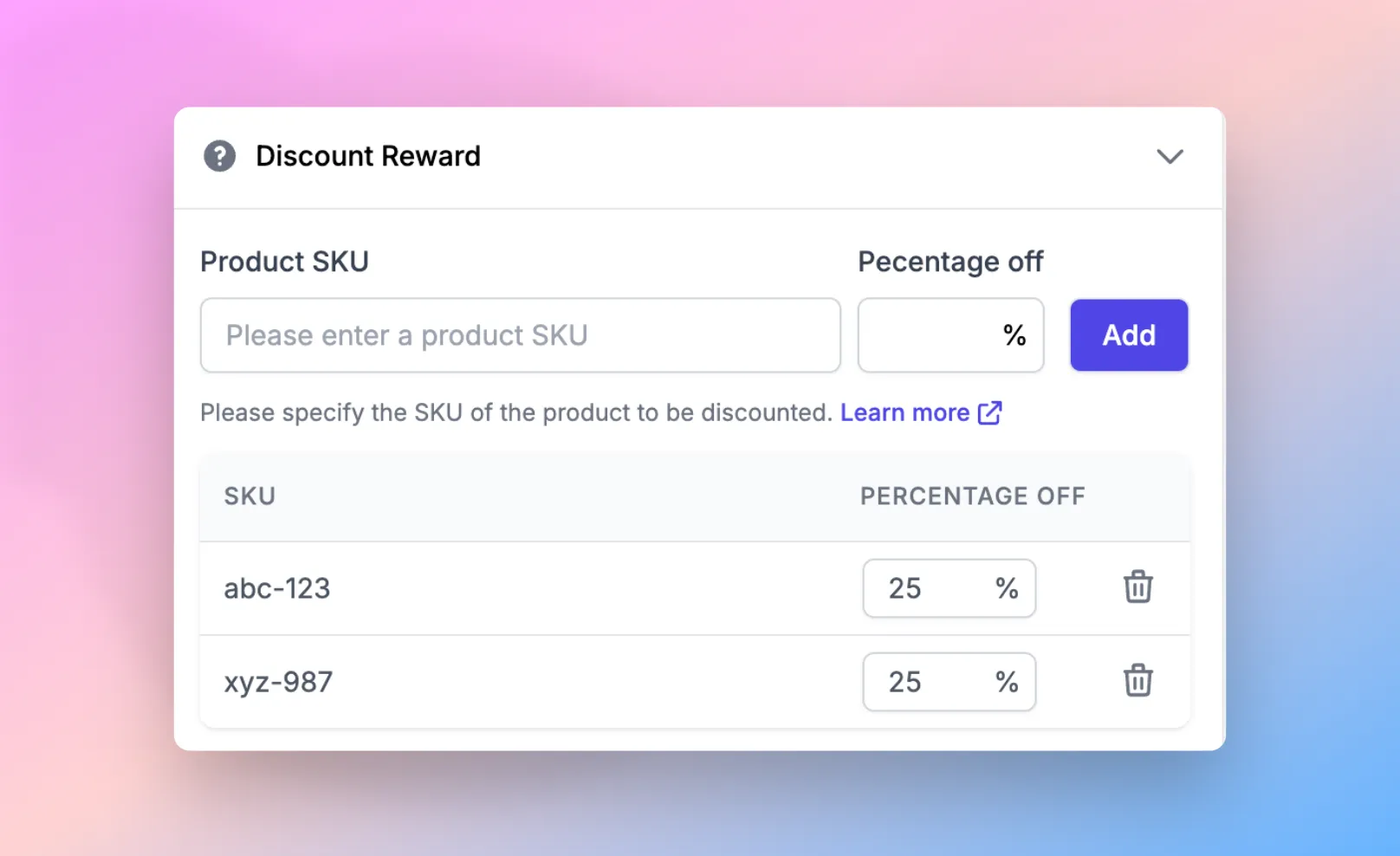
Please note the following on "Give a percentage off products"
- You can have a maximum of 25 SKUs
Give a shipping reward
If you've selected "Give a shipping reward", you can then choose what type of reward to give the customer, with a choice between a percentage, fixed amount off discount, or setting the charge to a fixed amount.
Type | Details |
|---|---|
Percentage discount | A percentage of the shipping amount to take off |
Fixed amount discount | A fixed amount to take off the shipping amount |
Set the charge to a fixed amount | Change the shipping amount to this price |
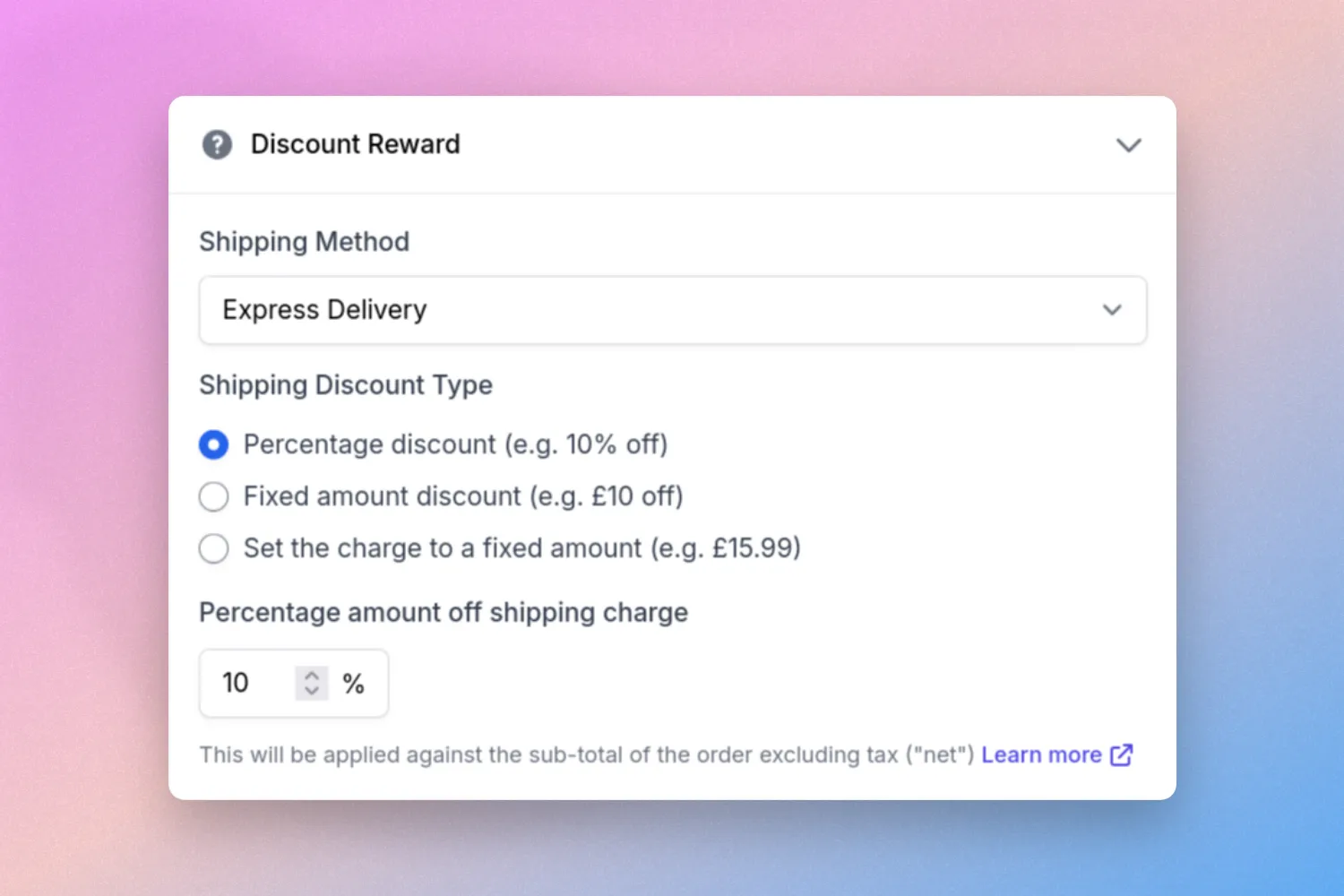
Please note the following on "Give a shipping reward"
- This reward type can only be used if you're using Shipping rules managed by SparkLayer (i.e. not your eCommerce platform).
- The discount reward will be applied against the net shipping price, exclusive of tax.
Advanced requirements and rewards
If you've selected "Advanced requirements and rewards", you can set up your discount to activate based on more comprehensive configurations. For example, it's a great way to set discounts to trigger based on a product with a specific tag being within the customer's cart, and more than one reward can also be set up.
When selecting this option, you'll be prompted to configure the following:
Type | Details |
|---|---|
Advanced Requirements | This is where you set what criteria the customer must meet before the discount is applied |
Advanced Rewards | This is where you set what reward(s) are then applied |
When setting "Advanced Requirements", you can choose from the following requirements and how you want to match against them using "Operators" ("must equal", "must contain", etc). You can also set multiple requirements within the same discount.
These requirements can be configured in a number of different ways.
Requirements can be configured to contain multiple conditions:
In the below example, either condition can be matched in order for the discount to apply its rewards. For example, a user can add COFFEE-01 OR COFFEE-02 to their cart, and the discount will trigger.
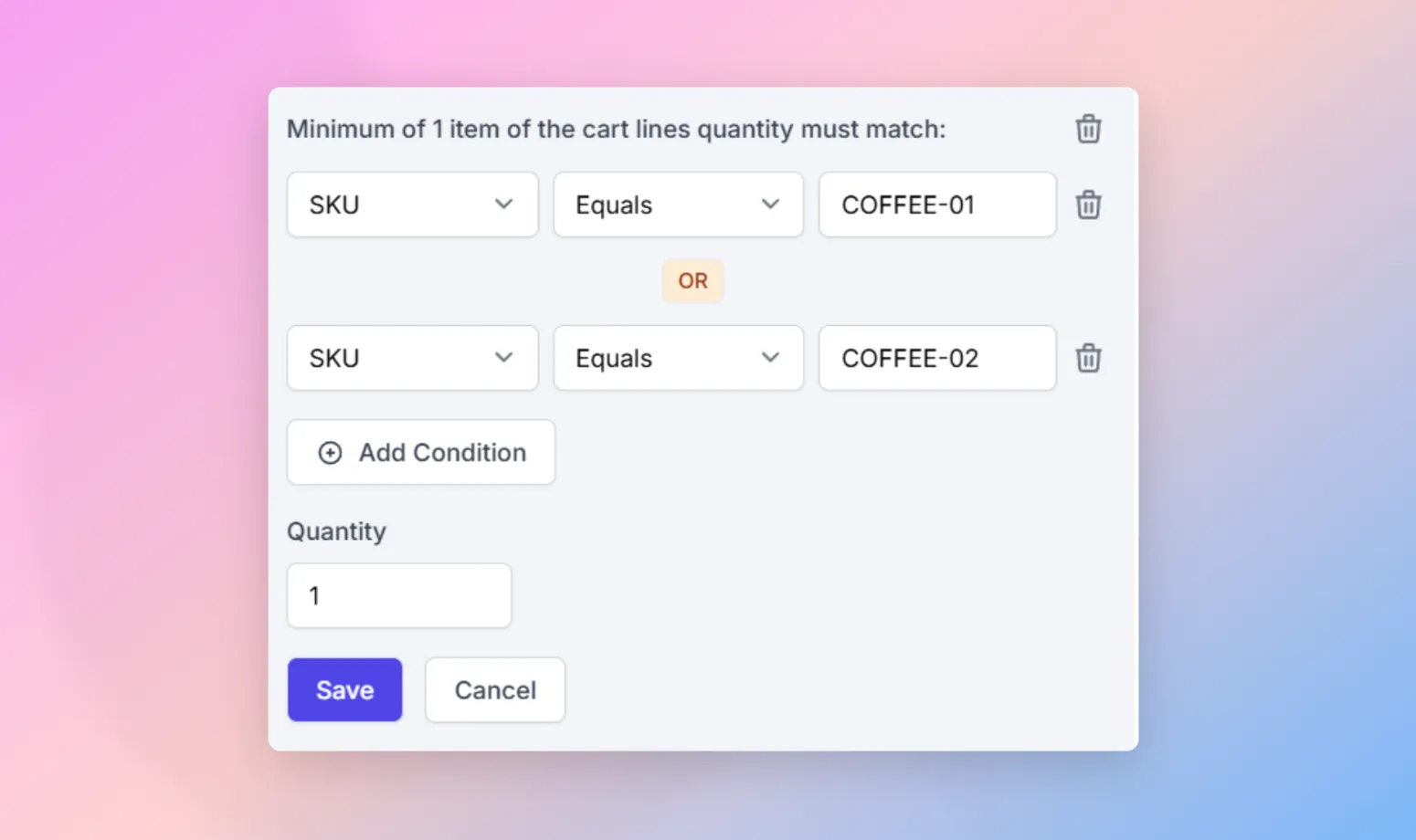
You can add multiple requirements to enforce multiple conditions being met.
In the below example, both COFFEE-01 and COFFEE-01 must be in the basket for the discount to be rewarded.
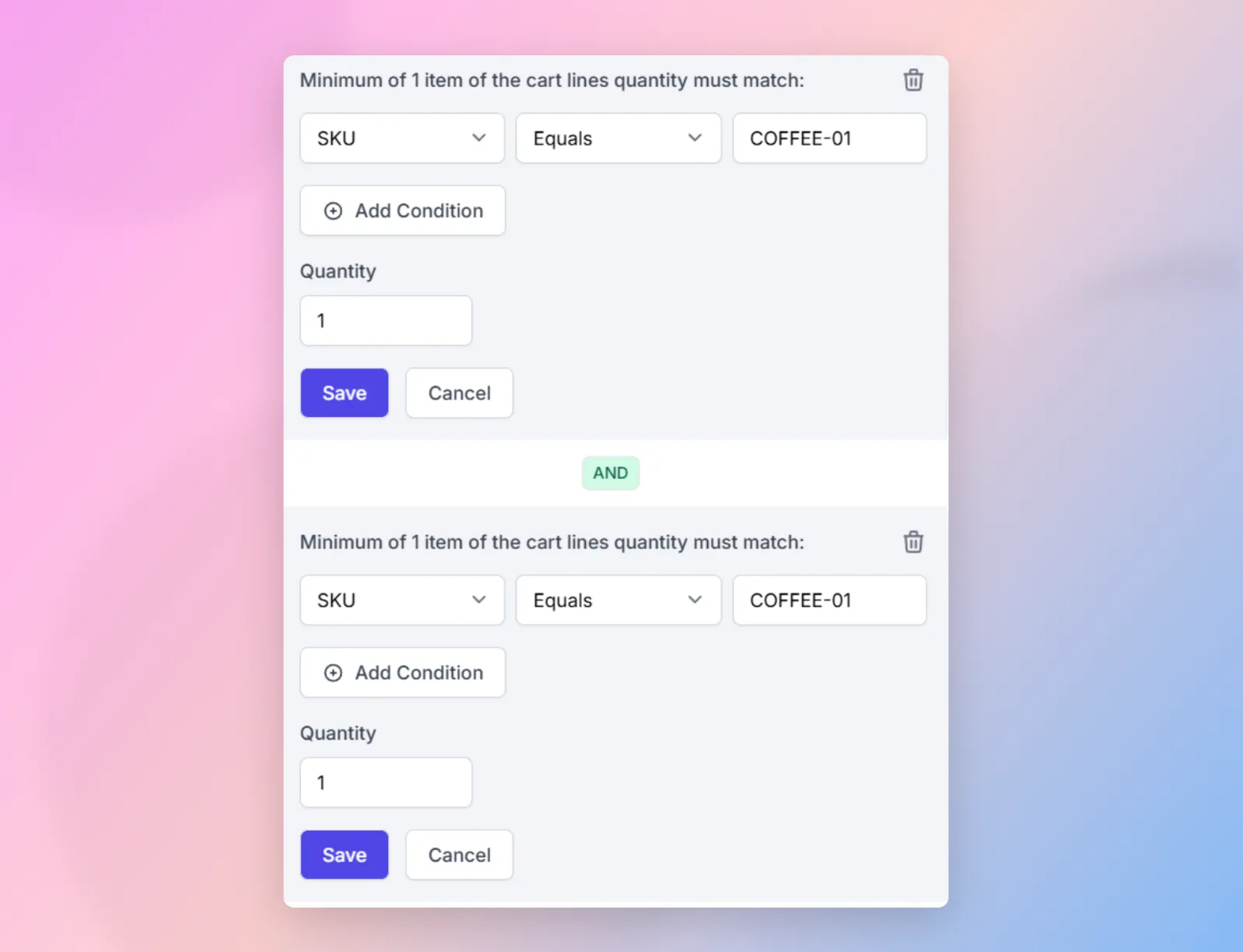
Requirement | Details |
|---|---|
SKU | Which SKUs must be in the customer's cart, e.g. ABC-1, ABC-2 |
Shopify Vendor | Which Shopify Vendor is applicable to products within the customer's cart, e.g. products that have a vendor of "Dog Brand 1" set. |
Shopify Tags | Which Shopify Tags is applicable to products within the customer's cart, e.g. products that have a tag of "dog-treat" set. |
Using operators, you can broaden your requirements easily. For example, if you want to apply the discount to all products that have a tag that contains "dog", you can use the "Contains" operator.
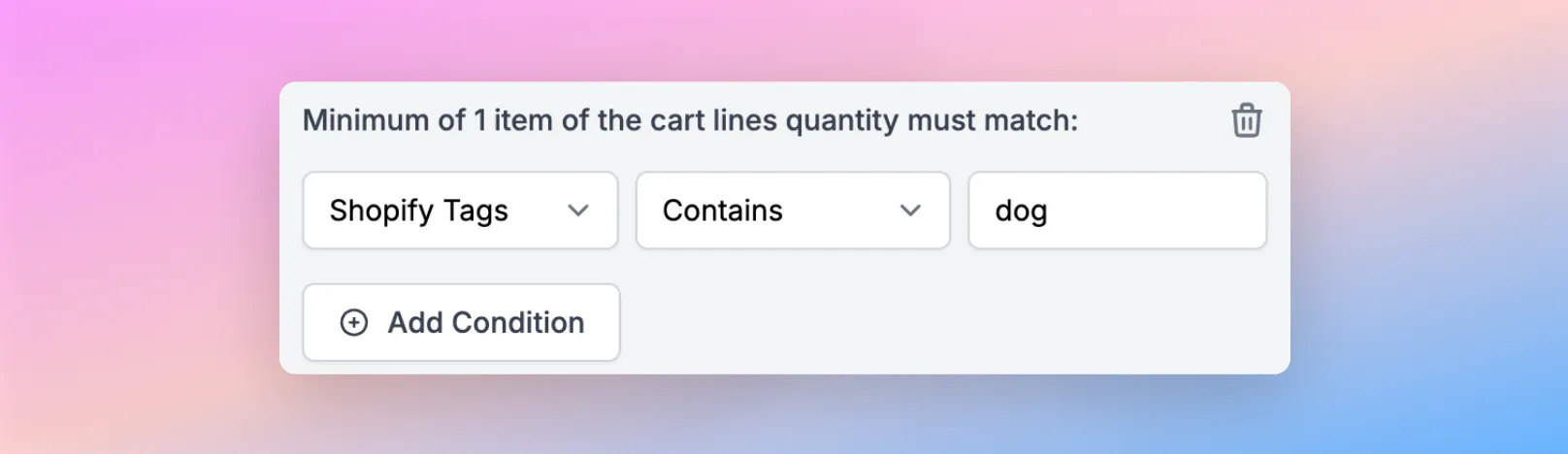
"Advanced Rewards" let you specify the rewards a customer gets when their cart matches the "Advanced Requirements" set above. You can choose from the following:
Type | Details |
|---|---|
Sub-total | A percentage or a fixed amount off the cart sub-total |
Shipping | A percentage or fixed amount to take off the shipping amount, or setting an explicit shipping cost |
Requirements | A percentage or fixed amount off of the requirements specified in "Advanced requirements". For example, if a discount requires a product with SKU of COFFEE-01, then all products with SKU of COFFEE-01 will be discounted with the specified percentage or fixed amount. |
Cart Lines | A percentage or fixed amount off the cart lines based a range of criteria: SKU, tags (or labels), vendor. |
It's also possible to apply multiple "Advanced Rewards" within a discount. When doing so, you can also choose whether to apply all the rewards, or only the highest or lowest value awards (with a specific number being applicable).
Advanced free products
"Advanced free products" allows you to give more comprehensive free product rewards based on specific configurations being met. For example, you may want to give away free product(s) based on the customer having a range of products that have a specific tag, or you may want to provide a “Buy One Get One Free” style discount that rewards additional free product(s) when a user adds the product to the basket.
Please note Unlike the Type "Give a free product", with "Advanced free products" you can also set multiple products to be added to the customer's cart.
When selecting this option, you'll be prompted to configure the following:
Type | Details |
|---|---|
Advanced Free Product Requirements | This is where you set what criteria the customer must meet before the discount is applied |
Advanced Free Product Rewards | This is where you set which free products are added and how you want this to behave. |
When setting "Advanced Free Product Requirements", you can choose from the following requirements and how you want to match against them using "Operators" ("must equal", "must contain", etc). You can also set multiple requirements within the same discount.
Requirement | Details |
|---|---|
SKU | Which SKUs must be in the customer's cart, e.g. ABC-1, ABC-2 |
Shopify Vendor | Which Shopify Vendor is applicable to products within the customer's cart, e.g. products that have a vendor of "Dog Brand 1" set. |
Shopify Tags | Which Shopify Tags is applicable to products within the customer's cart, e.g. products that have a tag of "dog-treat" set. |
Using operators, you can broaden your requirements easily. For example, if you want to apply the discount to all products that have a tag of "dog", you can use the "Equals" operator.
"Advanced Fee Product Rewards" let you specify the rewards a customer gets when their cart matches the requirements set above.
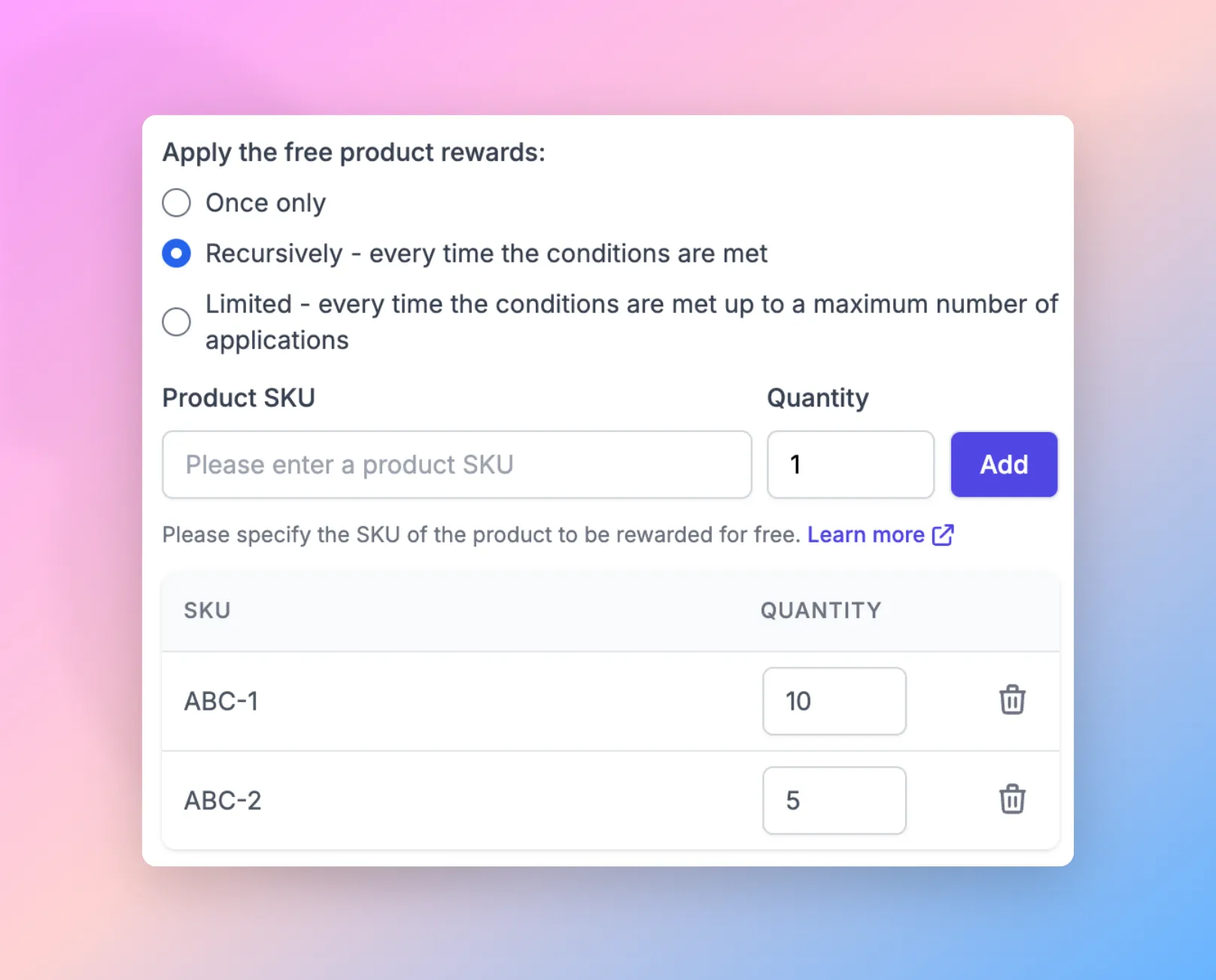
Once you’ve specified the products to be rewarded, you can then choose how you want to apply them.
Type | Details |
|---|---|
Once only | The free product(s) will be added only one time to the customer's cart when the required product and quantity are added. |
Recursively | The free product(s) will be added each time the customer adds the required products and quantity to the cart with no limit to how many rewarded products can be added. . |
Limited | Similar to the above, this lets you specify a limit to how many times the rewarded product will be added to the cart. . |
Please note the following on "Advanced free products"
- When this is enabled, this replaces the "Rules" (or "Order rules") configuration
Order rules
Advanced order rules It's also possible to setup more advanced order rules for your discounts, e.g. triggering them based off the "tags" of products. See "Advanced requirements and rewards" above to learn more.
Order rules let you set specific requirements that the customer must meet before the discount is applied.
Currently, SparkLayer supports the ability to set "Product Rules" that allow you to apply discounts based on the customer having specific product(s) within their order. To get started, click the "New Product Rule" button and then add the SKUs you'd like the discount to apply against.
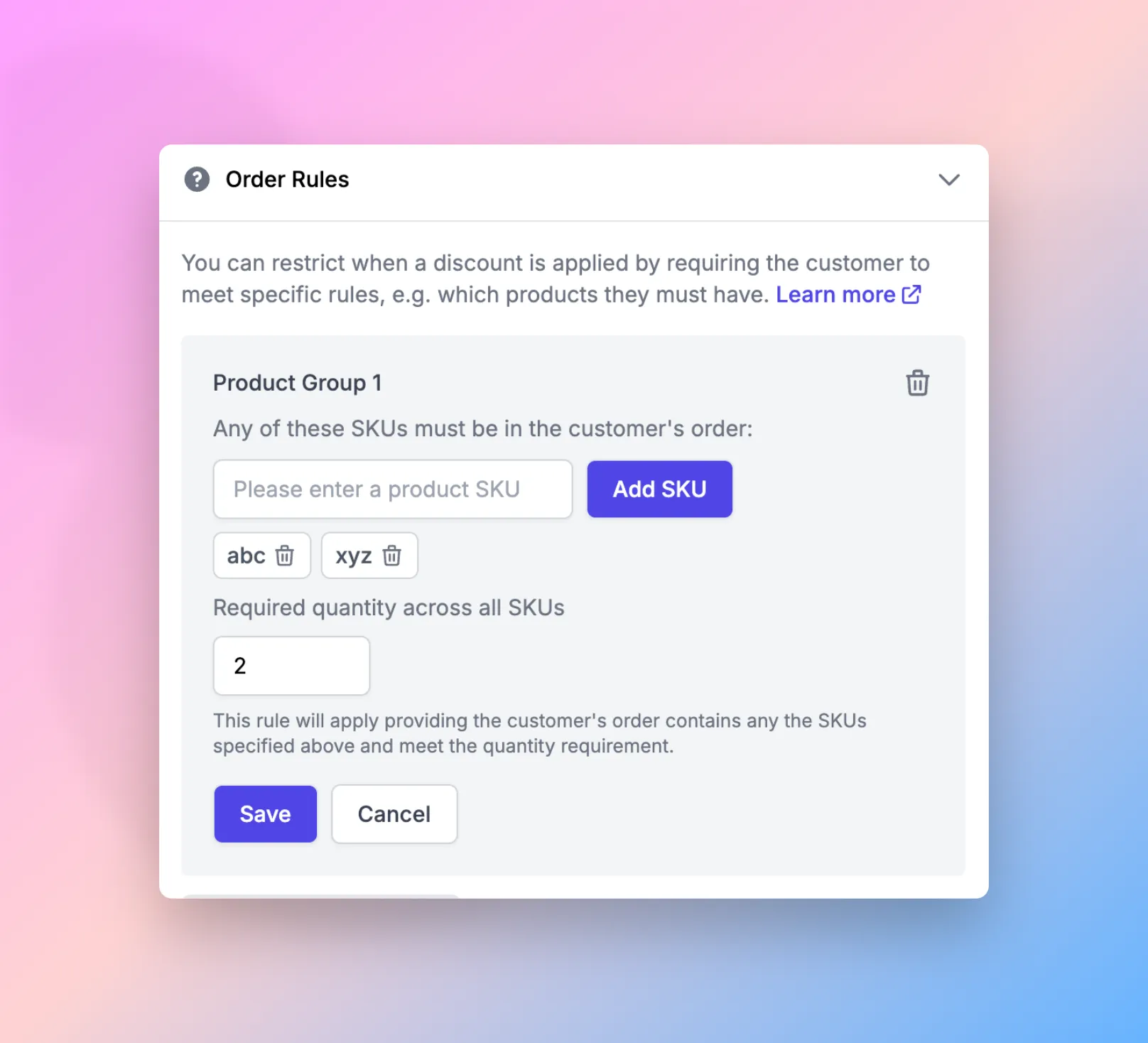
Once you've specified the SKUs, you can then set the total quantity the customer must have before the discount applies. This quantity can apply to any combination of the SKUs you've entered. For example, you may have entered:
- SKU: abc
- SKU: xyz
- Required quantity of 2
The customer could meet the discount requirements with any of the following combinations:
- 2 x abc
- 2 x xyz
- 1 x abc and 1 x xyz
Please note the following on "Order Rules"
- Valid SKUs must be specified for the discount to apply to the customer's order
- You can have a maximum of 10 order rules
- You can have a maximum of 10 SKUs per order rule
Customer Groups
By default, discounts will be applied to all customers however it's possible to restrict your discount to specific Customers.
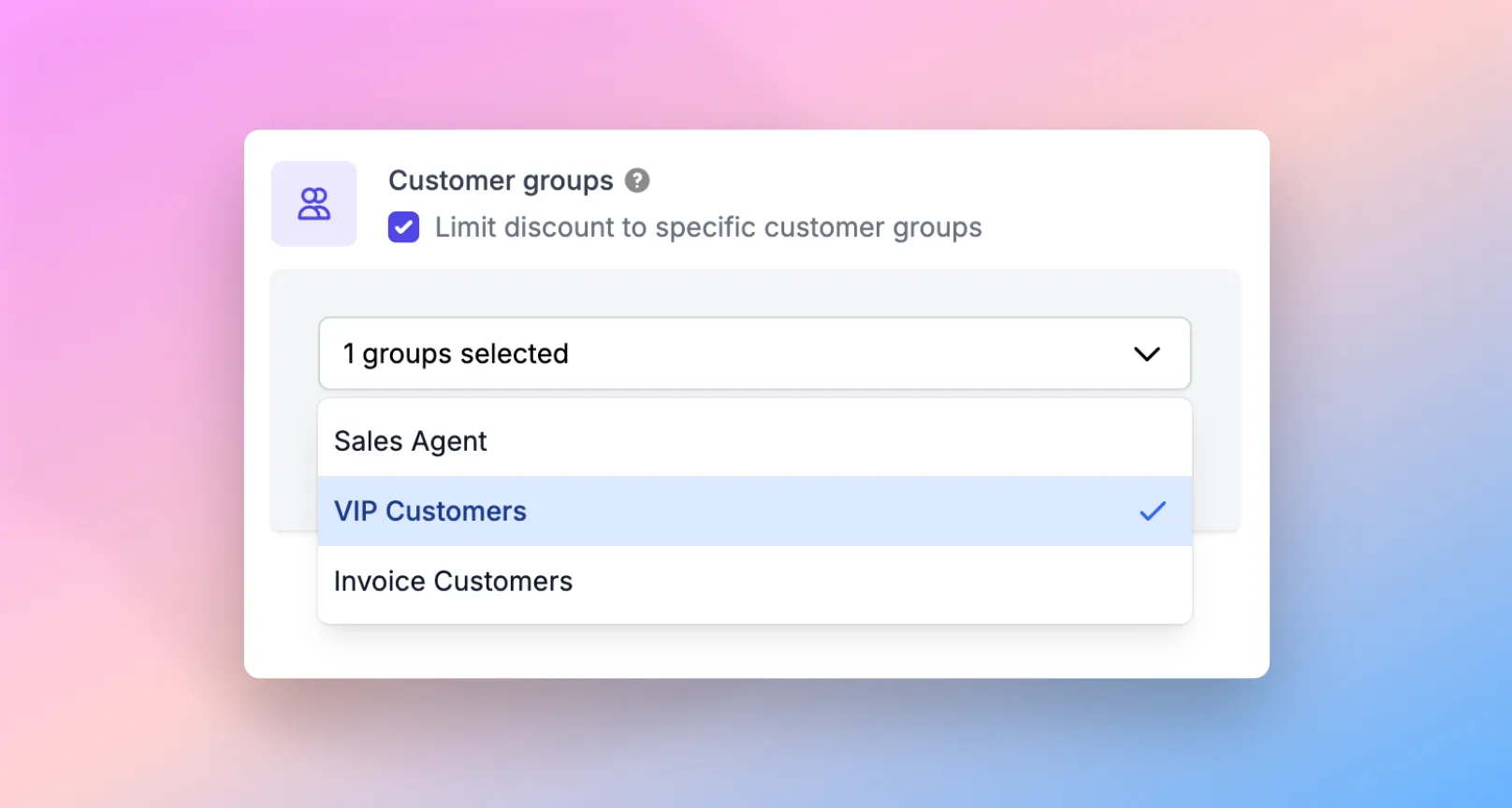
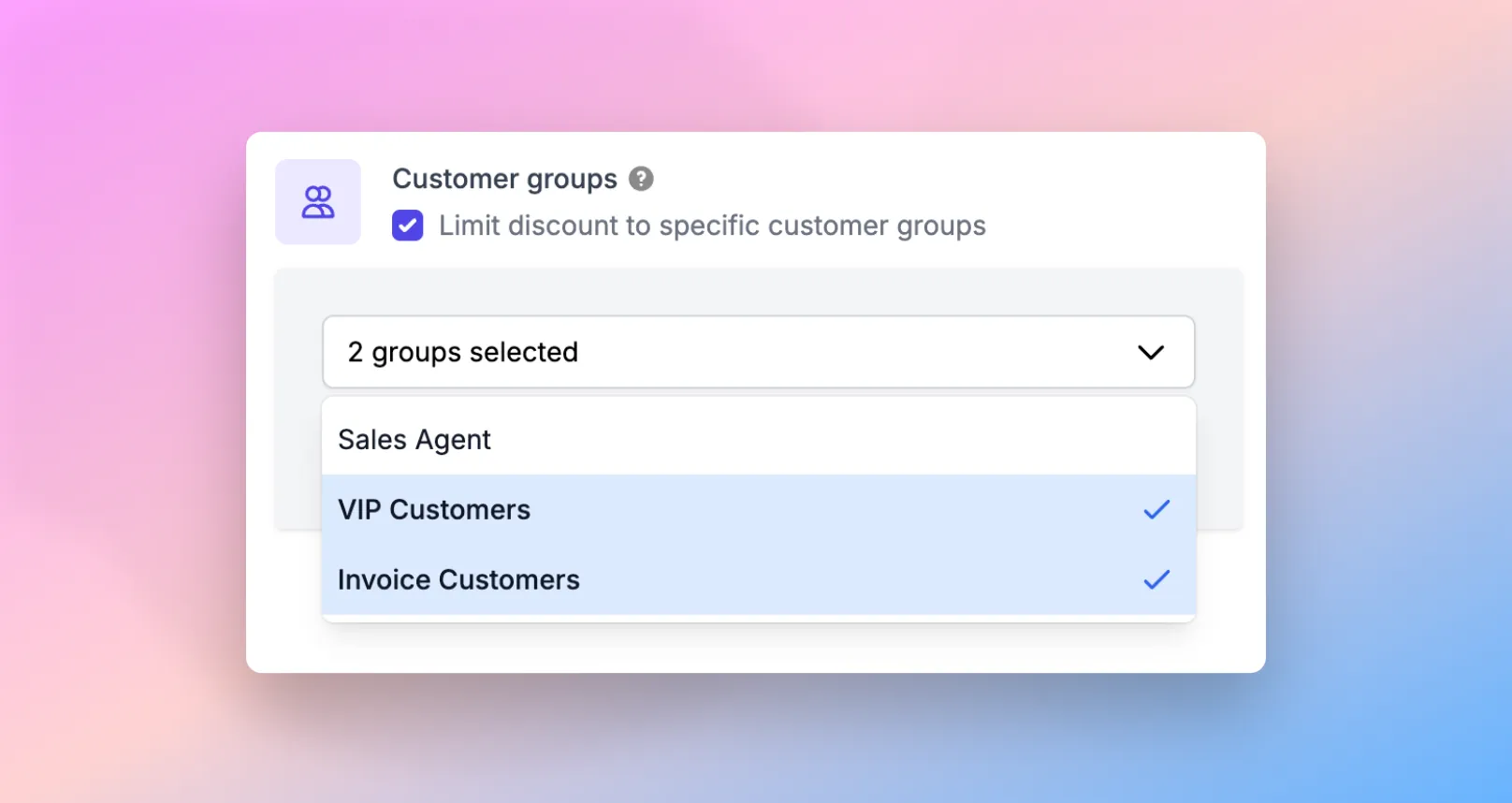
The Customer groups section lets you select which customer groups are applicable to your discount and will have the discount reward applied.
You can also select multiple customer groups if you'd like the discount to be used by more than one customer group.
Scheduling
If you want to set up a time-based discount, you can set a "Schedule" for the discount.
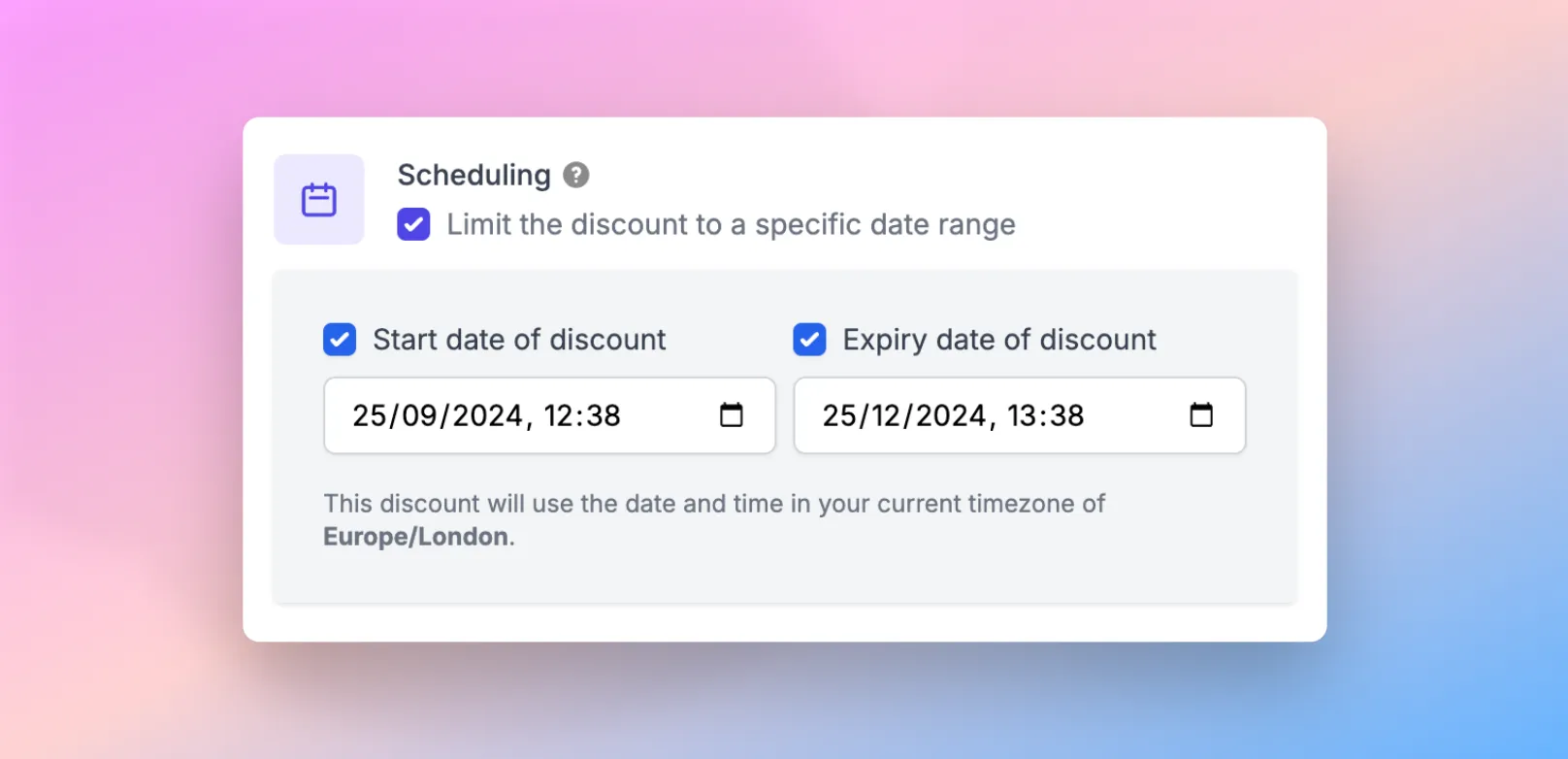
There are two dates that can be selected, both of which are optional:
Item | Details |
|---|---|
Start date of discount | This is the date and time the discount will be applicable from |
Expire date of discount | This is the date and time the discount will expire |
Please note the following on time configurations
- The scheduling will use the timezone of your specific computer. For example, if you are based in Germany but you're setting up a discount for Canada, please be aware that you will need to change the date and time accordingly.
- Selecting a time of 00:00 will start the discount at the beginning of the date selected
- Selecting a time of 23:59 will start the discount at the end of the date selected
Coupon codes
Coupon codes allow you to specify a unique code that the customer must enter in order to qualify for the discount reward. This is termed a "manual discount" in that the customer won't have the discount automatically applied by default, unless they manually add the coupon code.
To add a coupon code, you can simply type in your coupon code reference into the field below.
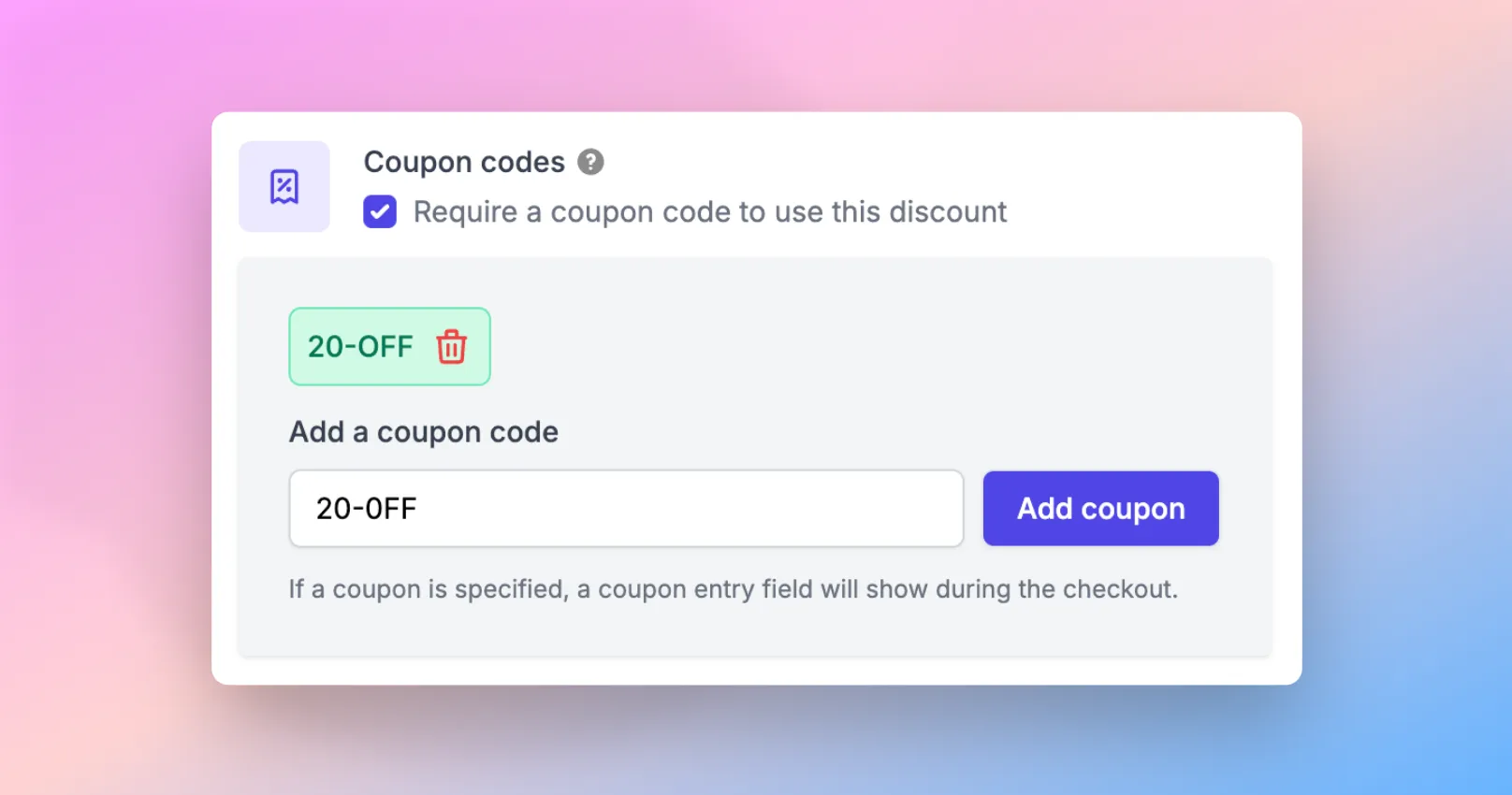
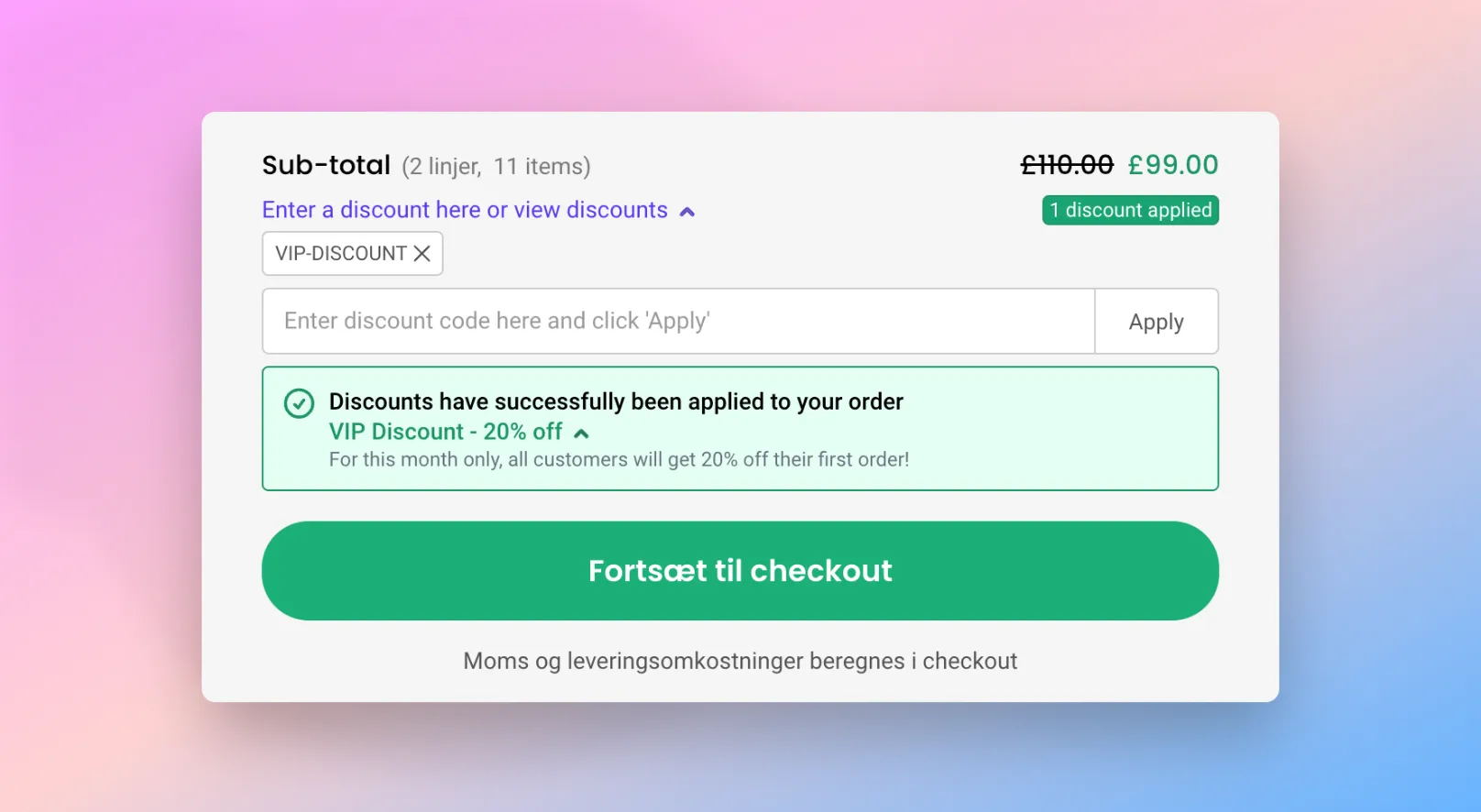
Once you've added a coupon code, this will then be required to apply the discount. When the customer then goes through the checkout, they can simply apply the coupon to their order. When the order comes through to your website, you'll then see the coupon codes used within the order's "Additional notes".
Please note the following on coupon codes
- Coupon codes will automatically be saved in uppercase. For example, if you type in Code-Abc, this will be saved as CODE-ABC
- You can save multiple coupon codes against a discount. For example, you may have the same discount promoted in different locations but you want to set up different codes. For example, you could add CODE-ABC and CODE-123
- On your website, the My Cart Interface will only allow the customer to apply a maximum of 3 coupon codes against an order. For example, if a customer has 3 coupons applied to their order and they add a 4th, the most recently added coupon will not be applied.
Order sub-total limits
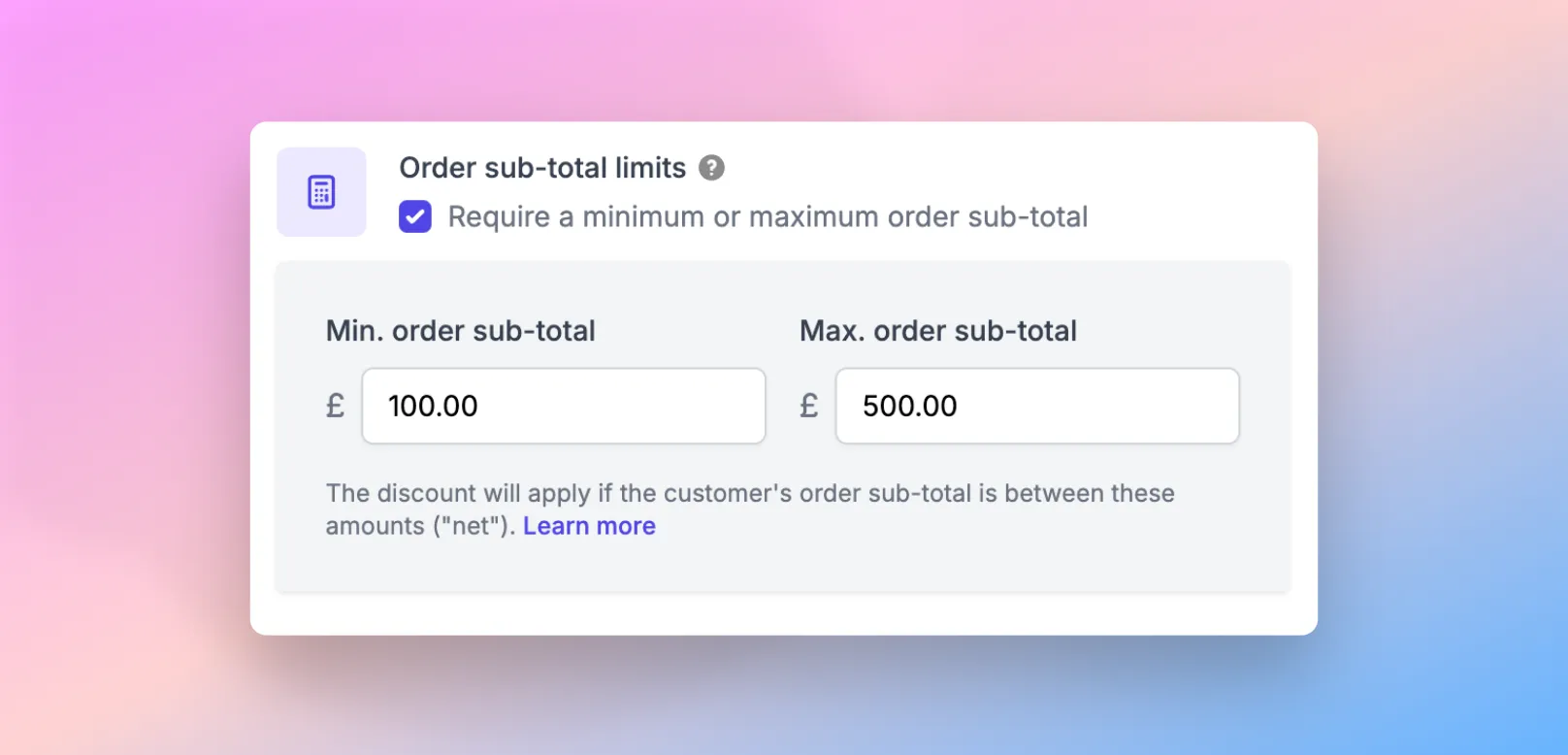
It's possible to set "order sub-total limits" that allow you to specify the sub-total rules the customer must meet before being able to qualify for the discount. For example, you may want the customer to reach a certain amount before they can qualify for a discount (e.g. spending over $400 and getting 5% off).
Once enabled, you'll see the option to enter a minimum and maximum sub-total.
Please note the following on order sub-total limits
- When setting this up, please bear in mind the discount is calculated based on the sub-total of the customer's order. The is the total without tax and shipping costs being added to the order.
Order item limits
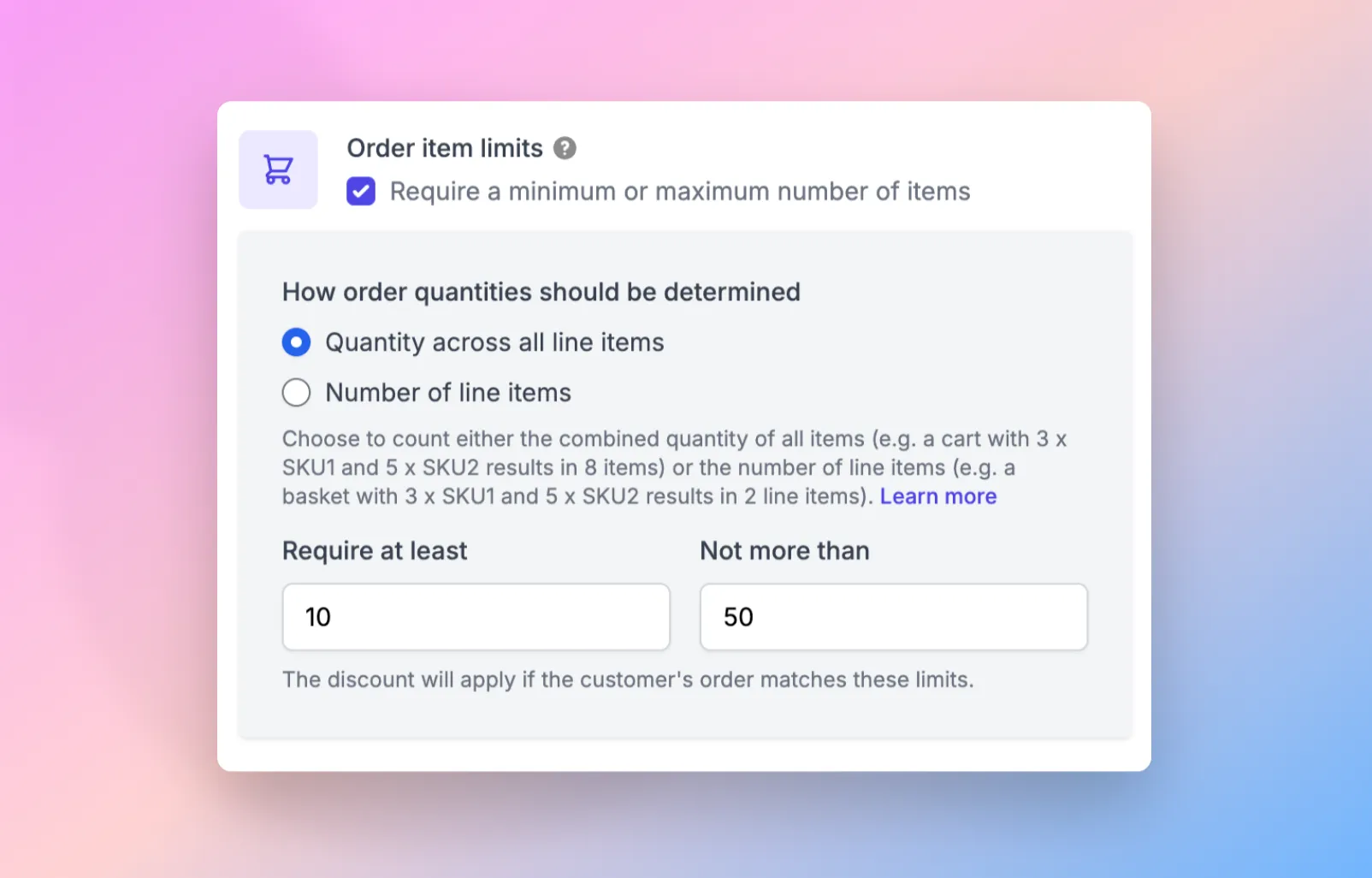
Order item limits allow you to set requirements on how many items the customer must have in their order to qualify for the discount. There are two ways to define the order item limits:
Type | Details |
|---|---|
Quantity across all line items | This is the total quantity of items within the customer's order across all products. For example, the customer may have: 1 x Red Shoe 5 x Blue Shoe 4 x Green Shoe SparkLayer would calculate this as a quantity of 10 |
Number of line items | This is the total unique items within the customer's order across all products. For example, the customer may have: 1 x Red Shoe 5 x Blue Shoe 4 x Green Shoe SparkLayer would calculate the number of line items as 3 |
For each option selected, you can then define the minimum and maximum number that the customer must have within their order to qualify.
Usage limits
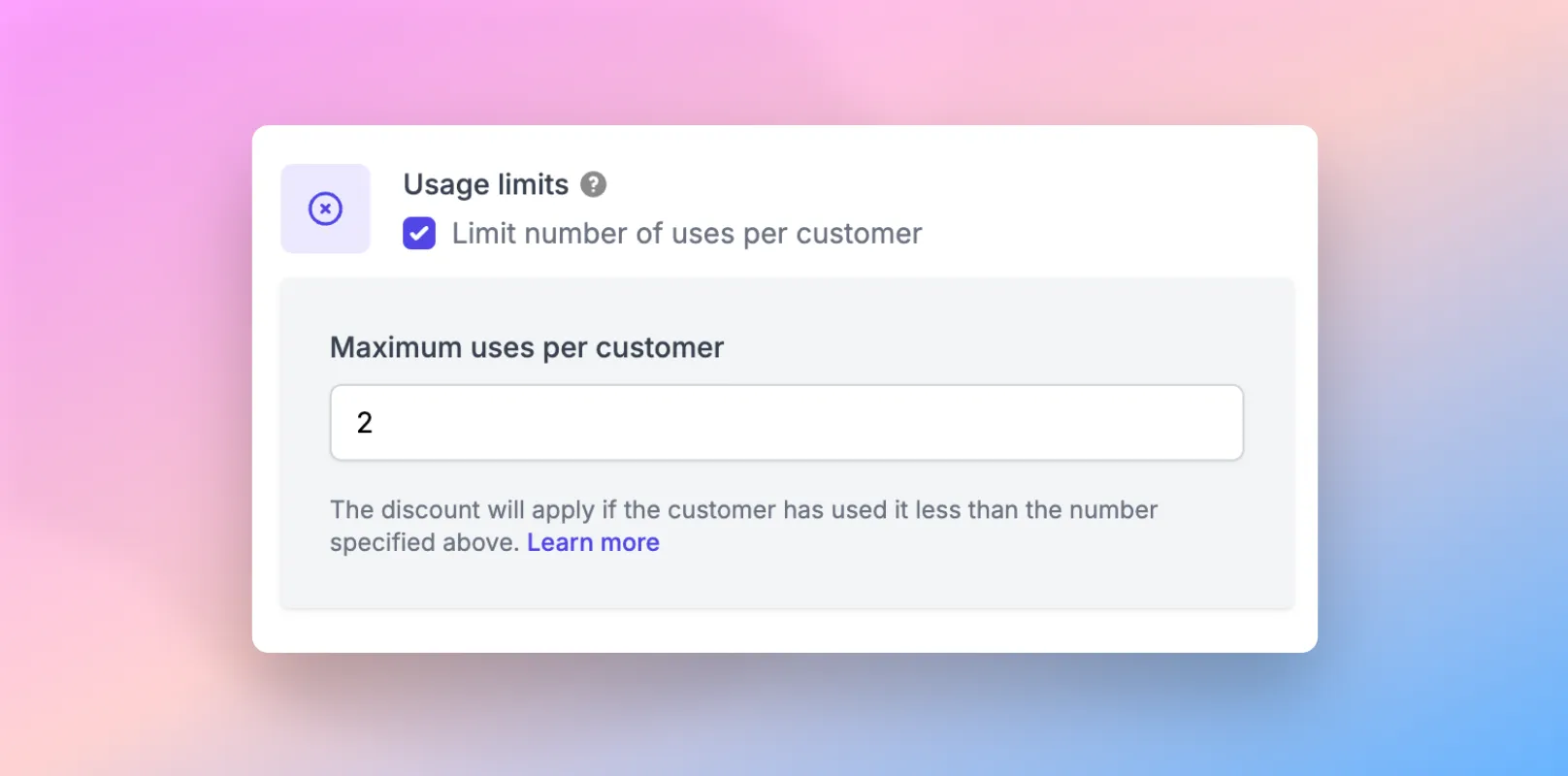
The usage limits configuration lets you define how often a customer can qualify for the discount. For example, you may want to restrict the discount to only be used once by a customer, or a specific number of times.
Please note the following on usage limits
- The limit will apply to the specific customer placing the order and is applied against their specific customer record.
Exclude customers
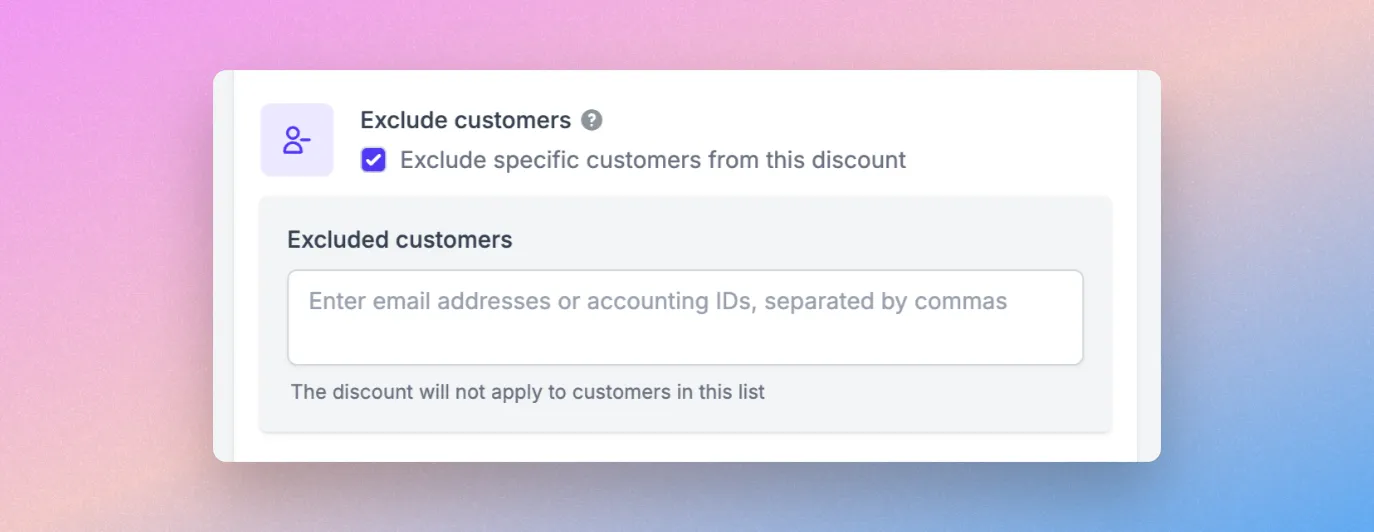
You can exclude specific customers from a discount by entering customer email addresses or accounting IDs, separated by commas. The discount won’t apply to any customers included in this list.
Currency
If you've set your discount to "Get an amount off an order" with a "Fixed amount discount", you can also specific the currency that the discount should be applicable to.
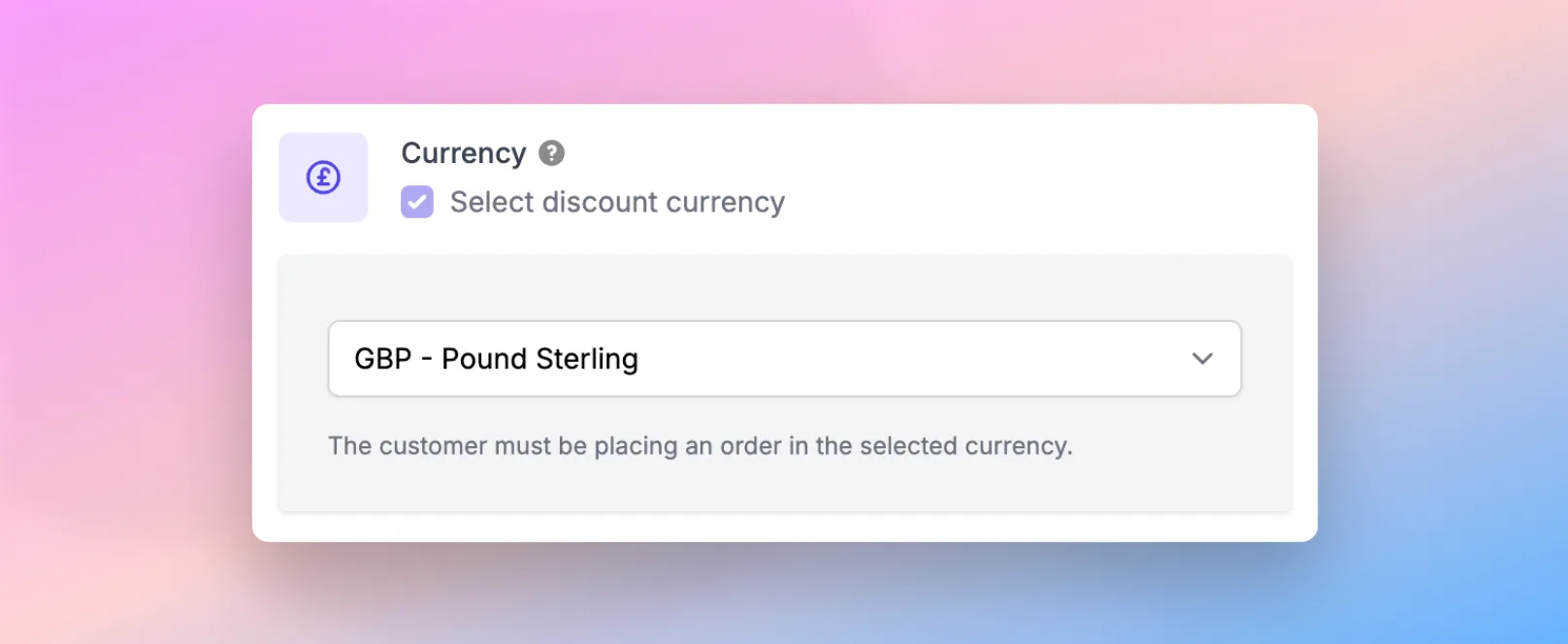
Please note the following on currency
- By default, this configuration will automatically set the currency as the "default" currency of your store (e.g. USD, GBP, EUR)
- If you have multiple currencies setup for your Pricing which are then assigned to a customer, the currency must match the currency the customer is placing orders in.
Compatible discounts
When you create a discount it will be able to be used in conjunction with all other discounts by default.
If you would prefer to restrict which discounts can be used alongside others, you can enable this within the "Compatible discounts" section of the discount edit screen.
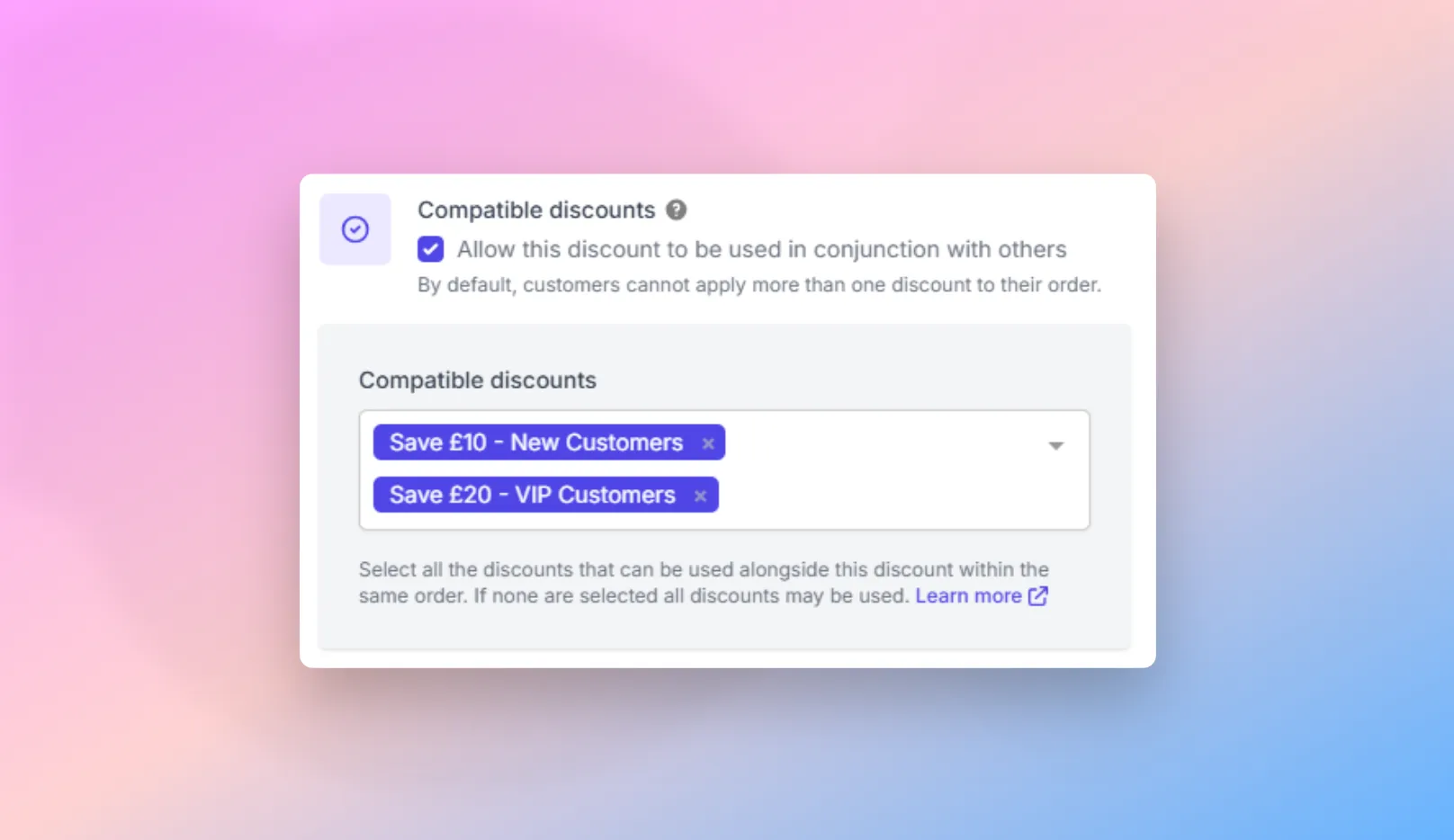
Once enabled, you can then select the discounts that you wish to be compatible by selecting them from the menu.
Please note the following on compatible discounts
- You can set the priority in which they apply against a customer's order by using the "Discount priorities" feature (see below).
- There are some limitations to this.
Discount priorities
By default, customers can apply a maximum of one discount to their order. If you have multiple discounts setup that are applicable to your customers, you may want to specify the order in which they get applied. This is particularly useful if you have multiple "competing" discounts and you need to ensure your customers have the right one applied.
When you have more than one discount setup, you'll see a Manage Priorities button within the Discounts section . To get started, click this button and you'll then see all discounts listed.
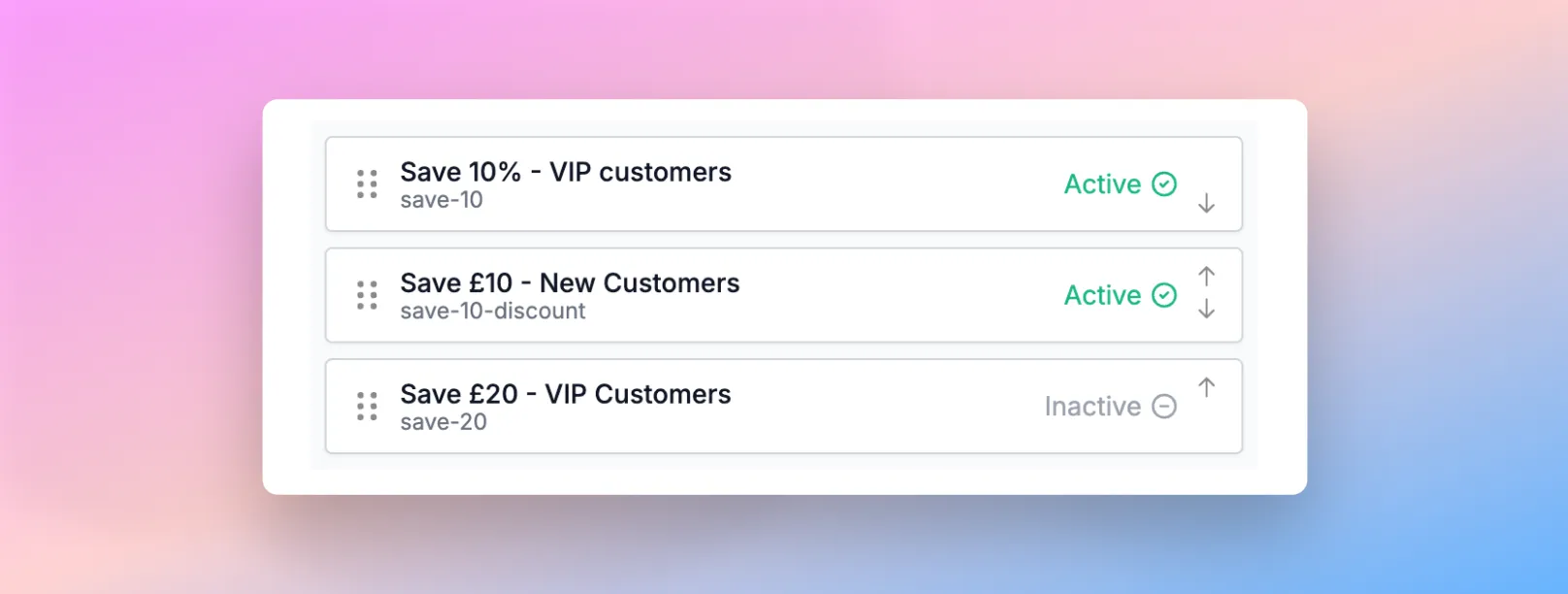
You can then simply drag the discounts up and down in the priority you'd like them to apply. When a customer then qualifies for a discount, it'll use the highest one in the list.
If you have discounts that aren't active (see above "Active versus Inactive"), you can also manage the priority of these within the list.
Priority Limitations:
What priority does
- It decides which discount gets first pick of the items in the basket.
- It settles clashes where discounts are not compatible (the higher-priority discount wins, lower ones are ignored).
- It determines who consumes any per-order limits first (e.g. “can only apply once per order”).
What priority does not do
- It does not change the way savings are calculated. All discounts that share the same “calculation phase” (see below) are worked out from the same pre-discount totals; their savings are simply added together.
- It does not make the second discount work on the already-discounted price of the first. To create true “discount-on-discount” behaviour the second discount must be placed in a later calculation phase.
Please note You can also manage which discounts are compatible by editing a discount and going to "Compatible discounts" (see below).
Updating the default text
If you'd like to update the text shown to customers in the My Cart Interface, you can update the default language strings on your store.
Updating language and text You can update the default text by adding code to your Core Script. Learn more about how to update text on SparkLayer.
/* Add the below code into the SparkLayer Core Script */
/* Please refer to our help guide on how to do this */
translations: {
  en: {
     "cart.checkout.coupons.apply": "Apply",
     "cart.checkout.coupons.input-placeholder": "Enter discount code here and click 'Apply'",
     "cart.checkout.coupons.not-found": "Discount code ''{couponCode}'' not found",
     "cart.checkout.coupons.already-applied": "Discount code ''{couponCode}'' already applied",
     "cart.checkout.coupons.successful-apply": "You've successfully added discount code ''{couponCode}''!",
     "cart.checkout.coupons.max-reached": "You can only add a maximum of 3 discount codes",
     "cart.checkout.discount.cta": "Enter a discount here or view discounts",
     "cart.checkout.discount.success-message": "Discounts have successfully been applied to your order",
     "cart.checkout.discount.totals-row-text": "Discounts Applied",
     "cart.checkout.discount.no-of-discounts-applied": "{numberOf} {numberOf, plural, =1 {discount applied} other {discounts applied}}"
  }
},
/* End of code */
Duplicate Discounts
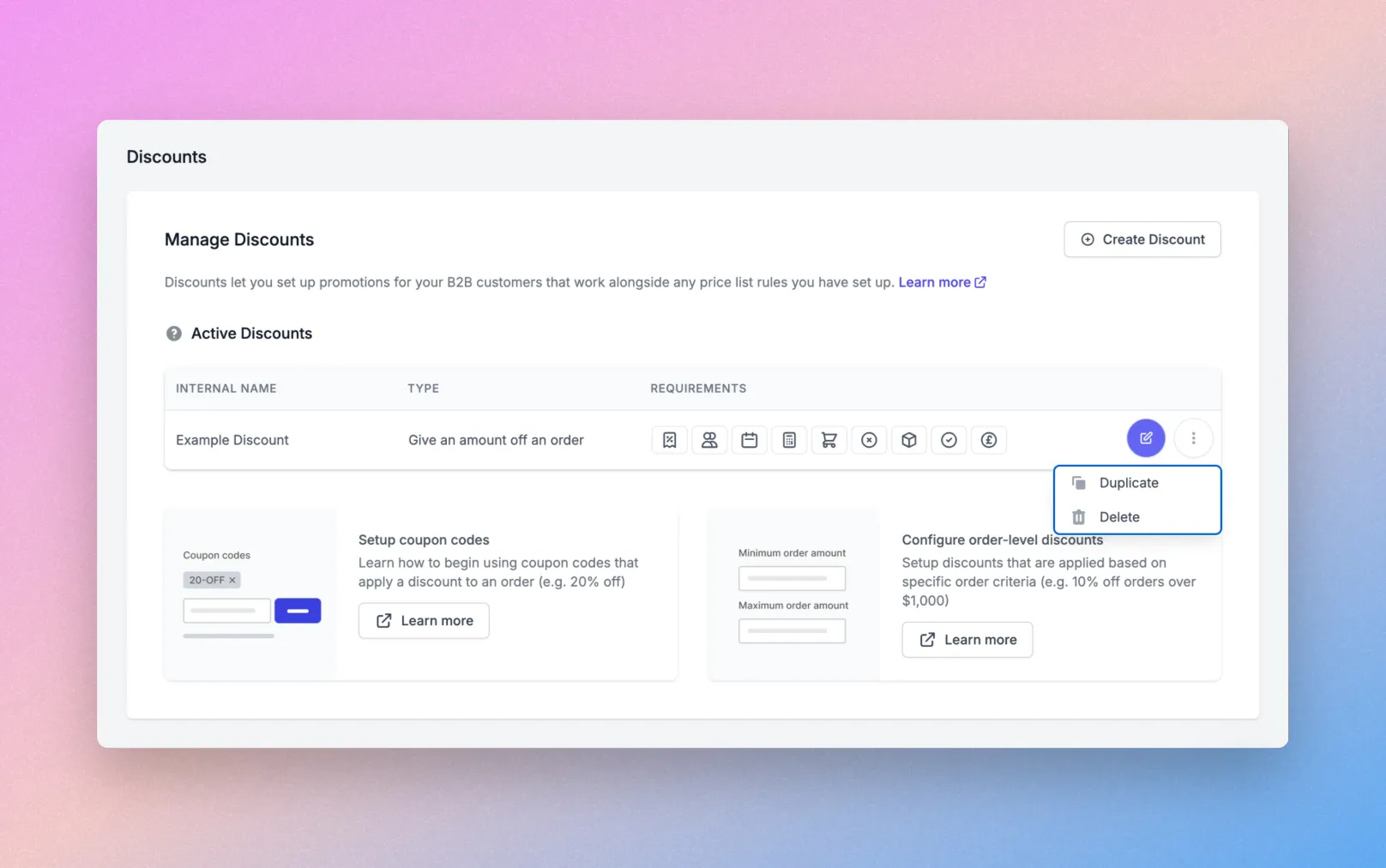
You can now create duplicate discounts in SparkLayer - these are discounts that share the same structure, rules, and logic of a existing one. This is useful when you want to run the same discount for different customer groups, sales campaigns, or pricing scenarios without rebuilding each one from scratch.
To duplicate a discount, simply click the '⋯' next to the discount you want to copy, then select 'Duplicate'. A new discount will be created with the same setup.
By default:
- The Discount Public Name will remain the same unless edited
- The Discount Internal Name will have “_copy” added to the end
You can then edit any details as needed before saving. Each duplicate discount is treated as a separate entry in your system which means you can assign different coupon codes to each duplicate.
Data & backend
When a customer uses a discount, this will store a range of data against the order that will give you further details about the discount that has been applied. This data includes:
- The coupon codes applied
- The IDs/Handles of the discounts applied (discount slugs)
- The cost of the order pre discount
- The amount taken off by the discount
Please note: All monetary values are in the currency the customer used to place the order.
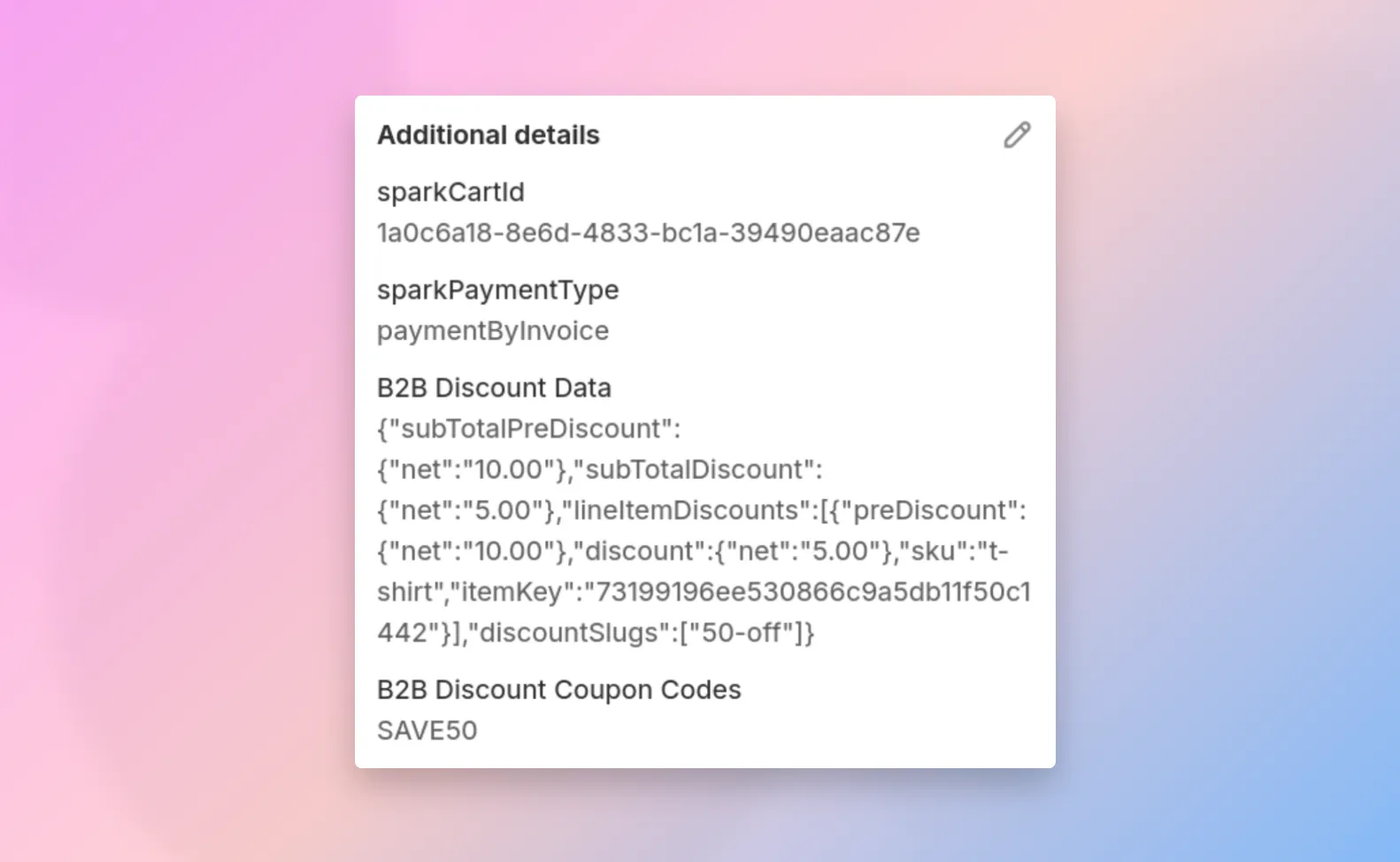
The discount data is stored in the "Additional Details" section of the Shopify Order. From the Shopify API this is called note_attributes and you'll see the following:
- B2B Discount Coupon Codes - a comma separated list of the coupon codes used. This is separate so you can easily view it at a glance
- sparkDiscountData - the rest of the discount data, stored in a JSON string including SKUs order, net pricing, and the internal "ID" of the discount.
If you need to access this data through code, you can use the Shopify API to access the order data (learn more).
Reporting on discounts
Currently, there isn't built-in reporting with SparkLayer to analyse your discounts usage however, we have some recommended approaches that we have included below.
Shopify has a built in automation tool called Shopify Flow. Using Shopify Flow, it's possible to perform actions based on discounts being used by your B2B customers.
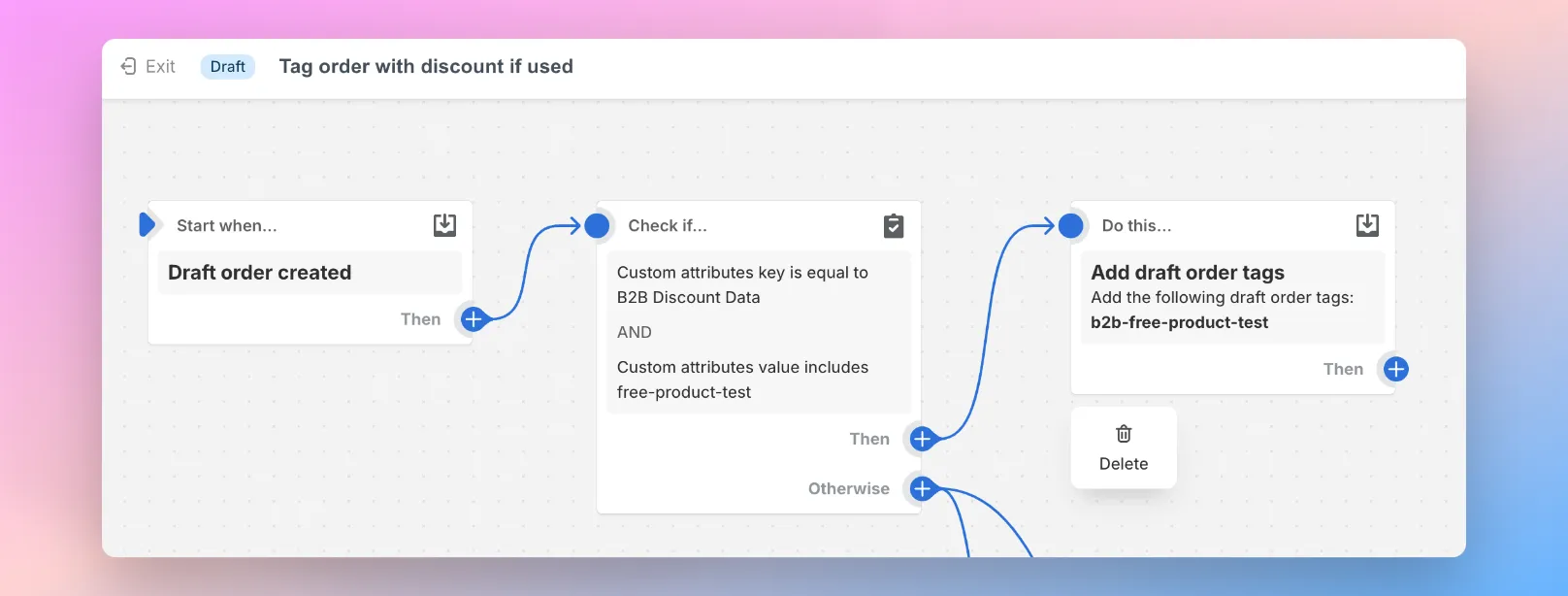
Our example Shopify flow works as follows:
An order is created by the customer (e.g. draft order)
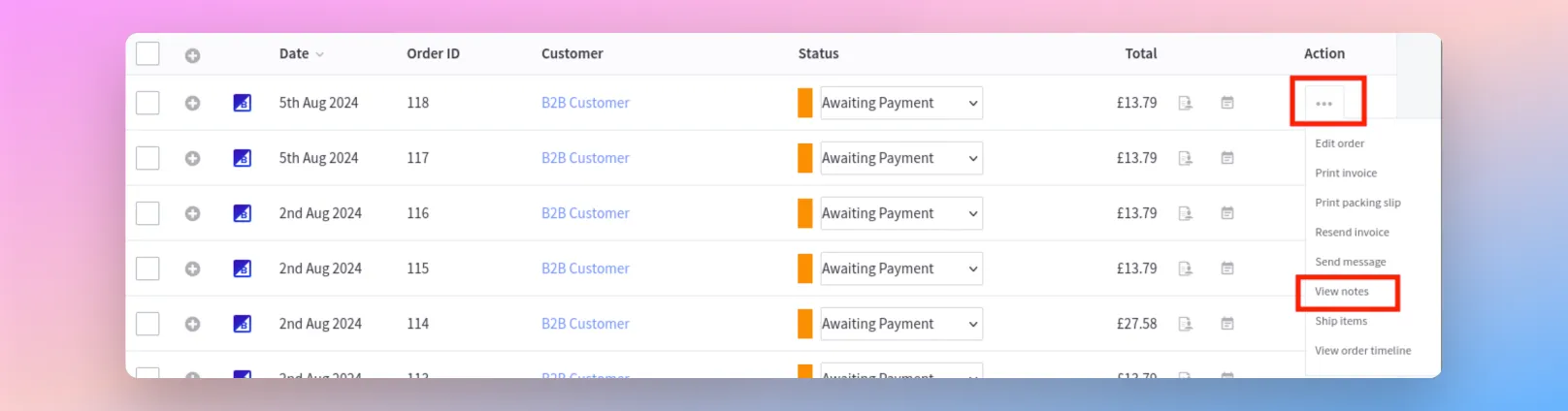
The Flow detects if a discount has been applied by searching the "B2B Discount Data" field applied to an order. You'll see this when viewing an order in Shopify under "Additional details".
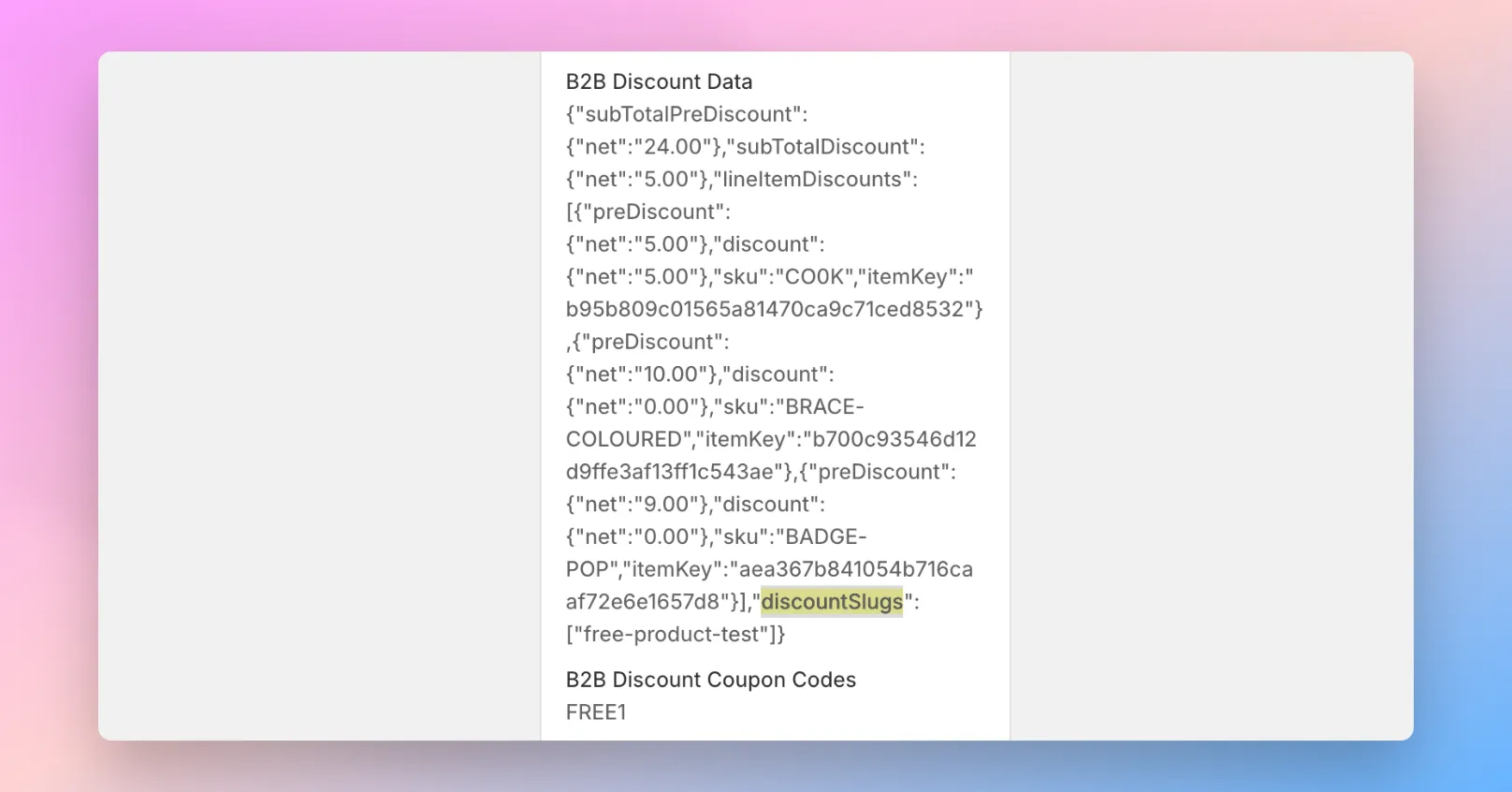
If the "B2B Discount Data" field includes a specific discount ID (within the discountSlugs data), it will then automatically add a tag to the order. In our example above, the discountSlugs is set to free-product-test and this subsequently adds a tag of b2b-free-product-test to the order.
You can find the ID of a discount within SparkLayer by editing a discount and viewing "Discount Handle (or ID)".

Once a tag has been added to a B2B order, within Shopify you can then easily segment order data by this. Either by going to the Analytics section or by filtering within the Orders section in Shopify
Get started with Shopify Flow You can download and edit our sample discount-specific Shopify flow here.
Troubleshooting
Limitations
The SparkLayer discount system will be subject to many ongoing improvements, however please be aware of the following limitations currently.
Item | Description |
|---|---|
Discount usage | At this time, it is only possible to apply a maximum of 4 discounts at a time to a customer's order. If you have multiple discounts setup that are applicable to a customer, you can use the "Discount Priority" feature to set the order. |
Payment-specific discounts | It is not possible to set discounts based on the payment methods the customer uses. For example, $10 if the customer pays by "Pay Online by Card" |
Applying a discount via a URL | It is not possible to apply a discount via the customer entering a URL. For example, $100 if visiting mystore.com/?discount=ABC |
Available on the Growth plan and above
By default, all plans benefit from our Discount functionality and there are some additional features that are available on our Growth plan and above. These include:
- Give a free product
- Give a percentage off products
- Order rules
- Usage limits
- Compatible discounts
- Advanced requirements and rewards (e.g. tag based discounts) - Pro plan
- Advanced free products (multiple free products, tag based, and more) - Pro plan