Custom Slots ("Targets")
🚀 Upgrading to the latest SparkLayer version To benefit from our latest updates, please upgrade your SparkLayer Core Script. You can learn about how the Core Script works in our guide here.
Introduction
Custom Slots (or "Targets") allow you to enhance a range of the SparkLayer Frontend Interfaces by adding your own custom code in predefined areas.
It's a great way to further enhance your B2B customer experience and use-cases could include any of the following:
Use-Case | Details |
|---|---|
Promotional content | Adding promotional content to the My Account Interface that customers see as soon as they login (e.g. announcing a new product line) |
Adding links | Adding links in the My Cart Interface area that your B2B customers can access (e.g. downloadable CSV templates) |
Upsell content | Adding upsells and promotional content when a customer completes an order (e.g. asking for a rating) |
In addition to this, you could also set up more advanced content that varies based on specific rules:
Use-Case | Details |
|---|---|
Customer-specific | Based on who the customer is and which customer group they belong to, show different content (e.g. customer group VIP, show a promotional message) |
Order-specific | Based on the order contents or order total, show a message (e.g. if the order is under $100, encourage them to add more products) |
Custom Slots allow a lot of flexibility in how they're used and it's really up to you how creative you can be!
How it works
Custom Slots work by adding special template slots to your website that are then displayed in specific locations of the SparkLayer Frontend Interfaces. You can learn how to begin using them under "Getting Started" below.
My Account
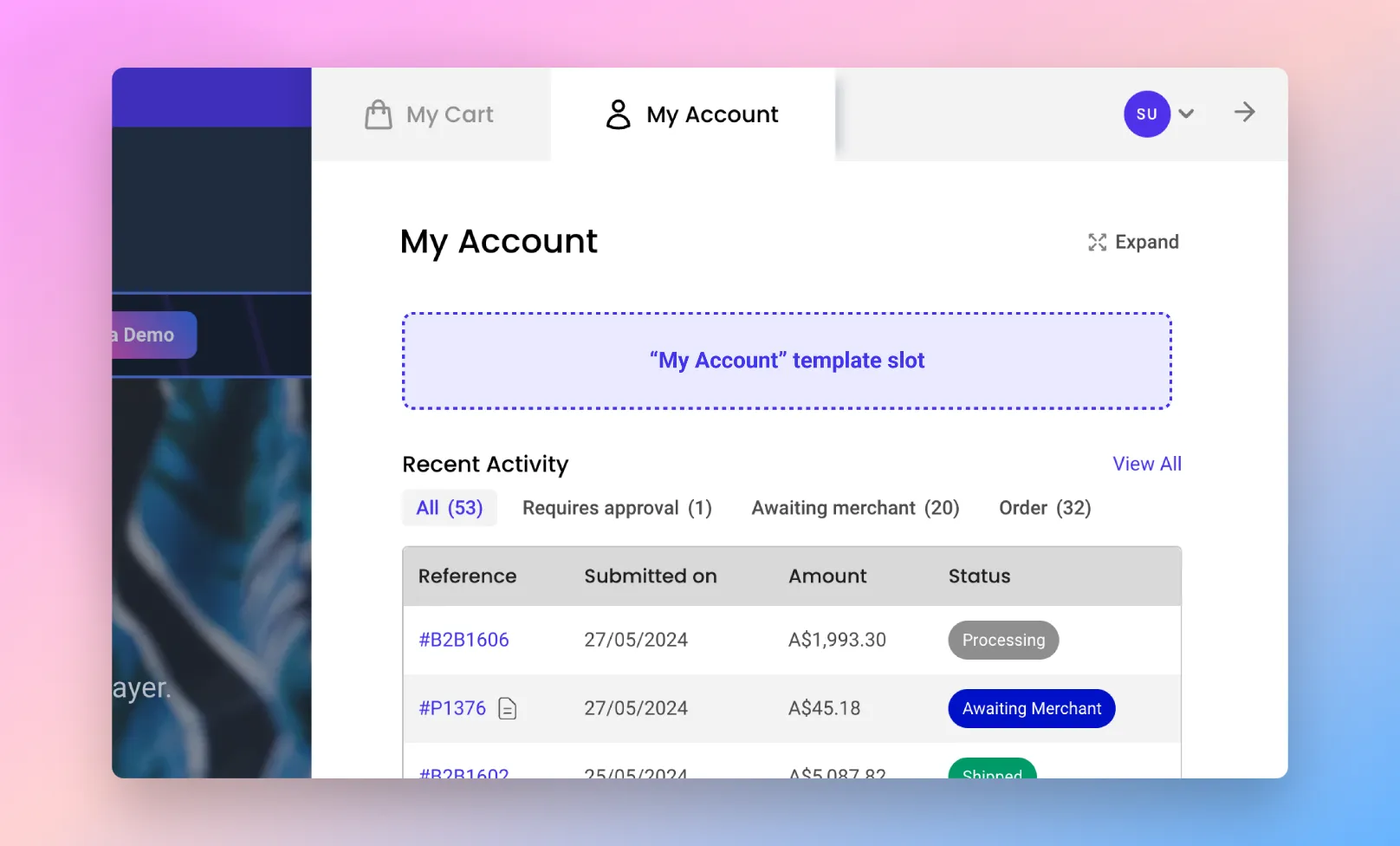
The "My Account" template slot is displayed at the top of the My Account Interface when a B2B customer signs in.
My Order
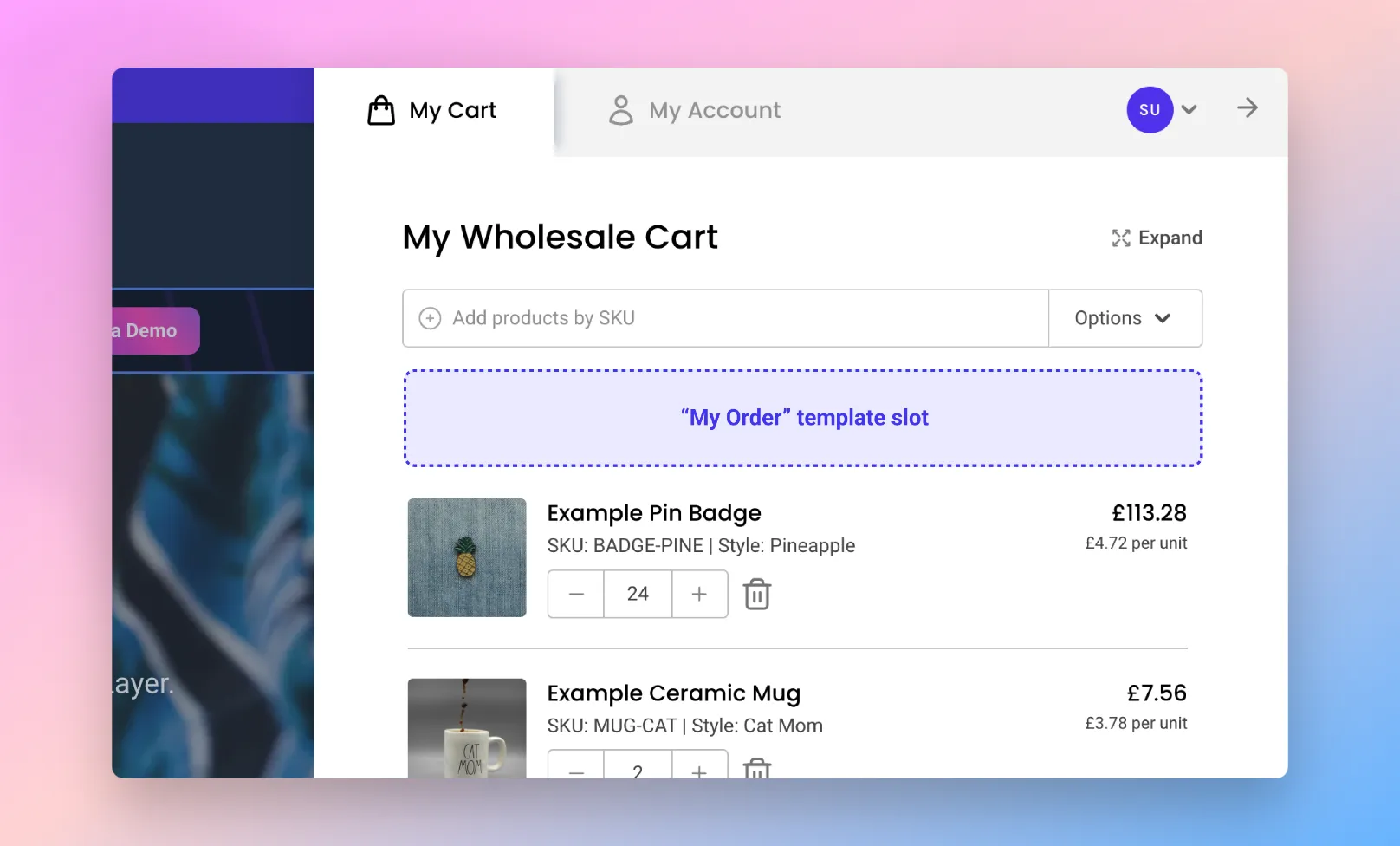
The "My Order" template slot is displayed at the top of the My Cart Interface when a B2B customer signs in.
Order Complete
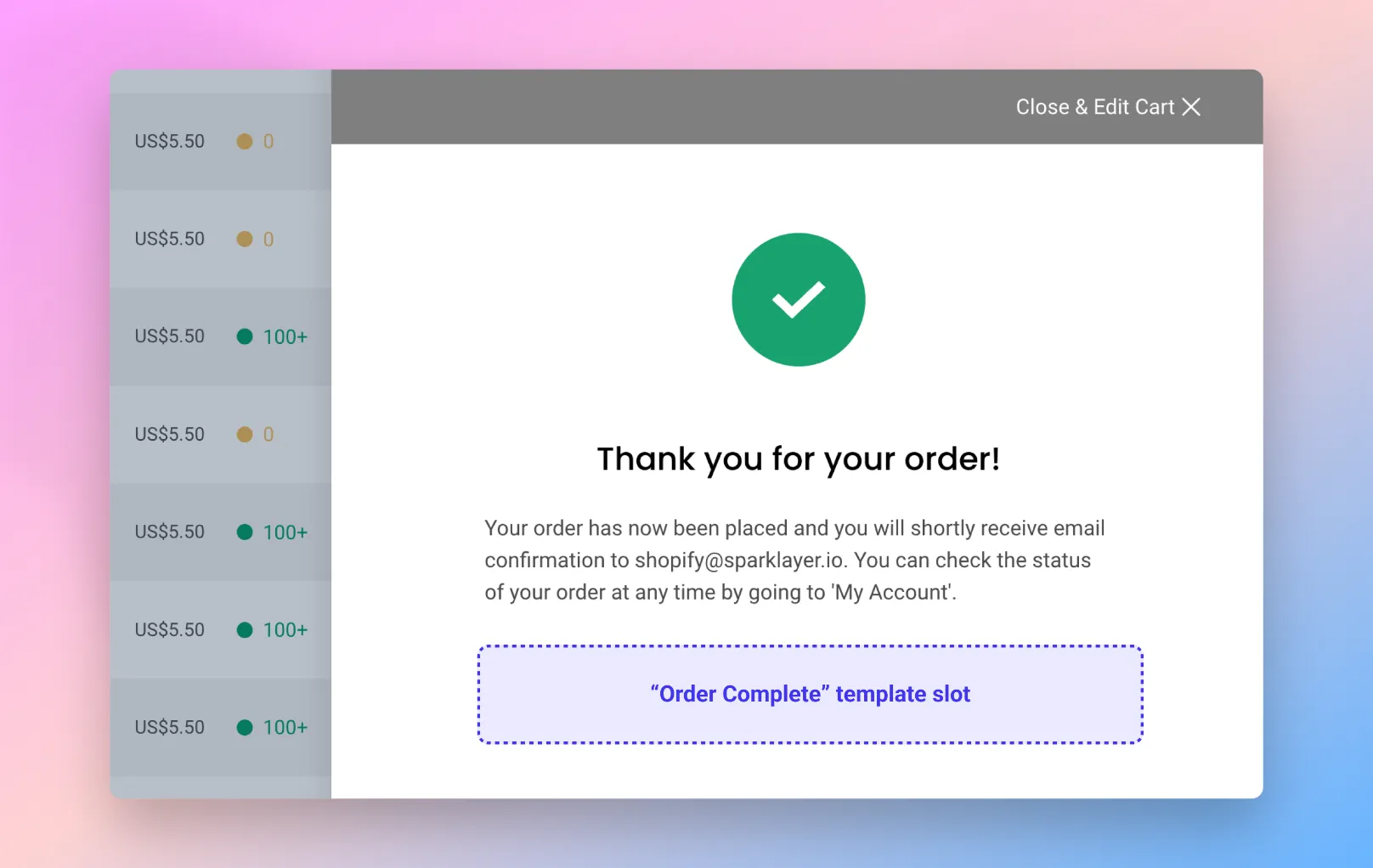
The "Order Complete" template slot is displayed when a B2B customer customer completes an order.
Cart Shipping Step
The "Cart Shipping Step" template slot is displayed on the "Shipping" step of the checkout.
Cart Payment Step
The "Cart Payment Step" template slot is displayed on the "Payment" step of the checkout.
Purchase Summary Header
The "Purchase Summary Header" template slot is displayed above the purchase summary when viewing a purchase.
Purchase Summary Footer
The "Purchase Summary Footer" template slot is displayed below the purchase summary when viewing a purchase.
Cart Line Item
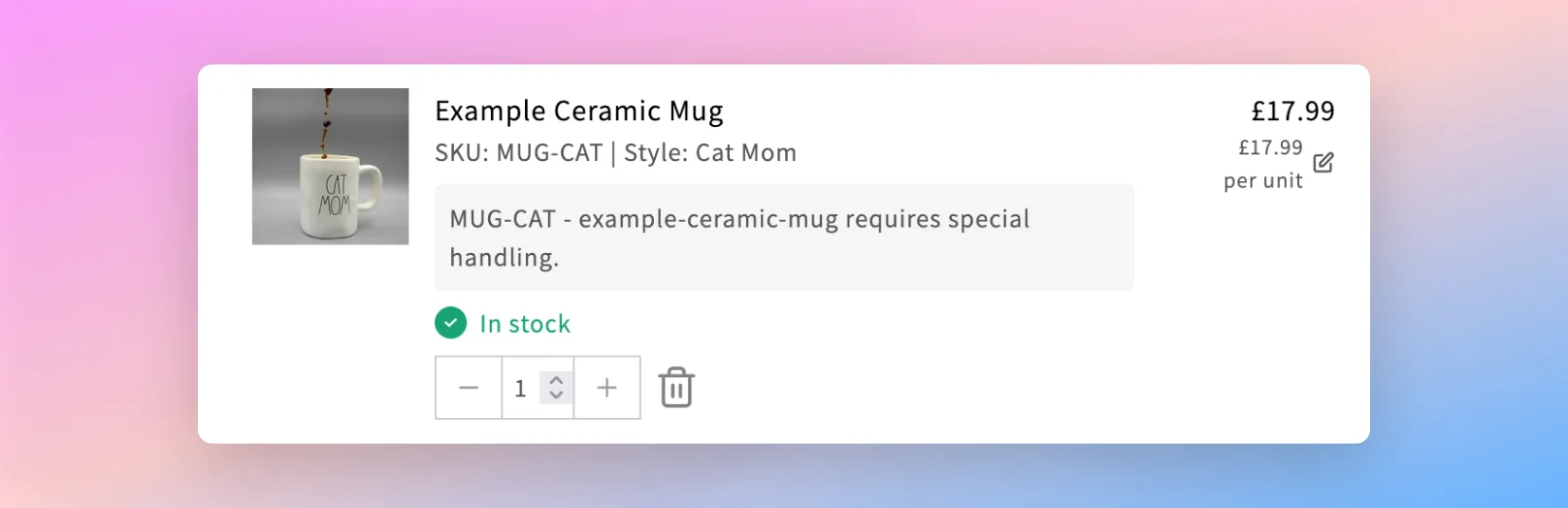
The "Cart Line Item" template slot is displayed below a product line item within the My Cart.
Getting Started
Configuring your store
To begin using Custom Slots, you'll need to add some specific code to the SparkLayer Core Script within the display section.
Based on the locations you intend to add to your website, you can include the below code in your SparkLayer Core Script.
 display: {
    showSlots: [
  'spark-slot-my-account',
  'spark-slot-my-cart',
  'spark-slot-order-complete',
  'spark-slot-cart-shipping-step',
  'spark-slot-cart-payment-step',
  'spark-slot-purchase-summary-header',
  'spark-slot-purchase-summary-footer',
  'spark-slot-my-cart-line-item',
],
  },
Name | Details |
|---|---|
spark-slot-my-account | This enables the "My Account" slot |
spark-slot-my-cart | This enables the "My Order" slot |
spark-slot-order-complete | This enables the "Order Complete" slot |
spark-slot-cart-shipping-step | This enables the "Cart Shipping Step" slot |
spark-slot-cart-payment-step | This enables the "Cart Payment Step" slot |
spark-slot-purchase-summary-header | This enables the "Purchase Summary Header" slot |
spark-slot-purchase-summary-footer | This enables the "Purchase Summary Footer" slot |
spark-slot-my-cart-line-item | This enables the "Cart Line Item" slot |
Adding & customising the slots
Once you've adjusted the SparkLayer Core Script with the above changes, you can then proceed to add custom content for each of the locations.
To get started, you simply need to add a template element within your website code, referencing the id of one of the slot locations above.
<!-- Example code for the My Account slot -->
<template id="spark-slot-my-account">
   <div class="my-content">
       Content here will show in the My Account section.
   </div>
</template>

<!-- Example code for the My Cart slot -->
<template id="spark-slot-my-cart">
   <div class="my-content">
       Content here will show in the My Order section.
   </div>
</template>

<!-- Example code for the My Order slot -->
<template id="spark-slot-order-complete">
   <div class="my-content">
       Content here will show in the Order Complete section.
   </div>
</template>

<!-- Example code for the Cart Shipping Step slot -->
<template id="spark-slot-cart-shipping-step">
   <div class="my-content">
       Content here will show in the Cart Shipping Step section.
   </div>
</template>

<!-- Example code for the Cart Payment Step slot -->
<template id="spark-slot-cart-payment-step">
   <div class="my-content">
       Content here will show in the Cart Payment Step section.
   </div>
</template>

<!-- Example code for the Purchase Summary Header slot -->
<template id="spark-slot-purchase-summary-header">
   <div class="my-content">
       Content here will show in the Purchase Summary Header section.
   </div>
</template>

<!-- Example code for the Purchase Summary Footer slot -->
<template id="spark-slot-purchase-summary-footer">
   <div class="my-content">
       Content here will show in the Purchase Summary Footer section.
   </div>
</template>
You could include these template elements within the main template file of your website (e.g. layout/theme.liquid for Shopify), or any other appropriate location that is easy for you to access and update.
The template markup can be very simple with some basic text or you could extend this with more extensive HTML, CSS, images, and other elements. It is really up to you!
Please note It's important to note the following:
- Any code added within the template elements will show within the specific SparkLayer interface (e.g. the spark-slot-my-cart template element will show in the My Cart Interface.
- These template elements will not be shown anywhere else on your website and will be invisible to logged out customers.
Examples you can use
To help you get started, we've included some examples you could use.

Come up with an interesting use-case? We've love to know how you're using custom slots. Let our team know by emailing [email protected]