BigCommerce Metafields & Data Mapping
Introduction
Metafields help you to customise the functionality and appearance of your BigCommerce store by letting you save specialised information that isn't usually captured in the BigCommerce admin. You can use metafields for internal tracking, or to display specialised information on your online store in a variety of ways.
In the context of SparkLayer, metafields are used to capture additional B2B data that you can then use in a variety of ways:
Type | Details |
|---|---|
Product metafields | Updating the Frontend Interfaces by adding configurations such as pack sizing, RRP prices, and more |
Customer attributes | Updating a customer's information by adding information such as credit limits |
Order metafields | Updating an order with invoicing information |
How to add metafields to BigCommerce
BigCommerce has a variety of ways to access and edit metafields and you may already have your preferred way of doing this. You can also refer to our guide below.
Useful resources
Item | Details |
|---|---|
Approved apps | Metafields Manager This provides a simple way to manage metafield data within BigCommerce with the exception of "Customers" |
Developer docs | We also recommend referring to the official BigCommerce guide on accessing metafield data |
Configuring different types of metafields
There are currently no BigCommerce apps that allow customer attribtues to be added to Customer data. We therefore recommend a more technical approach to accessing and updating this data.
Currently customer settings can be added though the use of BigCommerce customer attributes. Before these attribute fields are shown on the customer "Create" and 'Edit" screens in BigCommerce, the attribute types must be manually created for each store.
This can be done using the shell command below. You will need to replace YOUR_STORE_HASH and YOUR_STORE_API_TOKEN values. You can find the store hash in the URL of the store admin page:

You will need to create an API token by going to Settings -> Store-level API accounts, clicking the Create API Account button, entering a descriptive name (e.g. SparkLayer Support), and selecting the Modify value of the Customers scope:
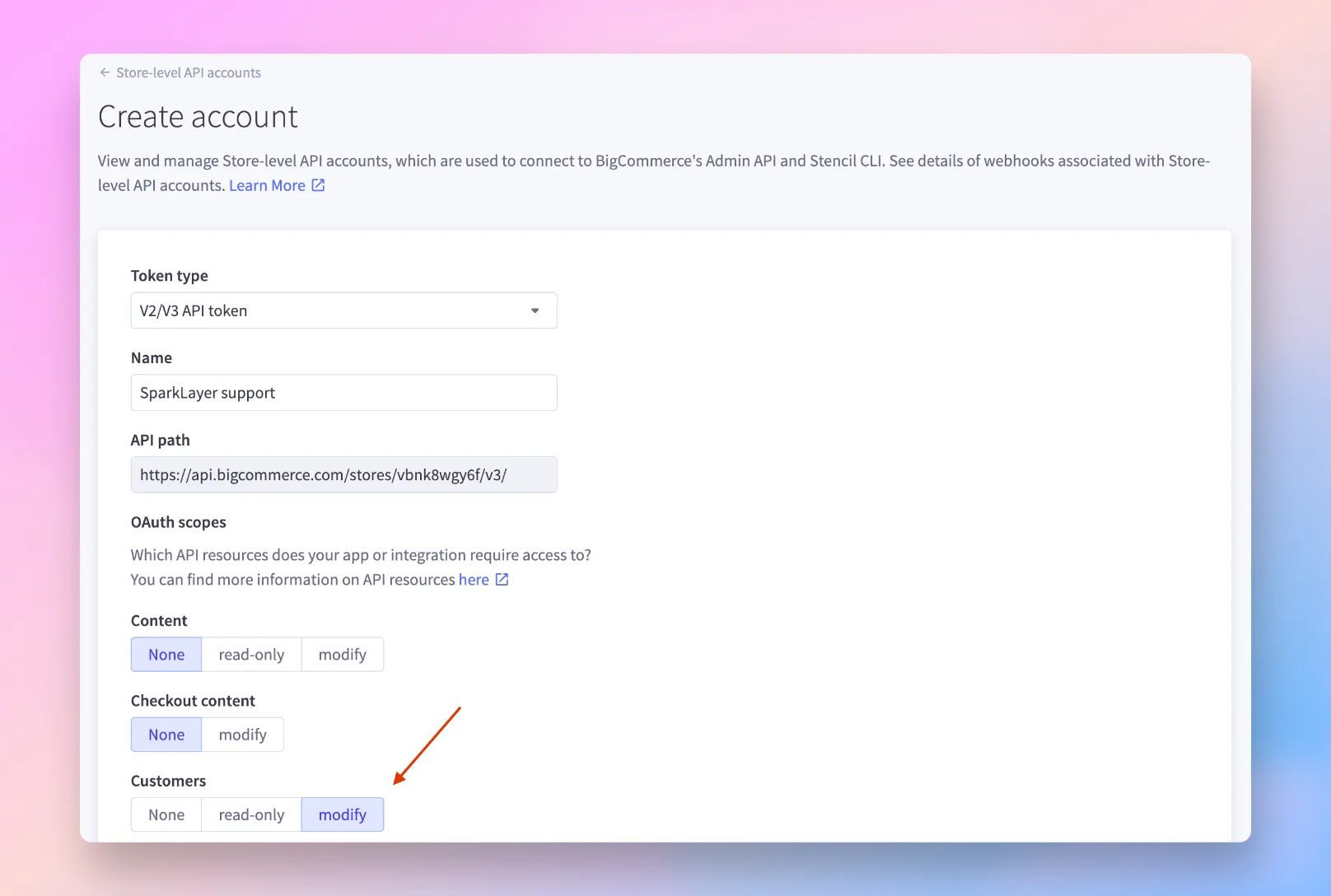
Click Save. You will now see a popup with the credentials, which are also downloaded to your computer. You will need the access token value.
Replace the two values in the command below and run it in your terminal (please note that you can remove the attributes that are not needed to only create the required attributes):
curl --request POST \
  --url https://api.bigcommerce.com/stores/YOUR_STORE_HASH/v3/customers/attributes \
  --header 'Content-Type: application/json' \
  --header 'X-Auth-Token: YOUR_STORE_API_TOKEN' \
  --data '[
	{
		"name": "SparkLayer - Price Lists",
		"type": "string"
	},
	{
		"name": "SparkLayer - Payment On Account",
		"type": "string"
	},
	{
		"name": "SparkLayer - Accounting ID",
		"type": "string"
	},
	{
		"name": "SparkLayer - Discount Percentage",
		"type": "number"
	},
	{
		"name": "SparkLayer - Sales Agent Groups",
		"type": "string"
	},
	{
		"name": "SparkLayer - Parent Customer ID",
		"type": "string"
	}
]'
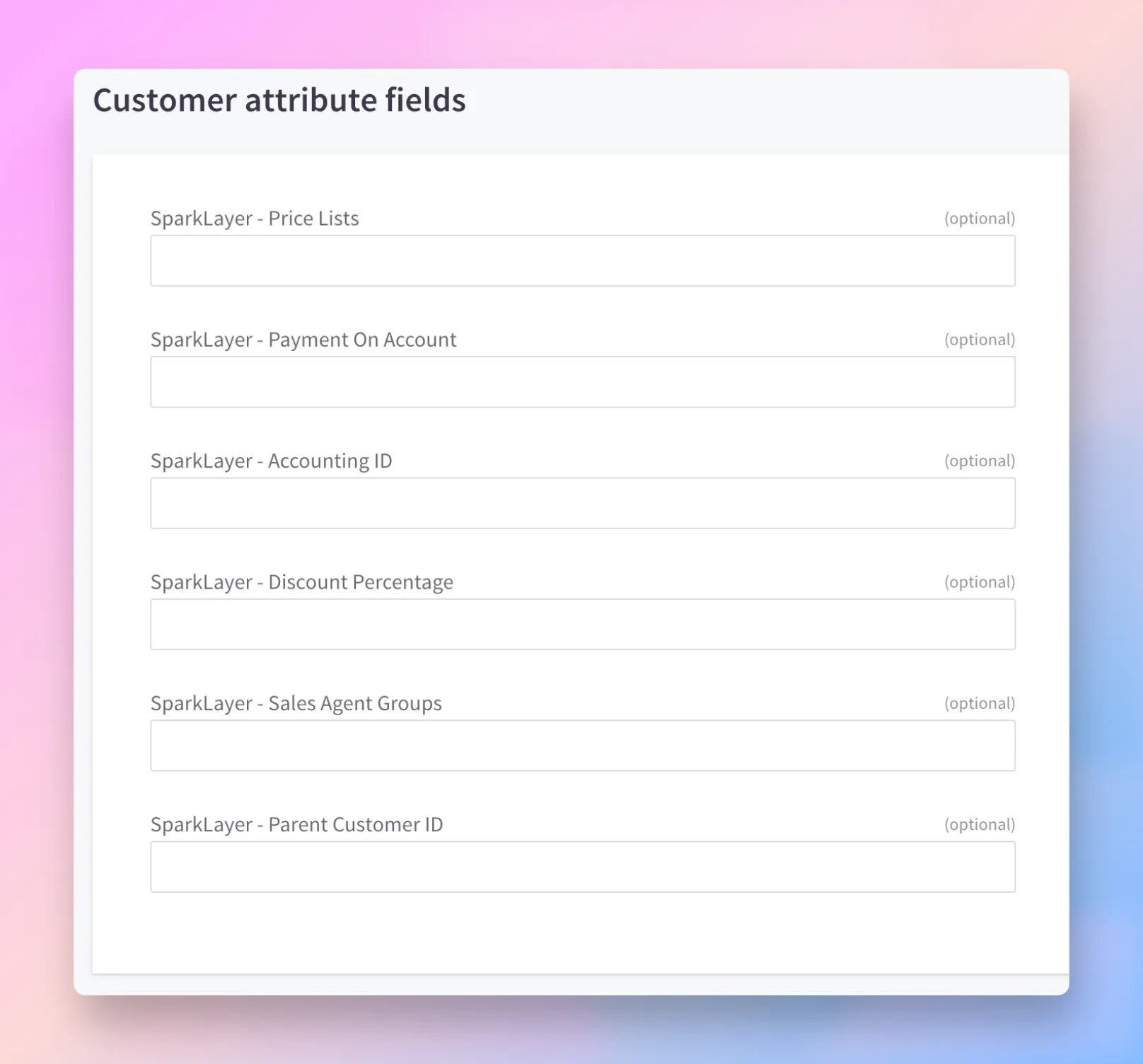
You will now see the attributes and be able to edit them in the customer create and edit pages.
Order history: importing historical orders into SparkLayer
It's possible to import historical B2B order data into SparkLayer, allowing customers to see their previous order history once they access their account on your store.
To do this add a metafield to the order as shown below:
Item | Details |
|---|---|
Namespace | This must be set as sparklayer |
Key | This must be set as order_import |
Value | This must be set as a string of true |
Any orders that are imported this way must also belong to a customer that has a B2B customer group assigned.
Even though the order metafield above can be setup manually using one of the many metafield management apps available, for large numer of orders you might want to automate this using the BigCommerce Order Metafields API.
Please note The note attribute must be added to the order after SparkLayer is installed for the order to be synchronised correctly. Orders synced in this way can then be reported upon and will appear in the Orders section of the SparkLayer Dashboard.
Troubleshooting If your store was installed before the 14th of November, 2024, you might need to contact the SparkLayer customer support to re-save your BigCommerce integration in order to register the required order metafield webhooks. These webhooks notify our system of new metafields added to orders.
Order Data
Order ID ("Visible ID") and setting a custom order number
It's possible to use a custom order ID instead of the standard order ID generated from BigCommerce. A typical use-case is customising the Order ID to match order numbers generated from a back-office system (e.g. an ERP), ensuring consistency across systems.
When the "Visible ID" is set, this will then take effect when the customer views their orders from the My Account Interface.
Item | Details |
|---|---|
Custom data type | Order |
Metafield type | This must be set as an single line text |
Namespace | This must be set as sparklayer |
Key | This must be set as visible_id |
Please note If you're using the "Visible ID" configuration, any orders that do not have this populated will fallback to the standard BigCommerce order number.
Important considerations
In order for SparkLayer to work with BigCommerce metafields, please note the following:
Product metafields Metafields are always added at the product variant level, even if the product only comes in a single variant.
JSON data Some SparkLayer settings require metafields to be set up as JSON strings. These will need to be carefully added, making sure the formatting is set correctly.
Advanced settings
To learn about more advanced settings, including customer-level product metafield settings, please see Product Settings